> ## Documentation Index
> Fetch the complete documentation index at: https://docs.getbifrost.ai/llms.txt
> Use this file to discover all available pages before exploring further.
# Skills Repository
> Create, version, and publish Agent Skills from Bifrost, then install them in Claude Code, Codex, and other skill-aware harnesses.
## Overview
The **Skills Repository** turns Bifrost into a central place to manage [Agent Skills](https://agentskills.io): reusable `SKILL.md` instructions plus any supporting files an agent needs.
Use it when you want to:
* create and maintain skills from the Bifrost dashboard
* attach reference files, examples, scripts, or assets to a skill
* publish immutable versions with SemVer
* register Bifrost as a skills marketplace for Claude Code and Codex
* install either one skill at a time or the bundled `bifrost-all-skills` plugin
Management actions are authenticated and permission-gated. Marketplace and download URLs are public so CLI agents can fetch and clone skills without carrying dashboard credentials.
 ## Create a skill
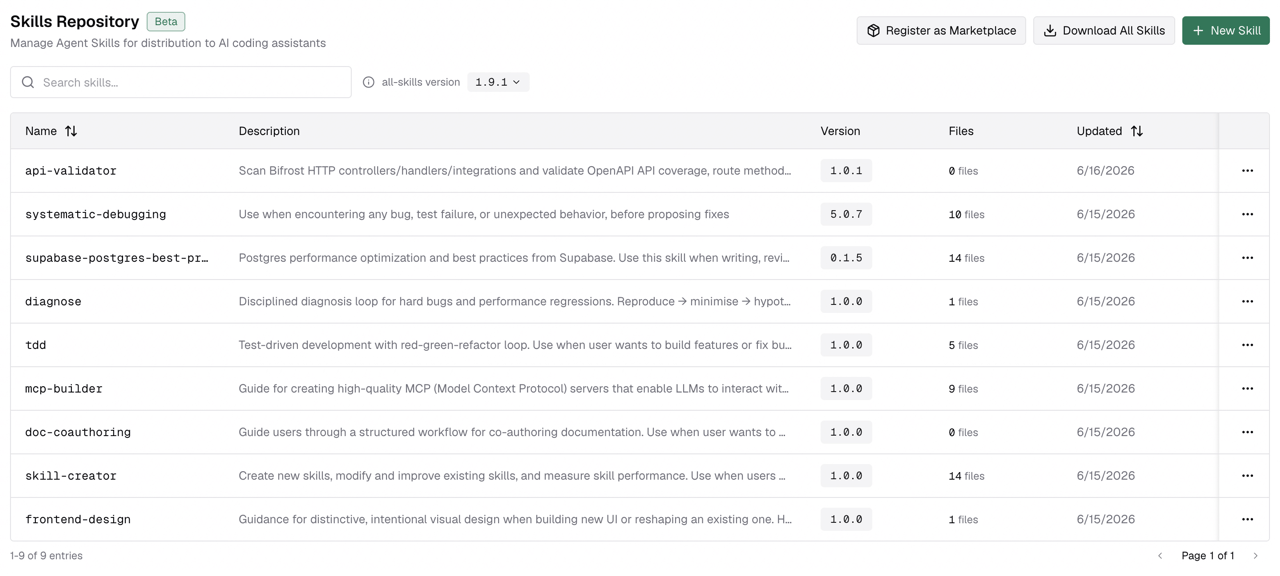
From the dashboard, open **Skills Repository** and click **New Skill** (or **Create Skill** from the empty-state page if no skills exist yet).
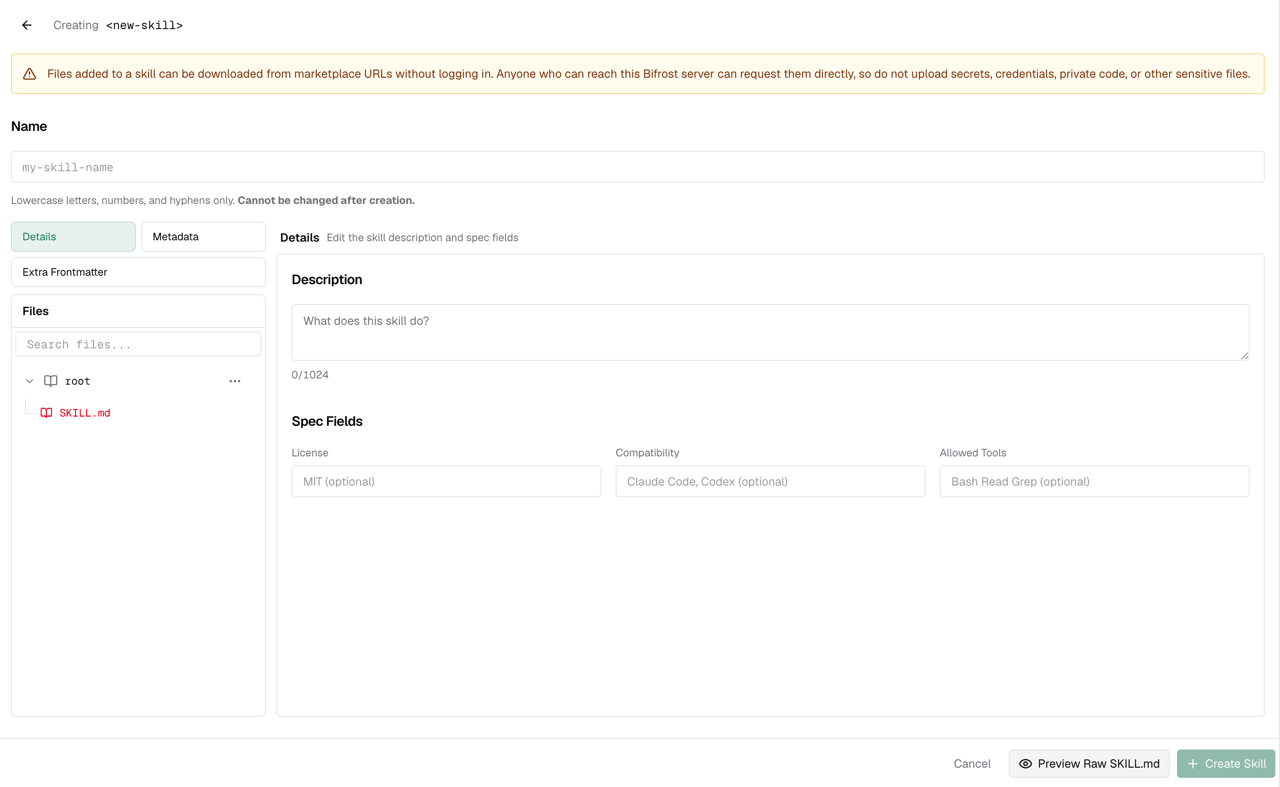
The editor uses a two-pane workspace. The left sidebar has three navigation buttons -- **Details**, **Metadata**, and **Extra Frontmatter** -- above the file tree. Clicking a button switches the right pane to the corresponding editor.
### 1. Fill the skill details
Click **Details** in the left sidebar to open the details pane. Fill in the fields that describe the skill:
| Field | What it does |
| ----------------- | -------------------------------------------------------------------------------------------------------------------- |
| **Name** | The stable skill identifier. Use lowercase letters, numbers, and hyphens. The name cannot be changed after creation. |
| **Description** | A short explanation shown in the dashboard and marketplaces. |
| **License** | Optional SPDX-style license identifier shown in the generated `SKILL.md` frontmatter, such as `MIT` or `Apache-2.0`. |
| **Compatibility** | Optional list of skill-aware harnesses this skill is intended to work with, such as Claude Code or Codex. |
| **Allowed tools** | Optional, experimental frontmatter that compatible harnesses may use to allow or restrict tool usage for the skill. |
Click **Metadata** to open the key-value table editor for optional metadata nested under `metadata:` in `SKILL.md`. Click **Extra Frontmatter** to open a JSON editor for additional top-level YAML frontmatter keys.
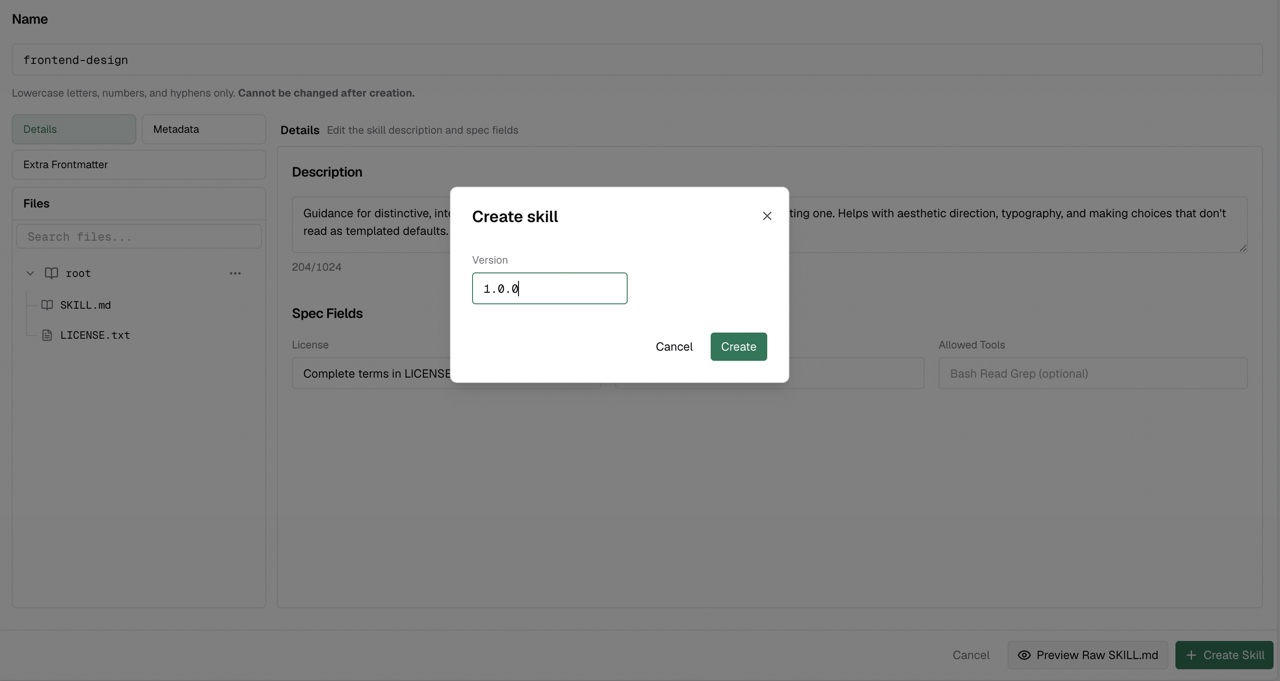
Version is not entered inline. You choose it in a dialog when you click **Create Skill**, right before publishing.
Do not use reserved names like `all-skills`, `all`, `claude-code`, or `codex`. These are used by the serving and marketplace routes.
## Create a skill
From the dashboard, open **Skills Repository** and click **New Skill** (or **Create Skill** from the empty-state page if no skills exist yet).
The editor uses a two-pane workspace. The left sidebar has three navigation buttons -- **Details**, **Metadata**, and **Extra Frontmatter** -- above the file tree. Clicking a button switches the right pane to the corresponding editor.
### 1. Fill the skill details
Click **Details** in the left sidebar to open the details pane. Fill in the fields that describe the skill:
| Field | What it does |
| ----------------- | -------------------------------------------------------------------------------------------------------------------- |
| **Name** | The stable skill identifier. Use lowercase letters, numbers, and hyphens. The name cannot be changed after creation. |
| **Description** | A short explanation shown in the dashboard and marketplaces. |
| **License** | Optional SPDX-style license identifier shown in the generated `SKILL.md` frontmatter, such as `MIT` or `Apache-2.0`. |
| **Compatibility** | Optional list of skill-aware harnesses this skill is intended to work with, such as Claude Code or Codex. |
| **Allowed tools** | Optional, experimental frontmatter that compatible harnesses may use to allow or restrict tool usage for the skill. |
Click **Metadata** to open the key-value table editor for optional metadata nested under `metadata:` in `SKILL.md`. Click **Extra Frontmatter** to open a JSON editor for additional top-level YAML frontmatter keys.
Version is not entered inline. You choose it in a dialog when you click **Create Skill**, right before publishing.
Do not use reserved names like `all-skills`, `all`, `claude-code`, or `codex`. These are used by the serving and marketplace routes.
 ### 2. Write the `SKILL.md` body
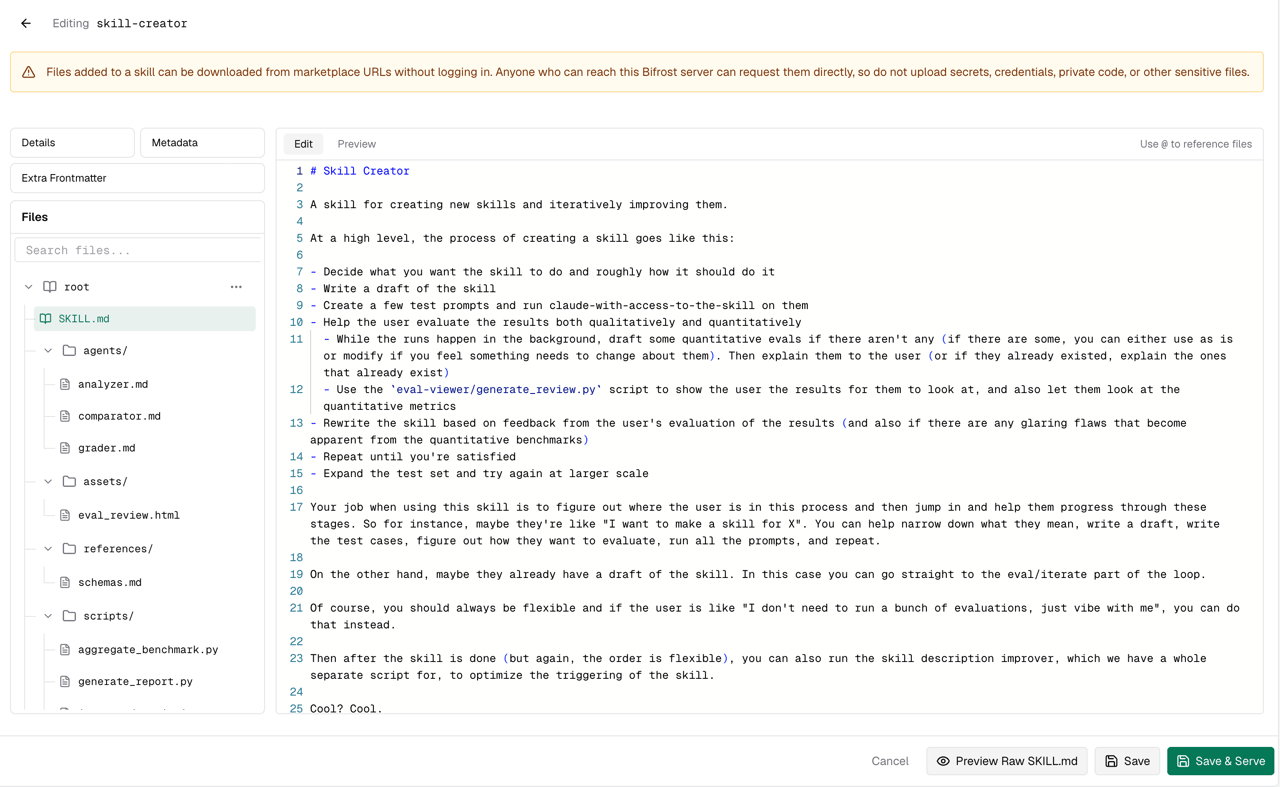
Click the **SKILL.md** node in the file tree on the left sidebar to open the markdown editor. The editor stores only the Markdown body of `SKILL.md`. Bifrost generates the YAML frontmatter from the fields above, then appends this body underneath it.
The editor has **Edit** and **Preview** tabs so you can switch between writing and previewing the rendered output.
Use this space for the instructions that should load after a harness activates the skill. Keep discovery fields such as name, description, license, compatibility, allowed tools, and metadata in the sidebar panes.
For the canonical guidance on writing effective Agent Skills, use the Agent Skills docs:
* [Agent Skills specification](https://agentskills.io/specification)
* [Skill creator best practices](https://agentskills.io/skill-creation/best-practices)
* [Optimizing skill descriptions](https://agentskills.io/skill-creation/optimizing-descriptions)
If your skill depends on supporting files, upload them in the file manager below and reference them from the body with `@`.
### 2. Write the `SKILL.md` body
Click the **SKILL.md** node in the file tree on the left sidebar to open the markdown editor. The editor stores only the Markdown body of `SKILL.md`. Bifrost generates the YAML frontmatter from the fields above, then appends this body underneath it.
The editor has **Edit** and **Preview** tabs so you can switch between writing and previewing the rendered output.
Use this space for the instructions that should load after a harness activates the skill. Keep discovery fields such as name, description, license, compatibility, allowed tools, and metadata in the sidebar panes.
For the canonical guidance on writing effective Agent Skills, use the Agent Skills docs:
* [Agent Skills specification](https://agentskills.io/specification)
* [Skill creator best practices](https://agentskills.io/skill-creation/best-practices)
* [Optimizing skill descriptions](https://agentskills.io/skill-creation/optimizing-descriptions)
If your skill depends on supporting files, upload them in the file manager below and reference them from the body with `@`.
 ### 3. Reference files with `@`
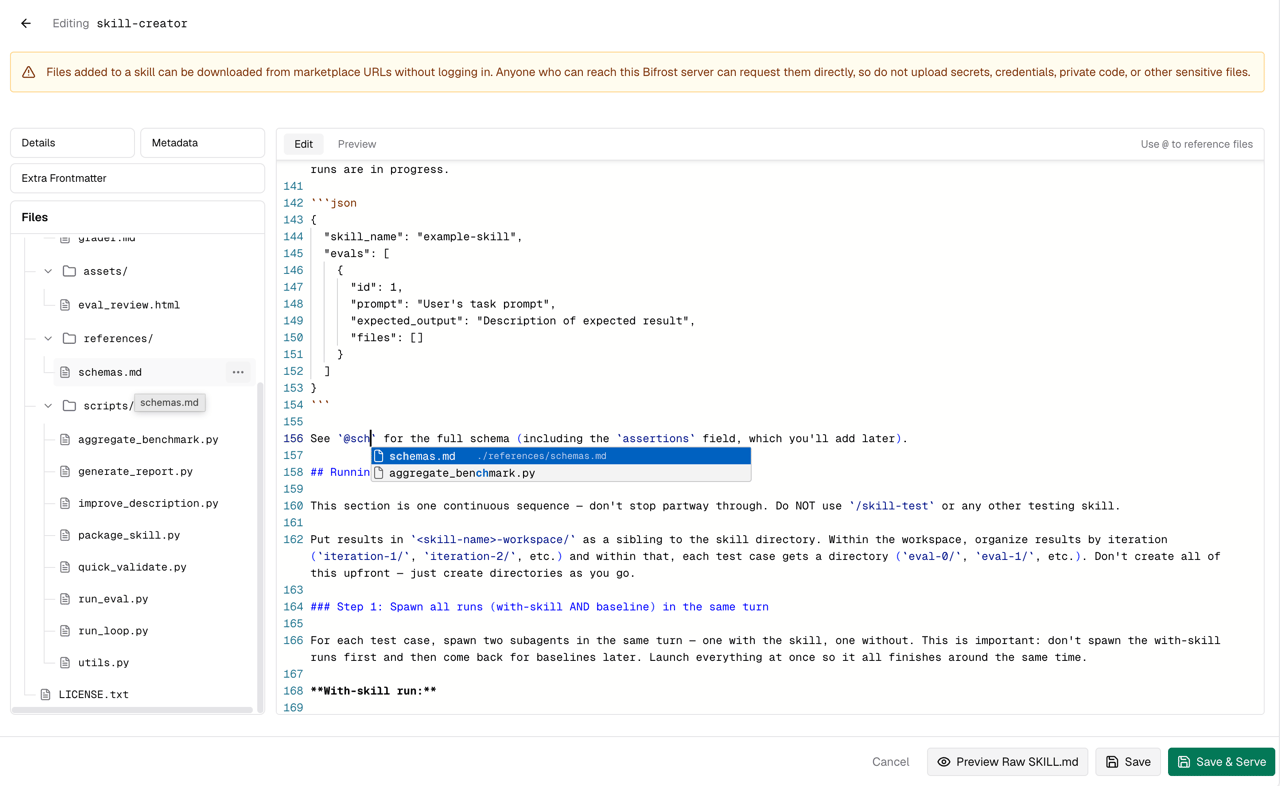
When your skill body needs to point to an uploaded file, type `@` in the markdown editor. A dropdown appears listing matching files and folders from the file tree, showing each item's name alongside its relative path. Select an entry and Bifrost inserts a markdown link for you:
```md theme={null}
Before responding, read @[style-guide.md](./references/style-guide.md) for conventions.
```
You type `@sty`, pick the file from the dropdown, and the editor expands it into the full relative-path link.
### 3. Reference files with `@`
When your skill body needs to point to an uploaded file, type `@` in the markdown editor. A dropdown appears listing matching files and folders from the file tree, showing each item's name alongside its relative path. Select an entry and Bifrost inserts a markdown link for you:
```md theme={null}
Before responding, read @[style-guide.md](./references/style-guide.md) for conventions.
```
You type `@sty`, pick the file from the dropdown, and the editor expands it into the full relative-path link.
 ## Add files and folders
The **Files** section in the left sidebar below the pane-selector buttons is where you attach scripts, references, templates, and any other supporting content the skill needs.
The file tree starts at **root** with the `SKILL.md` node at the top. A search bar above the tree lets you filter files by path. The context menu on each row gives you three actions:
* **Add file** -- add a single file into that location
* **Add Folder** -- create a new empty subfolder (type the name and confirm with the checkmark)
* **Upload folder** -- upload an entire folder from your machine, preserving its structure
## Add files and folders
The **Files** section in the left sidebar below the pane-selector buttons is where you attach scripts, references, templates, and any other supporting content the skill needs.
The file tree starts at **root** with the `SKILL.md` node at the top. A search bar above the tree lets you filter files by path. The context menu on each row gives you three actions:
* **Add file** -- add a single file into that location
* **Add Folder** -- create a new empty subfolder (type the name and confirm with the checkmark)
* **Upload folder** -- upload an entire folder from your machine, preserving its structure
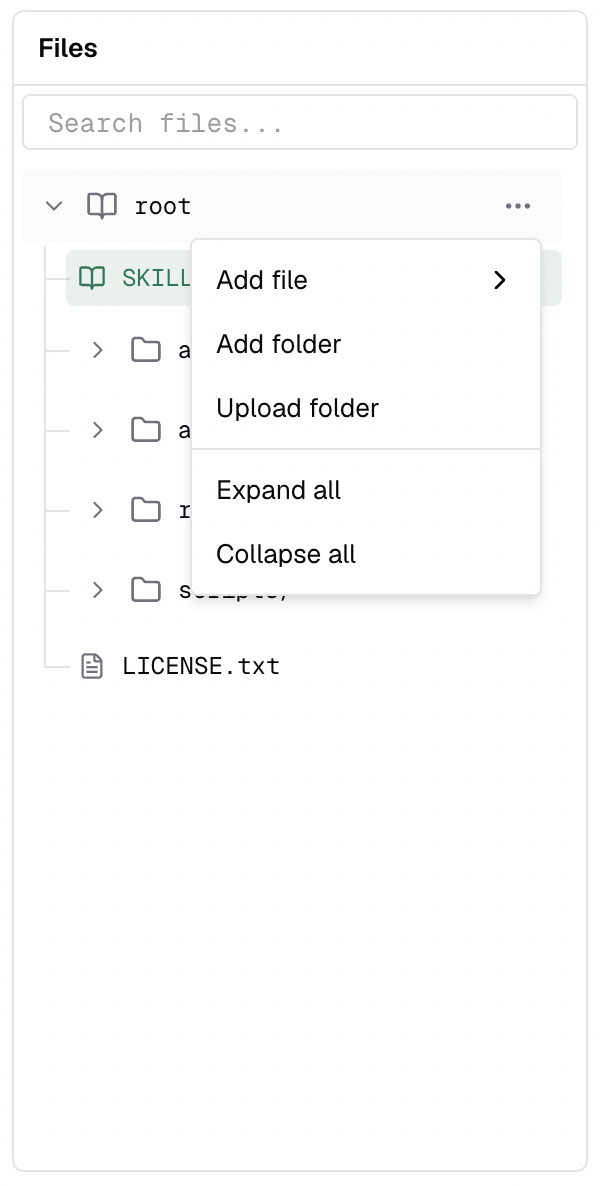 Every folder in the tree has the same set of actions, so you can add files or create subfolders at any depth directly.
### Adding a file
Choosing **Add file** gives you four source types:
| Source | What it does |
| ----------------- | -------------------------------------------------------------------------------------------------------------------------------------------------------- |
| **Upload** | Pick a file from your machine to upload directly. |
| **From text** | Creates a file you can write or paste content into directly. |
| **From URL** | References an `http://` or `https://` URL. The content is fetched from that URL when the skill is served, so it stays up to date with the remote source. |
| **From data URL** | References a `data:` URL for content you already have base64-encoded or inline. |
Every folder in the tree has the same set of actions, so you can add files or create subfolders at any depth directly.
### Adding a file
Choosing **Add file** gives you four source types:
| Source | What it does |
| ----------------- | -------------------------------------------------------------------------------------------------------------------------------------------------------- |
| **Upload** | Pick a file from your machine to upload directly. |
| **From text** | Creates a file you can write or paste content into directly. |
| **From URL** | References an `http://` or `https://` URL. The content is fetched from that URL when the skill is served, so it stays up to date with the remote source. |
| **From data URL** | References a `data:` URL for content you already have base64-encoded or inline. |
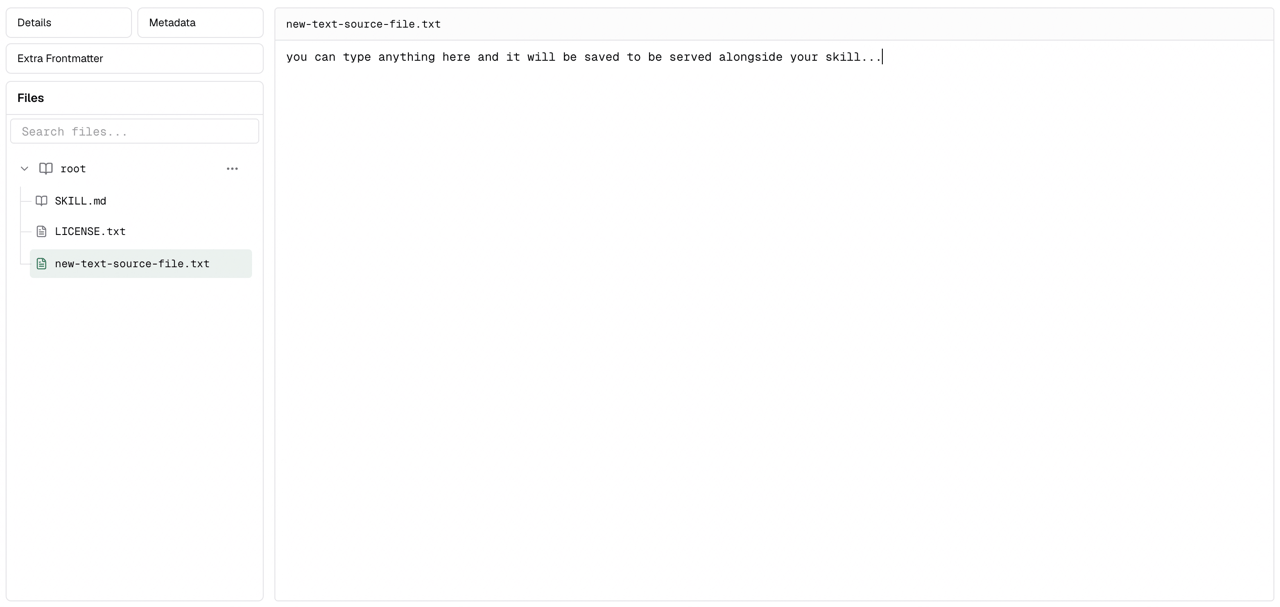
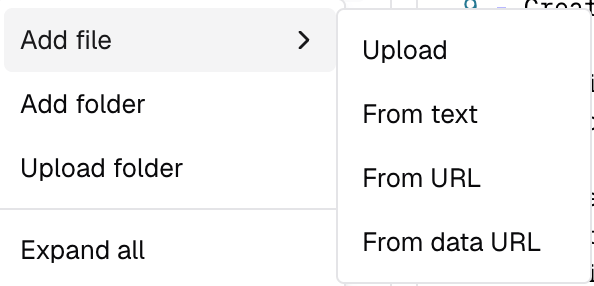 After choosing a source type, an inline text input appears in the file tree for you to type the filename. Confirm with the checkmark. Once confirmed, the right pane opens the appropriate editor for that source type:
* **Text**: A free-form text area where you type or paste the file content.
* **URL**: A single text input to paste the URL, with a note that it is stored as a live reference.
* **Data URL**: A text area to paste the data URL.
* **Upload**: A file picker to select and upload the file directly.
For **text**, **URL**, and **data URL** files you can edit the content later by selecting the file in the tree. **Upload** files are stored and referred and cannot be edited in place -- delete and re-upload to replace them.
After choosing a source type, an inline text input appears in the file tree for you to type the filename. Confirm with the checkmark. Once confirmed, the right pane opens the appropriate editor for that source type:
* **Text**: A free-form text area where you type or paste the file content.
* **URL**: A single text input to paste the URL, with a note that it is stored as a live reference.
* **Data URL**: A text area to paste the data URL.
* **Upload**: A file picker to select and upload the file directly.
For **text**, **URL**, and **data URL** files you can edit the content later by selecting the file in the tree. **Upload** files are stored and referred and cannot be edited in place -- delete and re-upload to replace them.
 ### Creating a folder
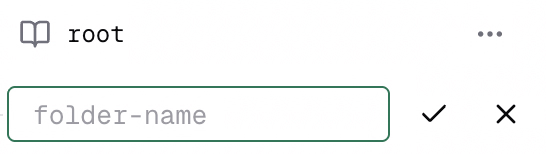
Click **Add folder** and an inline text input appears with a `folder-name` placeholder. Type your folder name and confirm with the checkmark. The new folder appears in the tree immediately, with its own set of **Add file**, **Add folder** and **Upload folder** buttons.
### Creating a folder
Click **Add folder** and an inline text input appears with a `folder-name` placeholder. Type your folder name and confirm with the checkmark. The new folder appears in the tree immediately, with its own set of **Add file**, **Add folder** and **Upload folder** buttons.
 ### Uploading a folder
Click **Upload folder** to bring in an entire directory from your machine. Bifrost preserves the folder structure and creates each file under its original relative path.
### Moving files and folders
In the context menu of any file you will find the **move** option. Clicking it opens a submenu listing every folder and subfolder in the tree. Pick the destination and the item moves there.
### Uploading a folder
Click **Upload folder** to bring in an entire directory from your machine. Bifrost preserves the folder structure and creates each file under its original relative path.
### Moving files and folders
In the context menu of any file you will find the **move** option. Clicking it opens a submenu listing every folder and subfolder in the tree. Pick the destination and the item moves there.
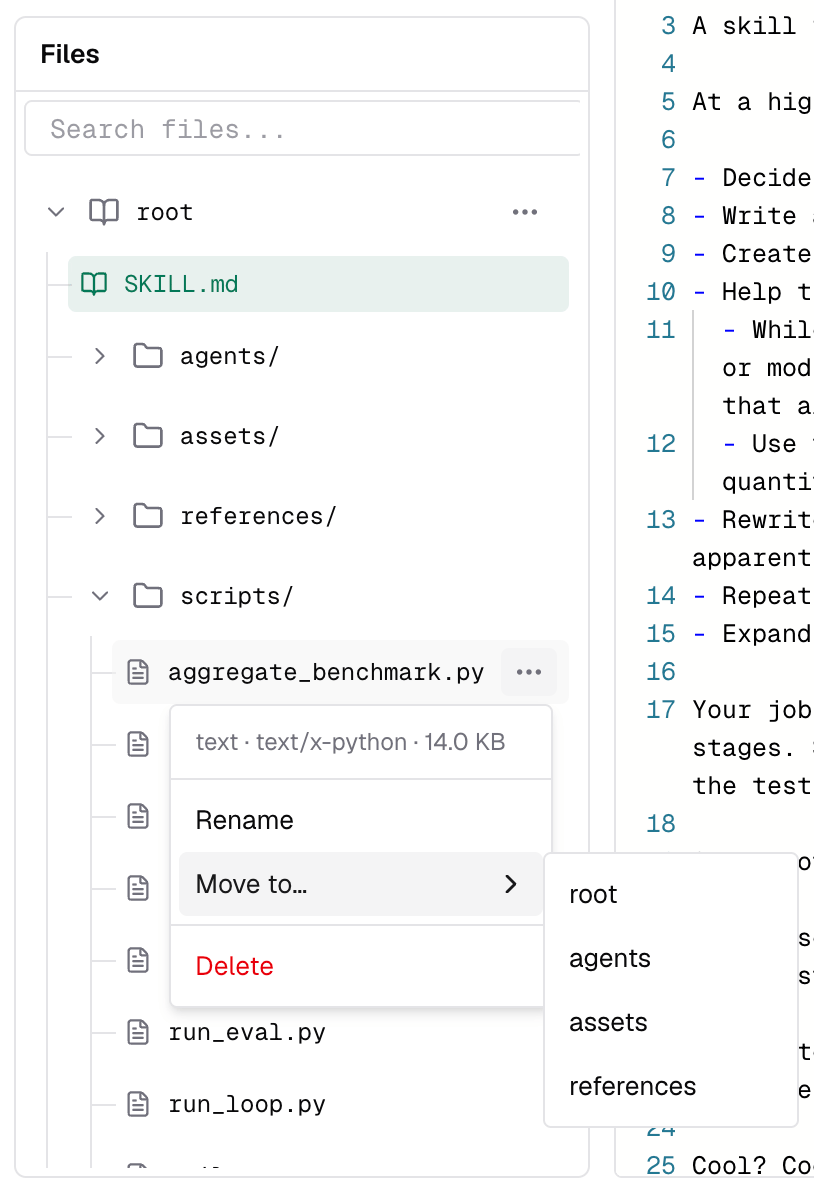 Moving a file or folder only changes its location in the tree. Stored file references stay intact, so you can reorganize without re-uploading anything.
### Storage and versioning
When you create a new version, Bifrost copies only the lightweight metadata: the `SKILL.md` content, description, frontmatter fields, and the file paths. The uploaded file objects themselves are not duplicated. Every version that references the same file points to the same underlying stored object, unless you change the contents of the file.
This means you can publish many versions of a skill with large attached files and your storage will not grow with each version. Storage only increases when you upload genuinely new files or modify the content of a file. Renaming or moving existing files across versions costs nothing extra.
When you delete a skill, all of its uploaded file objects are cleaned up alongside it.
### Deleting a folder
Click the **Delete** option in a folder's context menu to delete it. If the folder contains files, Bifrost asks for confirmation before removing everything inside it.
The deletion is applied to the skill only after you save a new version.
## Publish a version
When the skill is ready, click **Create Skill**. A version dialog appears where you choose the version number. Bifrost creates the first immutable version and serves it immediately.
Moving a file or folder only changes its location in the tree. Stored file references stay intact, so you can reorganize without re-uploading anything.
### Storage and versioning
When you create a new version, Bifrost copies only the lightweight metadata: the `SKILL.md` content, description, frontmatter fields, and the file paths. The uploaded file objects themselves are not duplicated. Every version that references the same file points to the same underlying stored object, unless you change the contents of the file.
This means you can publish many versions of a skill with large attached files and your storage will not grow with each version. Storage only increases when you upload genuinely new files or modify the content of a file. Renaming or moving existing files across versions costs nothing extra.
When you delete a skill, all of its uploaded file objects are cleaned up alongside it.
### Deleting a folder
Click the **Delete** option in a folder's context menu to delete it. If the folder contains files, Bifrost asks for confirmation before removing everything inside it.
The deletion is applied to the skill only after you save a new version.
## Publish a version
When the skill is ready, click **Create Skill**. A version dialog appears where you choose the version number. Bifrost creates the first immutable version and serves it immediately.
 ### SemVer expectations
Skill versions use SemVer:
```text theme={null}
MAJOR.MINOR.PATCH[-SUFFIX]
```
Use bumps consistently so marketplaces and harnesses can update predictably:
| Bump | Use for |
| ---------- | ------------------------------------------------------------------------------------------------------------ |
| **Patch** | Small fixes that should be safe for existing users, such as typo fixes or clearer instructions. |
| **Minor** | New behavior, new files, or meaningful improvements that remain backward-compatible. |
| **Major** | Breaking changes, removed workflows, renamed required files, or behavior that could surprise existing users. |
| **Suffix** | Pre-release or iteration labels, such as `1.2.0-beta.1`. A different suffix is still a new version. |
Numeric versions cannot go backwards. If `3.0.0` exists, you cannot publish `1.0.1` or `2.5.0` later, even if you are currently serving an older version.
## Adding new versions
Open a skill and click on **Add New Version**.
### SemVer expectations
Skill versions use SemVer:
```text theme={null}
MAJOR.MINOR.PATCH[-SUFFIX]
```
Use bumps consistently so marketplaces and harnesses can update predictably:
| Bump | Use for |
| ---------- | ------------------------------------------------------------------------------------------------------------ |
| **Patch** | Small fixes that should be safe for existing users, such as typo fixes or clearer instructions. |
| **Minor** | New behavior, new files, or meaningful improvements that remain backward-compatible. |
| **Major** | Breaking changes, removed workflows, renamed required files, or behavior that could surprise existing users. |
| **Suffix** | Pre-release or iteration labels, such as `1.2.0-beta.1`. A different suffix is still a new version. |
Numeric versions cannot go backwards. If `3.0.0` exists, you cannot publish `1.0.1` or `2.5.0` later, even if you are currently serving an older version.
## Adding new versions
Open a skill and click on **Add New Version**.
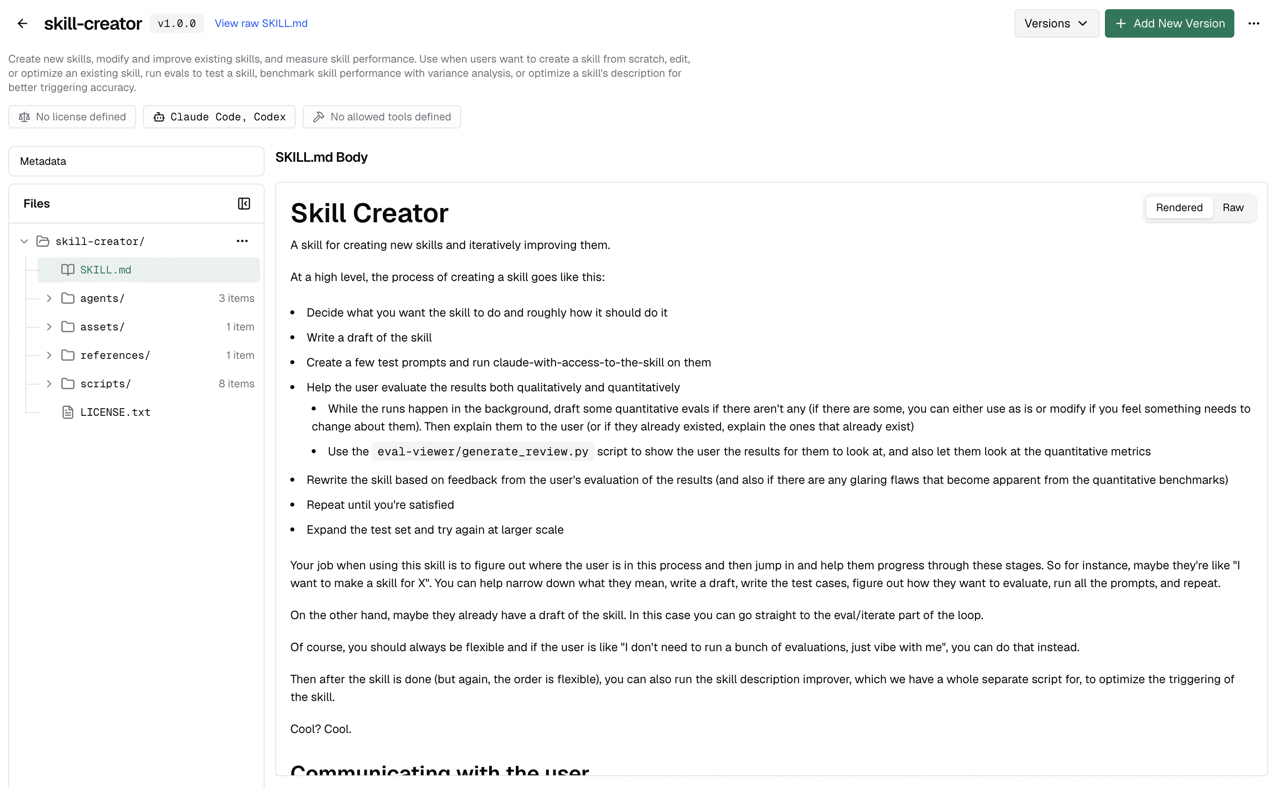 New versions always create a new snapshot. The existing published versions remain available in version history.
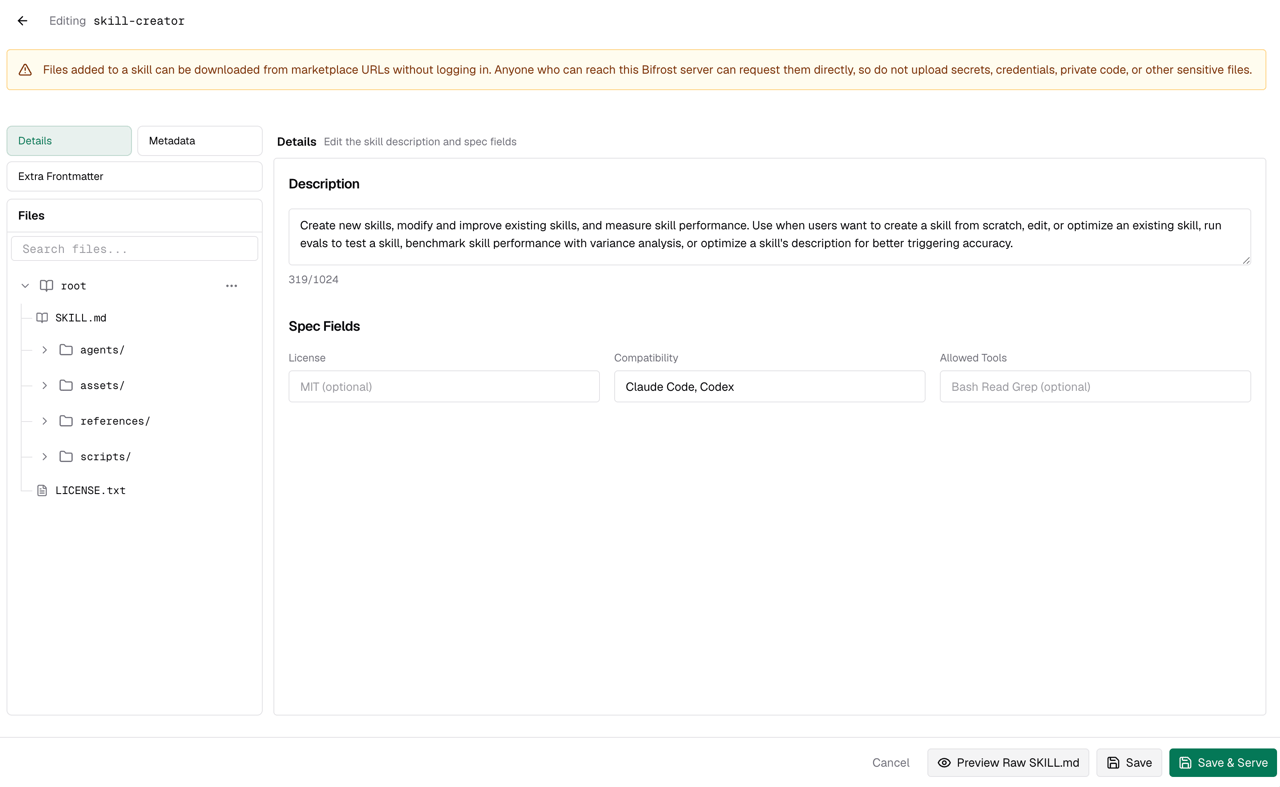
### What changes in adding a new version?
* The **name** is locked. It is the stable identifier used by marketplace plugin names and install URLs.
* The **description, frontmatter, metadata, body, and files** can be updated using the same two-pane workspace as the create flow.
* You choose the new version in a dialog when you click **Save** or **Save & Serve**.
| Action | Result |
| ---------------- | ---------------------------------------------------------------------------------- |
| **Save** | Creates a new version, but keeps the currently served version unchanged. |
| **Save & Serve** | Creates a new version and makes it the version users install from the marketplace. |
New versions always create a new snapshot. The existing published versions remain available in version history.
### What changes in adding a new version?
* The **name** is locked. It is the stable identifier used by marketplace plugin names and install URLs.
* The **description, frontmatter, metadata, body, and files** can be updated using the same two-pane workspace as the create flow.
* You choose the new version in a dialog when you click **Save** or **Save & Serve**.
| Action | Result |
| ---------------- | ---------------------------------------------------------------------------------- |
| **Save** | Creates a new version, but keeps the currently served version unchanged. |
| **Save & Serve** | Creates a new version and makes it the version users install from the marketplace. |
 ### Deleting existing files
Removing an existing file means the next saved version will no longer track that file. Older versions still have their own snapshots.
After you save, restoring a removed uploaded file requires adding or uploading it again.
## Switch the served version
Every saved version appears in the skill's version history. Click **Versions** in the skill detail header to open the versions popover. You can search versions by version string using the search bar at the top of the popover.
### Deleting existing files
Removing an existing file means the next saved version will no longer track that file. Older versions still have their own snapshots.
After you save, restoring a removed uploaded file requires adding or uploading it again.
## Switch the served version
Every saved version appears in the skill's version history. Click **Versions** in the skill detail header to open the versions popover. You can search versions by version string using the search bar at the top of the popover.
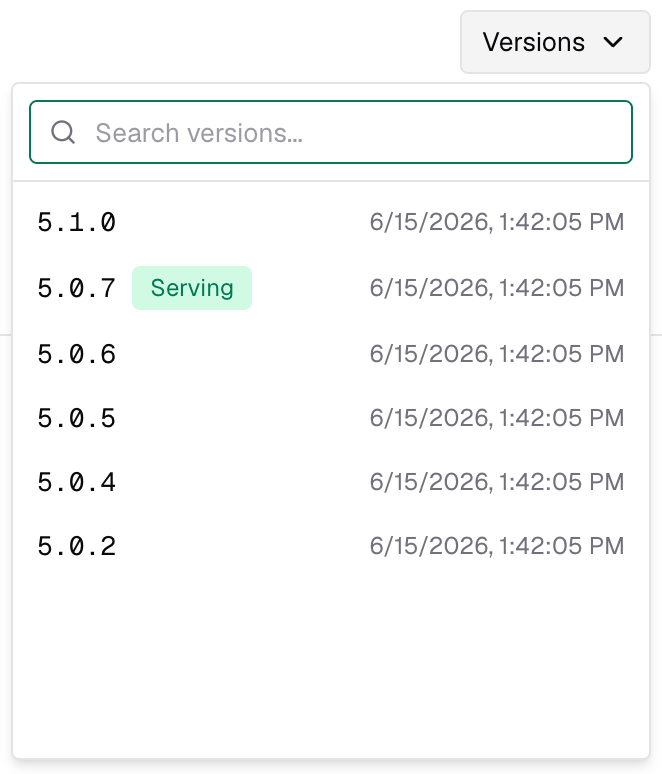 Pick the version you want to inspect. The version details dialog opens as a near-full-screen overlay showing the full skill header with metadata pills, the two-pane file browser with preview, and the action to serve that version.
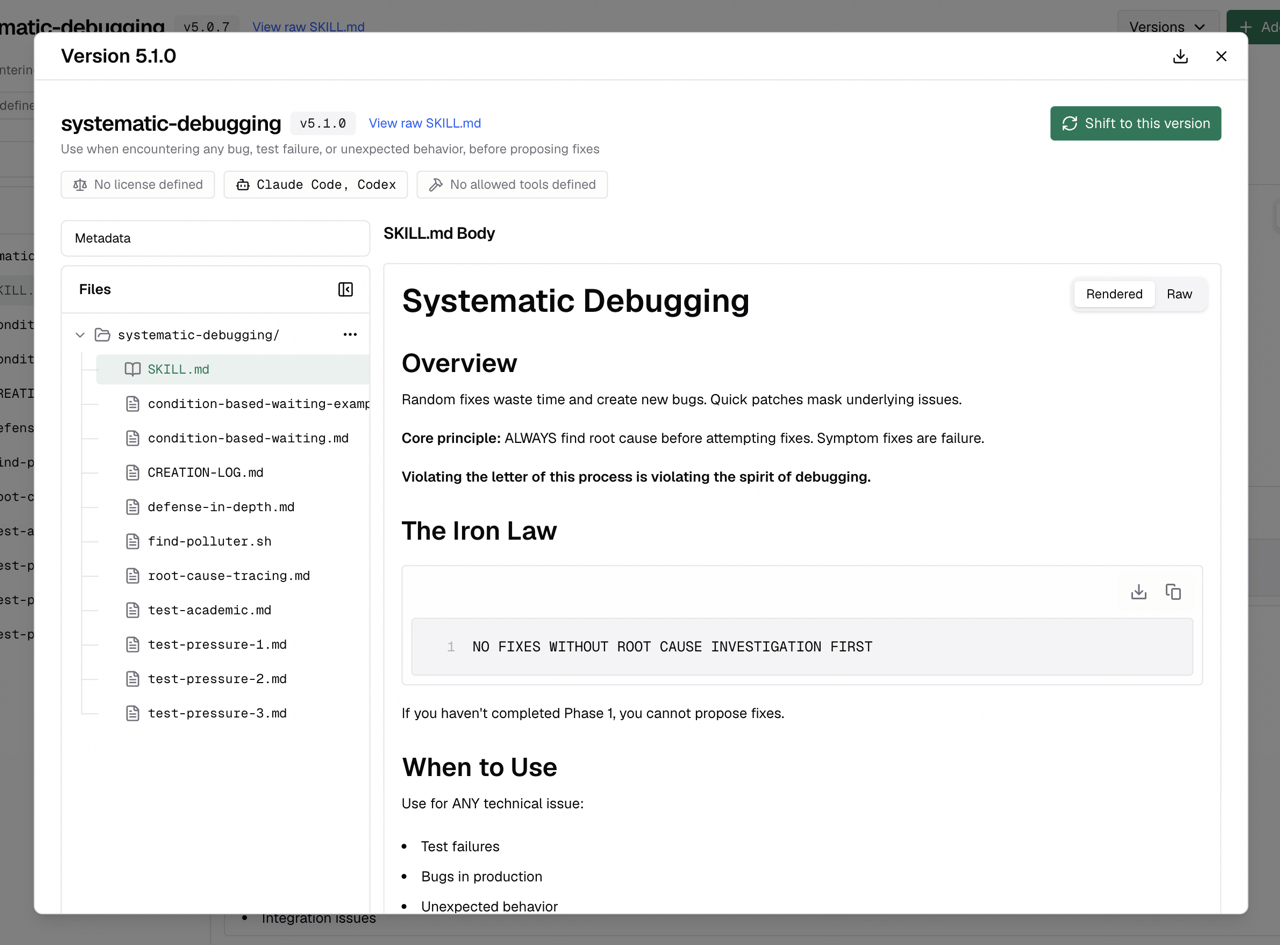 Shifting changes which version is served to marketplaces and downloads. It does not delete newer versions.
Version validation still compares against the highest created SemVer, not the version you shifted to. For example, if `3.0.0` exists and you shift back to `1.0.0`, the next version still needs to be greater than or compatible with `3.0.0`, such as `3.0.1`, `3.1.0`, or `4.0.0`.
## Register Bifrost as a marketplace
Once your repository has skills, click **Register as Marketplace** in the Skills Repository header. A popover shows copyable CLI commands for each supported harness.
Shifting changes which version is served to marketplaces and downloads. It does not delete newer versions.
Version validation still compares against the highest created SemVer, not the version you shifted to. For example, if `3.0.0` exists and you shift back to `1.0.0`, the next version still needs to be greater than or compatible with `3.0.0`, such as `3.0.1`, `3.1.0`, or `4.0.0`.
## Register Bifrost as a marketplace
Once your repository has skills, click **Register as Marketplace** in the Skills Repository header. A popover shows copyable CLI commands for each supported harness.
 ### Claude Code
```bash theme={null}
claude plugin marketplace add /api/skills/serve/claude-code/.claude-plugin/marketplace.json
```
### Codex
```bash theme={null}
codex plugin marketplace add /api/skills/serve/codex
```
The marketplace install flow requires the `git` binary on the Bifrost server. If Git is unavailable, the dashboard disables marketplace registration and explains that Bifrost must be restarted after Git is installed.
## Install skills from the marketplace
After registration, each skill appears as its own plugin using the name:
```text theme={null}
bifrost-{skill-name}
```
For example, a skill named `review-migrations` is exposed as:
```text theme={null}
bifrost-review-migrations
```
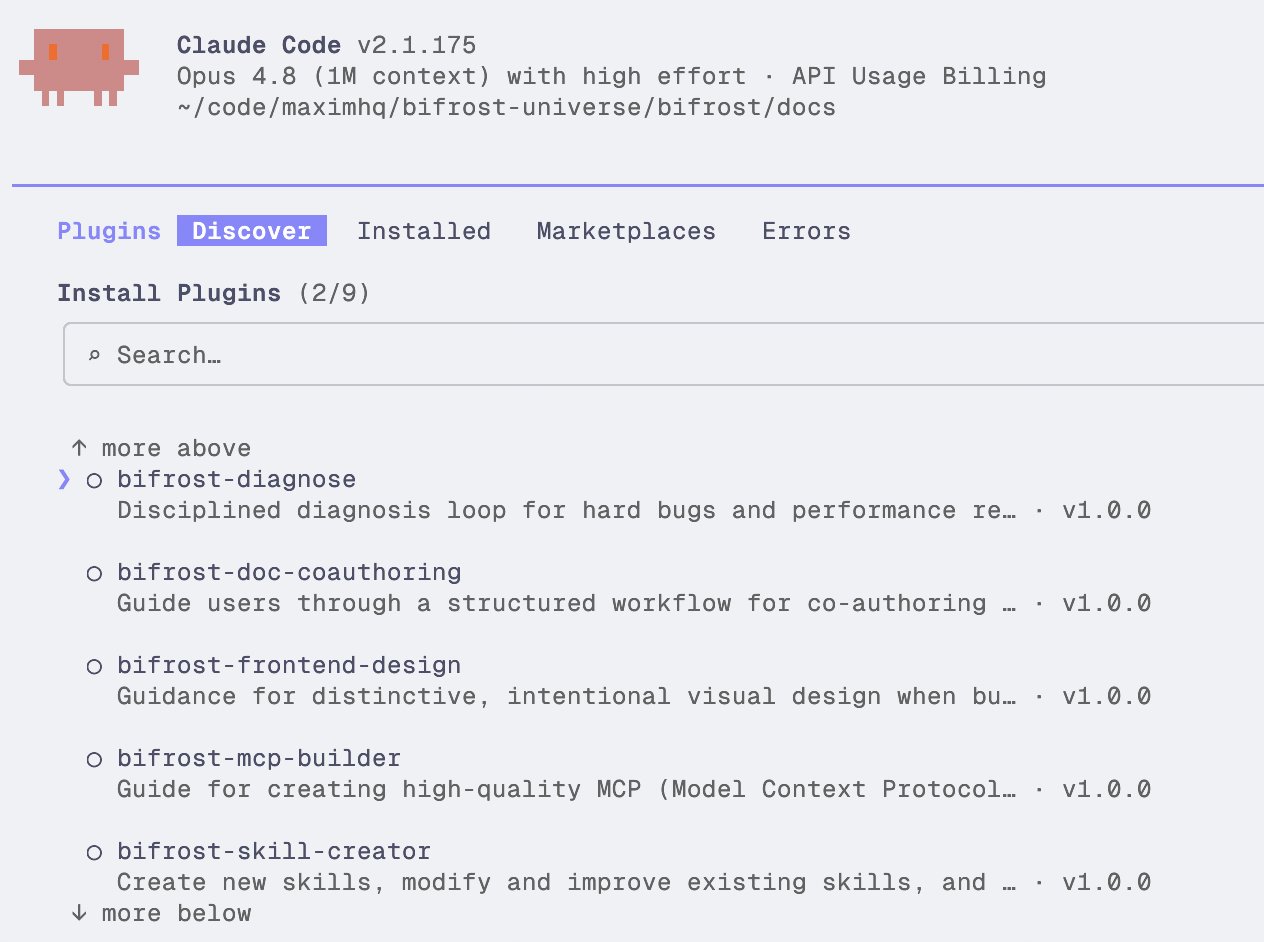
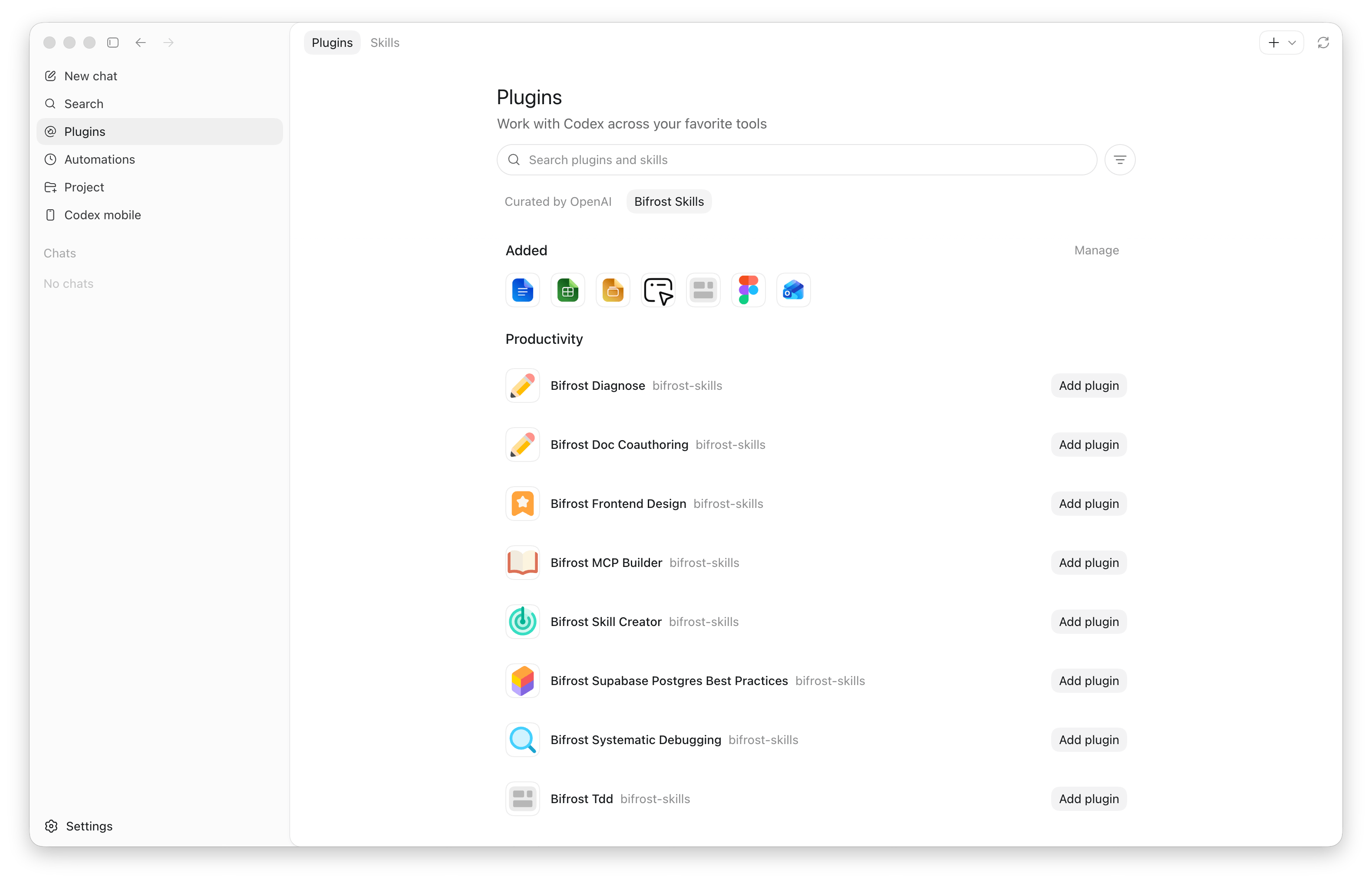
Claude Code shows each Bifrost skill as a separate installable plugin after the marketplace is registered.
### Claude Code
```bash theme={null}
claude plugin marketplace add /api/skills/serve/claude-code/.claude-plugin/marketplace.json
```
### Codex
```bash theme={null}
codex plugin marketplace add /api/skills/serve/codex
```
The marketplace install flow requires the `git` binary on the Bifrost server. If Git is unavailable, the dashboard disables marketplace registration and explains that Bifrost must be restarted after Git is installed.
## Install skills from the marketplace
After registration, each skill appears as its own plugin using the name:
```text theme={null}
bifrost-{skill-name}
```
For example, a skill named `review-migrations` is exposed as:
```text theme={null}
bifrost-review-migrations
```
Claude Code shows each Bifrost skill as a separate installable plugin after the marketplace is registered.
 Codex exposes the same plugins through its CLI flow.
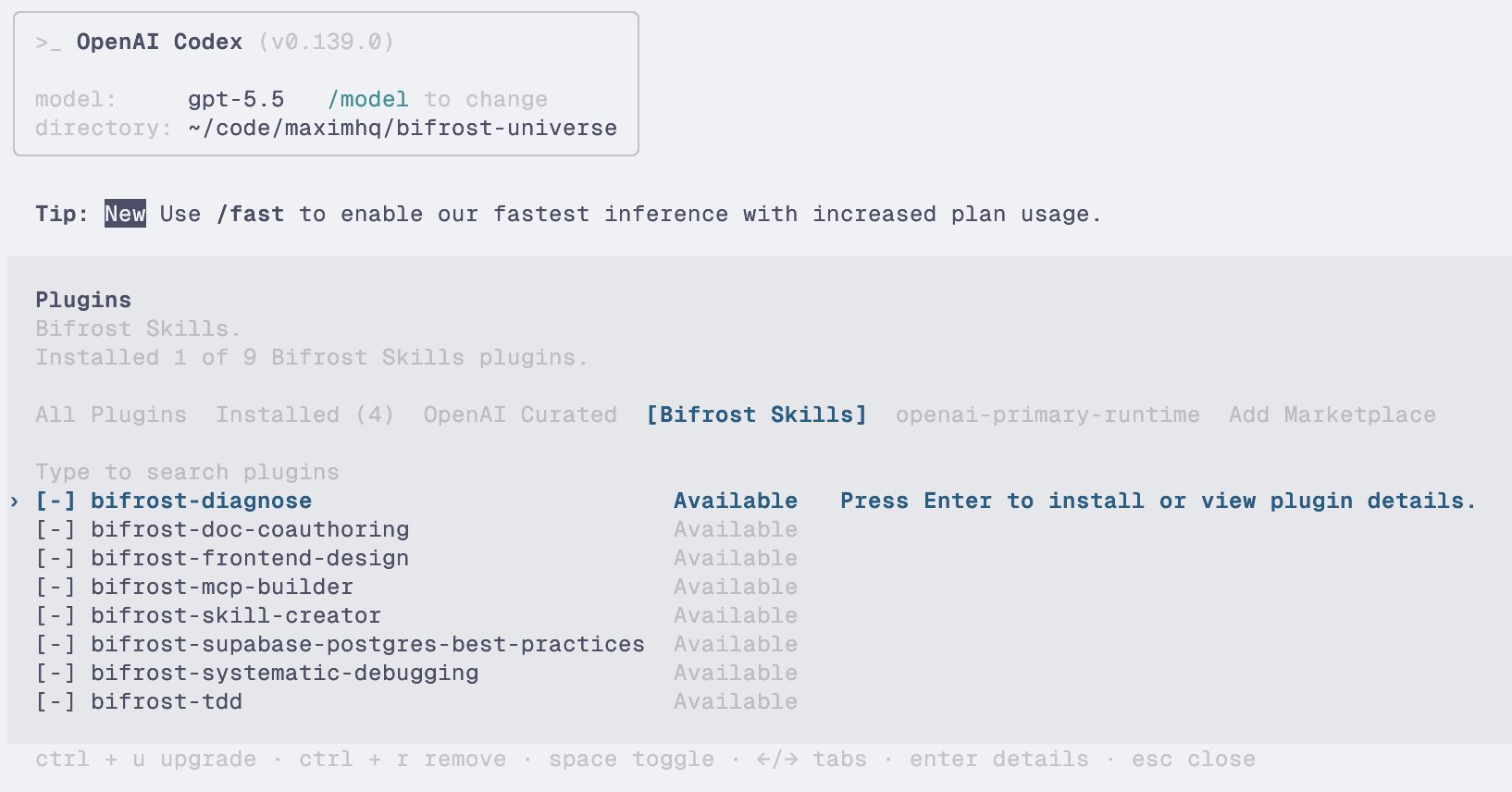 If you use the Codex desktop app, the registered marketplace appears there too, with the same individual skills available to install.
 ## Use the all-skills plugin
Bifrost also exposes a synthetic plugin:
```text theme={null}
bifrost-all-skills
```
Install this when a harness should receive every currently served skill from the repository. The generated plugin contains each skill under:
```text theme={null}
skills/{skill-name}/SKILL.md
skills/{skill-name}/{attached-files}
```
### How all-skills versioning works
The `bifrost-all-skills` plugin has its own version. Bifrost maintains it automatically:
| Repository event | All-skills bump |
| -------------------------------- | ----------------- |
| First skill is published | `0.0.0` → `1.0.0` |
| Another skill is added | Minor |
| A skill is deleted | Major |
| A served skill gets a patch bump | Patch |
| A served skill gets a minor bump | Minor |
| A served skill gets a major bump | Major |
| Served version is shifted | Patch |
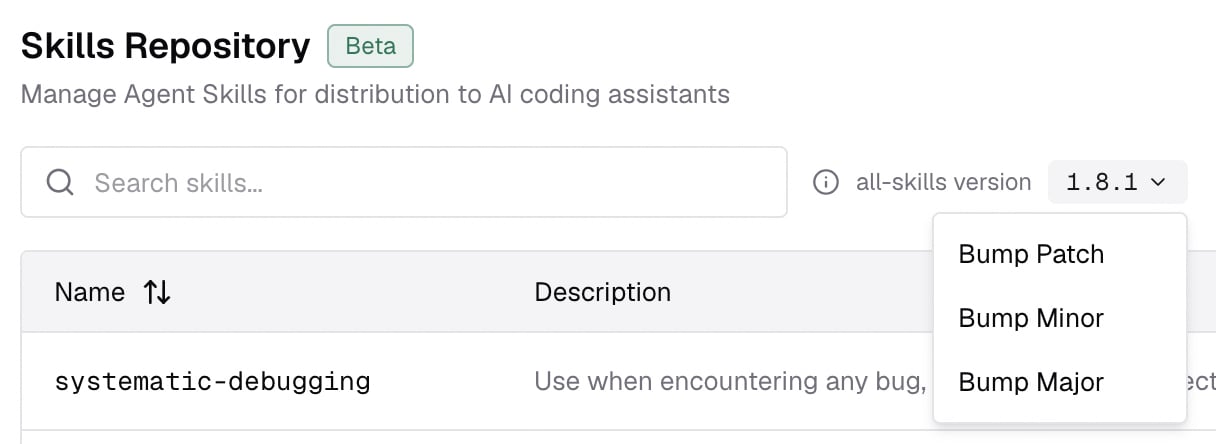
The dashboard also provides a manual patch/minor/major bump control as an escape hatch if a marketplace needs to be nudged to refresh.
## Use the all-skills plugin
Bifrost also exposes a synthetic plugin:
```text theme={null}
bifrost-all-skills
```
Install this when a harness should receive every currently served skill from the repository. The generated plugin contains each skill under:
```text theme={null}
skills/{skill-name}/SKILL.md
skills/{skill-name}/{attached-files}
```
### How all-skills versioning works
The `bifrost-all-skills` plugin has its own version. Bifrost maintains it automatically:
| Repository event | All-skills bump |
| -------------------------------- | ----------------- |
| First skill is published | `0.0.0` → `1.0.0` |
| Another skill is added | Minor |
| A skill is deleted | Major |
| A served skill gets a patch bump | Patch |
| A served skill gets a minor bump | Minor |
| A served skill gets a major bump | Major |
| Served version is shifted | Patch |
The dashboard also provides a manual patch/minor/major bump control as an escape hatch if a marketplace needs to be nudged to refresh.
 ## Maintain skills through the API
Use the dashboard for interactive editing, and use the API when you want to sync skills from CI, an internal admin panel, or another source of truth.
### API workflow
* Create the skill and its first version with [Create skill](/api-reference/skills/create-skill). Include the `SKILL.md` body, frontmatter fields, version, and any files that should be attached to that first version.
* For file attachments, pass file entries directly in the create/update request. Use inline text, URLs, data URLs, or an `upload_id`.
Use [Upload skill file](/api-reference/skills/upload-skill-file) when you need to upload a local/binary file first. The upload response gives you an `upload_id` that you can attach in [Create skill](/api-reference/skills/create-skill) or [Update skill](/api-reference/skills/update-skill).
* Create new immutable versions with [Update skill](/api-reference/skills/update-skill). Use **save without serving** when you want to stage a version, and **save and serve** when the marketplace should switch to it immediately.
* Inspect the currently served skill with [Get skill](/api-reference/skills/get-skill). Pass the `version` query parameter to load a specific historical snapshot.
* Inspect the full version history with [List skill versions](/api-reference/skills/list-skill-versions). Use the `search` query parameter to filter by version string when you only need a specific release or prefix.
* Roll the serving version back or forward with [Shift served skill version](/api-reference/skills/shift-served-skill-version).
* Track or nudge the bundled plugin with [Get all-skills version](/api-reference/skills/get-all-skills-version) and [Bump all-skills version](/api-reference/skills/bump-all-skills-version).
The API reference contains the exact request and response shapes. Keep this page as the product workflow, and use the reference pages when wiring automation.
## Quick mental model
* A skill is the stable identity.
* Every save creates an immutable version.
* Files belong to versions so older installs remain reproducible.
* The served version is what marketplaces expose.
* Individual marketplace plugins install one skill.
* `bifrost-all-skills` installs every served skill and is versioned automatically.
## Maintain skills through the API
Use the dashboard for interactive editing, and use the API when you want to sync skills from CI, an internal admin panel, or another source of truth.
### API workflow
* Create the skill and its first version with [Create skill](/api-reference/skills/create-skill). Include the `SKILL.md` body, frontmatter fields, version, and any files that should be attached to that first version.
* For file attachments, pass file entries directly in the create/update request. Use inline text, URLs, data URLs, or an `upload_id`.
Use [Upload skill file](/api-reference/skills/upload-skill-file) when you need to upload a local/binary file first. The upload response gives you an `upload_id` that you can attach in [Create skill](/api-reference/skills/create-skill) or [Update skill](/api-reference/skills/update-skill).
* Create new immutable versions with [Update skill](/api-reference/skills/update-skill). Use **save without serving** when you want to stage a version, and **save and serve** when the marketplace should switch to it immediately.
* Inspect the currently served skill with [Get skill](/api-reference/skills/get-skill). Pass the `version` query parameter to load a specific historical snapshot.
* Inspect the full version history with [List skill versions](/api-reference/skills/list-skill-versions). Use the `search` query parameter to filter by version string when you only need a specific release or prefix.
* Roll the serving version back or forward with [Shift served skill version](/api-reference/skills/shift-served-skill-version).
* Track or nudge the bundled plugin with [Get all-skills version](/api-reference/skills/get-all-skills-version) and [Bump all-skills version](/api-reference/skills/bump-all-skills-version).
The API reference contains the exact request and response shapes. Keep this page as the product workflow, and use the reference pages when wiring automation.
## Quick mental model
* A skill is the stable identity.
* Every save creates an immutable version.
* Files belong to versions so older installs remain reproducible.
* The served version is what marketplaces expose.
* Individual marketplace plugins install one skill.
* `bifrost-all-skills` installs every served skill and is versioned automatically.