Let CI pipelines and cloud workloads call Bifrost with a short-lived token from their own platform, running as a service account, without storing a Bifrost virtual key.
A CI pipeline, an AKS service, an AWS Lambda or an internal batch job usually calls Bifrost with a virtual key. That key is a long-lived secret: someone has to store it in the workload, rotate it, and revoke it when it leaks.With workload identity, service accounts don’t need a virtual key. You map a workload to a service account, and the workload calls Bifrost with a short-lived token that its own platform already gives it, such as an Entra managed identity token, an AWS STS token or a GitHub Actions OIDC token. Bifrost checks that the token comes from a source you trust, finds the service account it is mapped to, and runs the request as that service account. The service account’s access profile decides the models, MCP tools, budget and rate limits, and logs and audit entries name it.
Workload identity is about callers authenticating to Bifrost. It is separate from how Bifrost authenticates to model providers, such as IRSA or GKE Workload Identity for Bedrock and Vertex AI.
How it works
Three pieces make this work:
Piece
What it is
Where you set it
Token source
Who issues the tokens Bifrost accepts: a trusted issuer (an AWS account, Okta, Auth0, Keycloak, a Kubernetes cluster, GitHub Actions or any OIDC provider), or Azure workload identity federation when your SSO is Microsoft Entra.
User Provisioning, on the SSO provider
Service account
A non-human Bifrost user. Its access profile governs what the workload may do.
Governance → Users
Workload identity
A mapping from one workload, named by a claim in its token, to one service account.
The service account’s Workload identities tab
Workload identities only ever map to service accounts, never to people.
How tokens map to service accounts
Each token source names the workload with one claim. That value is what you enter when you map the workload, and it decides which service account the request runs as.
Token source
Claim that names the workload
Example value
Matched
AWS trusted issuer
sub, the IAM role or user ARN
arn:aws:iam::123456789012:role/payments-batch
Exactly
Generic OIDC trusted issuer
The workload ID claim you choose, such as cid, azp or sub
0oa1b2c3d4e5f6g7h8i9 or repo:acme/payments:ref:refs/heads/main
Exactly
Azure workload identity federation
oid, the service principal’s object ID
6a1f0c3e-2b4d-4f8a-9c7e-5d3b2a1f0e9d
Ignoring case
A workload maps to one service account, and several workloads can map to the same one. For example, the AKS pod, the Lambda and the deploy workflow behind one payments service can all run as a payments-api service account:
One service account with three workloads mapped to it, one from each kind of token source.
Before you start
Create a service account for the workload under Governance → Users, and attach an access profile that grants the models and tools it needs. A service account with no access profile is refused by governance, as for any user without one.
Make sure you have the permissions to set up token sources and map workloads.
Workload identity turns on once at least one mapping exists. Until then, every request goes through the rest of authentication unchanged, and virtual keys keep working throughout, so you can move workloads over one at a time.
Set up a token source
Token sources are part of your SSO provider’s settings. Open Governance → User Provisioning, select the gear on the Connection card, and scroll to Workload identity at the end of Provider Configuration.
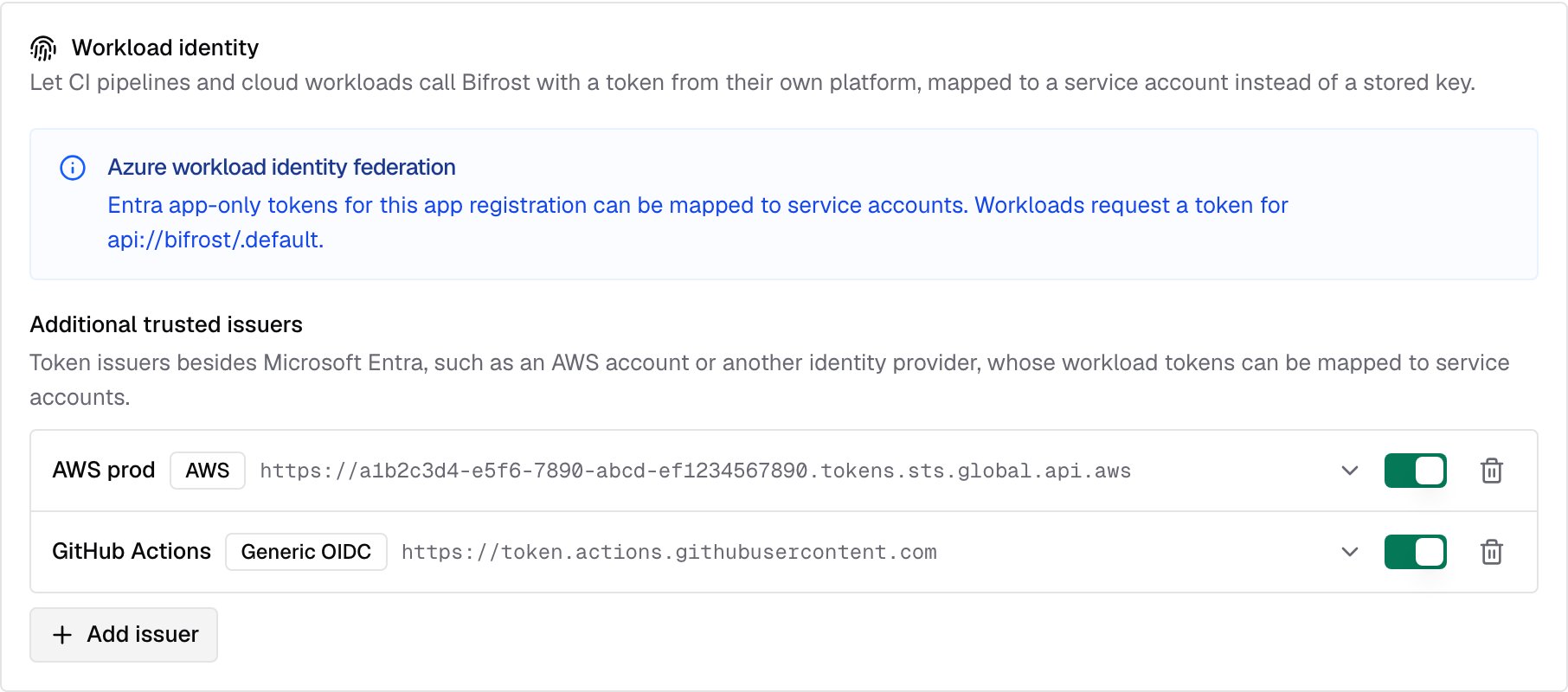
The Workload identity section of an Entra SSO provider: Azure workload identity federation on top, then the additional trusted issuers. With any other SSO provider, only the trusted issuers appear.
Pick the tab for where your workloads get their tokens. You can use both: with Entra SSO, Azure workloads come through Azure workload identity federation and everything else through trusted issuers.
Trusted issuers
Azure Workload Identity Federation
A trusted issuer is a token issuer, other than your SSO provider’s own sign-in, whose workload tokens Bifrost accepts. Trusted issuers work with every SSO provider, not only Entra. Bifrost trusts only the issuers you add, by exact URL: adding an AWS account trusts that account’s tokens, never AWS as a whole.Under Additional trusted issuers, select Add issuer and fill in:
Field
What to enter
Name
A name unique among this provider’s issuers, ignoring case, such as AWS prod. Mappings refer to the issuer by this name, and Token from lists it.
Kind
AWS or Generic OIDC, as in the tabs below.
Issuer URL
The issuer exactly as its tokens carry it in iss. It must be https (http only on localhost) with no user info, query or fragment.
Audiences
What workloads request their tokens for, usually Bifrost’s own URL. Separate several with commas. A token must carry one of them in aud.
Workload ID claim
Generic OIDC only. The claim whose value you enter when mapping a workload. AWS always uses sub.
Select Test next to the issuer URL before you save. Bifrost fetches the issuer’s discovery document and signing keys, and if that fails it says why, such as an HTTP error, a discovery document naming another issuer, or an address the gateway’s outbound network policy blocks. To stop accepting an issuer’s tokens without losing its mappings, turn off Trust this issuer, the switch on its row.
AWS
Generic OIDC
With AWS IAM outbound identity federation, any workload that runs as an IAM role or user, such as a Lambda function, ECS task, EC2 instance or EKS pod, can ask AWS STS for a signed JWT addressed to Bifrost. The token’s sub is the ARN of that role or user, and that ARN is what you map. Add one issuer per AWS account.
1
Turn on outbound identity federation
Do this once per AWS account, in the IAM console under Account settings → Outbound web identity federation, or with the AWS CLI:
aws iam enable-outbound-web-identity-federation
AWS returns the account’s issuer URL, of the form https://<id>.tokens.sts.global.api.aws. Read it again at any time with aws iam get-outbound-web-identity-federation-info.
2
Add the account as a trusted issuer
Add an issuer with the AWS kind, a name such as AWS prod, the account’s issuer URL, and Bifrost’s URL as the audience. Select Test, then save the provider.
An AWS account trusted as an issuer. The AWS kind always names a workload by the token's sub claim.
3
Let the role request tokens
Add sts:GetWebIdentityToken to the policy of the role the workload runs as: the Lambda execution role, ECS task role, EC2 instance profile or EKS pod role.
Add a workload identity with your AWS issuer and the IAM role or user ARN exactly as IAM shows it, including the case of the name.
Mapping an IAM role to a service account.
Use the role’s ARN, not a role session’s. aws sts get-caller-identity run inside a role prints a session ARN such as arn:aws:sts::123456789012:assumed-role/payments-batch/session; Bifrost refuses it and tells you which role’s ARN to copy from the IAM console.
5
Call Bifrost from the workload
The workload requests a token from a regional STS endpoint and sends it as the bearer token:
Request a new token before the current one expires. GetWebIdentityToken is not available on the global STS endpoint, and needs a recent AWS SDK.
A recreated role has the same ARN. If a role is deleted and another is created with the same name, its tokens match the same mapping. Disconnect the mapping when you retire a role.
Once roles are mapped on an issuer, its URL can’t change. Add a new account as another issuer.
Any OIDC issuer can be a Generic OIDC trusted issuer, as long as it publishes a discovery document and signing keys Bifrost can reach. That covers identity providers with a client-credentials flow and platforms that hand their workloads an OIDC token. You choose the workload ID claim, the claim whose value names a workload, such as a client ID or sub. Its value is matched exactly, including case.
1
Make tokens addressed to Bifrost
Configure the issuer so the workload’s tokens carry Bifrost’s URL, or another audience you choose, in aud, and a claim that names the workload.
2
Add the issuer
Add an issuer with the Generic OIDC kind, the issuer URL exactly as tokens carry it in iss, the audience, and the Workload ID claim. Select Test, then save the provider.
A Generic OIDC issuer after a successful test, naming workloads by their sub claim.
Bifrost takes a token from a generic issuer only when its workload ID is mapped to a service account. Every other token, including your people’s when the same provider runs your SSO, goes to the normal sign-in path untouched, so a generic issuer usually needs no rule.The exception is your SSO app’s own client ID. People’s tokens carry it too, so mapping it would let anyone who signs in run as that service account. To map it, turn on Tell people’s tokens apart with a rule and set a rule that only workload tokens pass, such as the client ID claim equals the token’s sub:
A rule that accepts only tokens where cid equals the token's sub, which holds for client-credentials tokens but not for a person's.
Without the rule, Bifrost refuses that mapping, and refuses a provider save that removes the rule while such a mapping exists. A mapping that loses its rule another way, such as through config.json, shows Needs a people rule and takes no tokens until the rule is back.
3
Map the workload to a service account
Add a workload identity with the issuer and, as Workload identifier, the value of the workload ID claim in the workload’s token.
Mapping a workload by the value of its token's workload ID claim.
4
Call Bifrost
The workload gets a token from its issuer and sends it as the bearer token:
# TOKEN is a token from the trusted issuer, addressed to Bifrost.curl https://bifrost.example.com/v1/chat/completions \ -H "Authorization: Bearer $TOKEN" \ -H "Content-Type: application/json" \ -d '{"model": "openai/gpt-4o-mini", "messages": [{"role": "user", "content": "Hello"}]}'
How mappings follow an issuer. Mappings refer to an issuer by its name, and each records the issuer’s kind, URL and workload ID claim from when it was made, so a mapping never silently moves to a different issuer:
While any workload is mapped on an issuer, Bifrost refuses a provider save that changes its kind, issuer URL or workload ID claim. Disconnect those mappings first, or add the new issuer under another name.
Renaming or removing an issuer is allowed. Its mappings take no tokens, and show the issuer as turned off or removed, until an issuer with that name is back.
If an issuer changes anyway, for example in config.json, its mappings show that the issuer changed and take no tokens until you map the workloads again.
Trusted issuers are saved with the provider, so they are replaced if you switch to another identity provider. They can also be set in config.json or Helm; see Declarative configuration.
With Azure workload identity federation, a workload calls Bifrost with an app-only access token that Microsoft Entra issues for the Bifrost SSO app registration. This covers AKS services using Azure workload identity, Azure VMs and Functions with a managed identity, and Azure DevOps or GitHub pipelines that sign in to Entra with federated credentials. The token’s oid, the object ID of the workload’s service principal, is what you map. There is no issuer to add: Bifrost already trusts your Entra tenant through SSO.
Prerequisite: Microsoft Entra SSO
Azure workload identity federation reuses your Entra SSO configuration: the same tenant and app registration. Set up Entra SSO first.
Entra must be your SSO provider, with a single tenant. Multi-tenant (common) configurations are not supported.
To pick workloads from Entra in the dashboard, grant the app registration the Application.Read.All Graph application permission, as in Step 5 of the Entra SSO setup. Without it, paste object IDs instead.
Once Entra SSO is set up, the provider’s Workload identity section shows that Azure workload identity federation is available, and the scope workloads request tokens for.
1
Expose the Bifrost app to applications
Workloads request a token for the Bifrost app registration, so it needs an identifier. In the Entra admin center, open App registrations, select the Bifrost SSO app, and under Expose an API set the Application ID URI. Entra suggests api://<client ID>, which Bifrost accepts as is. If you choose another, such as api://bifrost, enter the same value as App ID URI in Bifrost’s Entra SSO settings.
2
Assign the workload to the Bifrost app
The Entra SSO setup turns on Assignment required, so Entra issues a token for Bifrost only to people and apps assigned to it. A workload is assigned through an app role:
In the Bifrost app registration, open App roles and create a role with Allowed member types set to Applications, for example with the value Bifrost.Workload.
Assign that role to the workload’s service principal. Managed identities can’t be assigned in the portal, so use Microsoft Graph:
BIFROST_SP=$(az ad sp show --id <Bifrost client ID> --query id -o tsv)ROLE_ID=$(az ad sp show --id <Bifrost client ID> --query "appRoles[?value=='Bifrost.Workload'].id" -o tsv)az rest --method POST \ --uri "https://graph.microsoft.com/v1.0/servicePrincipals/<workload object ID>/appRoleAssignments" \ --body "{\"principalId\": \"<workload object ID>\", \"resourceId\": \"$BIFROST_SP\", \"appRoleId\": \"$ROLE_ID\"}"
Without the assignment, Entra refuses the workload’s token request with AADSTS501051.
3
Map the workload to a service account
Add a workload identity with Azure workload identity federation. Under Workload, search Entra for the managed identity or app by name, or select Enter an object ID instead and paste its service principal’s object ID. Use the object ID, not the application (client) ID: Bifrost refuses a client ID and names the object ID to use.
Mapping a managed identity by its object ID.
For a managed identity, the object ID is its principal ID (az identity show --name <identity> --resource-group <rg> --query principalId -o tsv). For an app registration, it is the object ID of its service principal under Enterprise applications (az ad sp show --id <app client ID> --query id -o tsv), not the app registration’s own object ID.
4
Call Bifrost from the workload
The workload requests a token for the scope Bifrost shows in the provider’s Workload identity section: your App ID URI plus /.default. The examples assume api://bifrost/.default. The workload must sign in as itself, the managed identity or app you mapped; a token a person gets after a normal sign-in carries that person’s identity and goes through the normal sign-in path instead.
# Sign in as the workload, not as yourself. On an Azure resource with a managed# identity; add --client-id <managed identity client ID> for a user-assigned one.az login --identity --allow-no-subscriptionsTOKEN=$(az account get-access-token --scope api://bifrost/.default --query accessToken -o tsv)curl https://bifrost.example.com/v1/chat/completions \ -H "Authorization: Bearer $TOKEN" -H "Content-Type: application/json" \ -d '{"model": "openai/gpt-4o-mini", "messages": [{"role": "user", "content": "ping"}]}'
An app registration with a federated credential signs in with az login --service-principal --username <app client ID> --tenant <tenant ID> --federated-token "$(cat "$AZURE_FEDERATED_TOKEN_FILE")" --allow-no-subscriptions instead.
Troubleshooting
401 invalid workload identity token
The token is expired, was issued for another app, or is valid for over 24 hours. Check that the scope is the Bifrost app’s App ID URI or client ID with /.default. If the app registration issues v1 tokens (accessTokenAcceptedVersion unset or 1), the token’s audience is the App ID URI: Bifrost accepts api://<client ID> on its own, and any other App ID URI once it is set in Bifrost’s Entra SSO settings.
403 not connected to a Bifrost service account
The message includes the token’s object ID. Map it to a service account.
Entra refuses the token request with AADSTS501051
The workload isn’t assigned to the Bifrost app. Assign it an app role, as above. Don’t turn Assignment required off to get around this: that also lets every person in your tenant sign in to Bifrost through SSO.
The workload isn't in the Entra search
Without a search, Bifrost lists managed identities and apps registered in your tenant; search by name to find others, or paste the object ID. The list needs the app registration’s Application.Read.All permission.
The token runs as a person, or is refused as one
It was requested after a person’s sign-in, such as a plain az login. Sign in as the managed identity or app instead. A person’s SSO is unaffected: workload identity only takes app-only tokens, and a person’s token always carries the scp claim.
Map a workload to a service account
1
Open the service account's Workload identities tab
Under Governance → Users, select the service account. Open Workload identities; when the sheet is narrow, it sits in the overflow menu at the end of the tab bar.
The Workload identities tab appears only on service accounts.
2
Choose where the token comes from
Select Add workload identity. Token from lists every trusted issuer that is turned on, by name, and Azure workload identity federation when your SSO is Entra.
Token from lists every source Bifrost can accept tokens from.
If no source is set up yet, the form says so instead of showing the list.
3
Identify the workload
Enter the value the token carries:
Token from
Field
Enter
An AWS issuer
IAM role or user ARN
The ARN exactly as IAM shows it, such as arn:aws:iam::123456789012:role/payments-batch.
A Generic OIDC issuer
Workload identifier
The value of the issuer’s workload ID claim, such as a client ID or a sub.
Azure workload identity federation
Workload
Pick the managed identity or app from Entra, or select Enter an object ID instead and paste its service principal’s object ID.
Name is optional and defaults to the workload’s name. Select Add.
The workload can call Bifrost straight away, and its requests appear in the logs under the service account.
Turn a mapping off with its Enabled switch to stop accepting the workload’s tokens without losing the mapping.
Disconnect a workload from its row menu to remove the mapping. Deleting a service account removes all of its mappings.
Automate mappings through the API at /api/governance/users/{user_id}/workload-identities. Mappings can’t be set in config.json or Helm; trusted issuers can.
Declarative configuration
Trusted issuers can live in config.json, or in Helm values under bifrost.scim.config, on the SSO provider under workloadIdentity.additionalTrustedIssuers.
Required for generic. {"kind": "any"} takes only tokens whose workload ID is mapped. A rule is sub_equals_claim, claim_equals or claim_prefix with its claim and, for the last two, a non-empty value.
maxLifetimeSeconds
Optional cap on a token’s total lifetime, between 300 and 172800. The default is 24 hours.
disabled
Optional. true keeps the issuer and its mappings but refuses its tokens.
What Bifrost checks on every request
The token comes from a source Bifrost trusts: its iss matches a trusted issuer’s URL exactly, or your Entra tenant.
It is addressed to Bifrost: its audience is one the source is configured with.
It belongs to a workload. A generic issuer takes only tokens whose workload ID is mapped, or that pass its rule when it has one. Entra takes only app-only tokens. Anything else, including a person’s token, is left to the normal sign-in path, even when the same identity provider runs your SSO.
The signature verifies against the source’s published keys, and the token is unexpired and valid for no longer than the source’s lifetime cap (24 hours by default).
A mapping exists for the token’s identity, it is turned on, and its source hasn’t changed since it was made.
The request runs as the mapped service account. The token is removed from the request, so it is never forwarded to a provider.
Tokens are verified on every request and are never stored. A workload’s access ends when its token expires and it can’t get a new one, or as soon as you turn off or disconnect its mapping.
Responses
Status
When
400
A virtual key was sent together with a workload token. Send one credential.
401
The token is invalid: bad signature, expired, issued for another audience, or valid for longer than the source’s lifetime cap. Get a new token.
403
The token is valid, but no service account is mapped to it, the mapping or issuer is turned off, the issuer changed since the mapping was made, or the service account was deleted. An admin needs to act.
503
Bifrost couldn’t fetch the source’s signing keys. Retry after the Retry-After delay.
MCP gateway
Workload tokens work on /mcp too, governed by the service account’s access profile like any other request. When the MCP gateway’s auth mode is OAuth only, it accepts only tokens Bifrost issued, so workload tokens are refused there.
Permissions
Action
Permission
View a service account’s workload identities
Users → View
Add, change or disconnect a mapping, and search Entra for workloads
User Provisioning → UpdateWorkloadIdentities
Add, change or test trusted issuers
User Provisioning → Update
A mapping lets whoever holds the workload’s token act as the service account, so it has its own permission. Admins have it by default; grant it to other roles explicitly. Users → Update alone is not enough.
Was this page helpful?
{"docsConfig":{"theme":"mint","$schema":"https://mintlify.com/schema.json","name":"Bifrost","colors":{"primary":"#0C3B43","light":"#07C983"},"logo":{"light":"https://mintcdn.com/bifrost/qFMmk8bNSnvgFYDI/media/bifrost-logo.png?fit=max\u0026auto=format\u0026n=qFMmk8bNSnvgFYDI\u0026q=85\u0026s=6af701a560aee4103444fa017b226cf0","dark":"https://mintcdn.com/bifrost/qFMmk8bNSnvgFYDI/media/bifrost-logo-dark.png?fit=max\u0026auto=format\u0026n=qFMmk8bNSnvgFYDI\u0026q=85\u0026s=84d264aad5f421c526dd17893e7c5739"},"favicon":"https://mintcdn.com/bifrost/qFMmk8bNSnvgFYDI/favicon.ico?fit=max\u0026auto=format\u0026n=qFMmk8bNSnvgFYDI\u0026q=85\u0026s=a57bad8c37d798efcb53dca5d96d8b45","navbar":{"links":[{"href":"https://www.getmaxim.ai/enterprise?utm_source=bifrost_docs\u0026utm_medium=Bifrost_Navbar#free-license","label":"Request License"}],"primary":{"type":"button","label":"Book a Demo","href":"https://www.getmaxim.ai/book-a-demo?utm_source=bifrost_docs\u0026utm_medium=Bifrost_Navbar"}},"footer":{"socials":{"x":"https://x.com/getbifrost","linkedin":"https://linkedin.com/company/maxim-ai","github":"https://github.com/maximhq/bifrost"},"links":[{"header":"Company","items":[{"label":"Book a Demo","href":"https://www.getmaxim.ai/book-a-demo?utm_source=bifrost_docs\u0026utm_medium=Bifrost_Footer"},{"label":"Partner Program","href":"https://www.getmaxim.ai/partners-program?utm_source=bifrost_docs\u0026utm_medium=Bifrost_Footer"},{"label":"Careers","href":"https://www.getmaxim.ai/careers?utm_source=bifrost_docs\u0026utm_medium=Bifrost_Footer"},{"label":"Contact Us","href":"mailto:contact@getmaxim.ai"},{"label":"Security","href":"https://docs.getbifrost.ai/security"},{"label":"Trust Center","href":"https://trust.getmaxim.ai/"},{"label":"Terms of Service","href":"https://www.getmaxim.ai/terms-of-service?utm_source=bifrost_docs\u0026utm_medium=Bifrost_Footer"},{"label":"Privacy Policy","href":"https://www.getmaxim.ai/privacy-policy?utm_source=bifrost_docs\u0026utm_medium=Bifrost_Footer"}]},{"header":"Products","items":[{"label":"LLM Gateway","href":"https://www.getmaxim.ai/llm-gateway?utm_source=bifrost_docs\u0026utm_medium=Bifrost_Footer"},{"label":"MCP Gateway","href":"https://www.getmaxim.ai/mcp-gateway?utm_source=bifrost_docs\u0026utm_medium=Bifrost_Footer"},{"label":"Governance","href":"https://www.getmaxim.ai/ai-governance?utm_source=bifrost_docs\u0026utm_medium=Bifrost_Footer"},{"label":"Guardrails","href":"https://www.getmaxim.ai/ai-guardrails?utm_source=bifrost_docs\u0026utm_medium=Bifrost_Footer"},{"label":"Observability","href":"https://www.getmaxim.ai/ai-observability?utm_source=bifrost_docs\u0026utm_medium=Bifrost_Footer"},{"label":"Bifrost Edge","href":"https://www.getmaxim.ai/edge?utm_source=bifrost_docs\u0026utm_medium=Bifrost_Footer"}]},{"header":"Resources","items":[{"label":"Bifrost Enterprise","href":"https://www.getmaxim.ai/enterprise?utm_source=bifrost_docs\u0026utm_medium=Bifrost_Footer"},{"label":"Performance Benchmarks","href":"https://www.getmaxim.ai/bifrost/resources/benchmarks?utm_source=bifrost_docs\u0026utm_medium=Bifrost_Footer"},{"label":"LLM Gateway Buyer's Guide","href":"https://www.getmaxim.ai/bifrost/resources/buyers-guide?utm_source=bifrost_docs\u0026utm_medium=Bifrost_Footer"},{"label":"Claude Code Integration","href":"https://www.getmaxim.ai/bifrost/resources/claude-code?utm_source=bifrost_docs\u0026utm_medium=Bifrost_Footer"},{"label":"Migrating from LiteLLM","href":"https://www.getmaxim.ai/bifrost/resources/migrating-from-litellm?utm_source=bifrost_docs\u0026utm_medium=Bifrost_Footer"},{"label":"Blogs","href":"https://www.getmaxim.ai/bifrost/blog?utm_source=bifrost_docs\u0026utm_medium=Bifrost_Footer"}]},{"header":"For LLMs","items":[{"label":"llms-full.txt","href":"https://docs.getbifrost.ai/llms-full.txt"},{"label":"llms.txt","href":"https://docs.getbifrost.ai/llms.txt"},{"label":"llm-info","href":"https://www.getmaxim.ai/llm-info?utm_source=bifrost_docs\u0026utm_medium=Bifrost_Footer"}]}]},"styling":{"latex":true},"navigation":{"global":{"anchors":[{"anchor":"Discord","icon":"discord","href":"https://discord.gg/exN5KAydbU"},{"anchor":"GitHub","icon":"github","href":"https://github.com/maximhq/bifrost"},{"anchor":"Try Enterprise","icon":"building","href":"https://www.getmaxim.ai/bifrost/enterprise"}]},"pages":[]}},"deployment":{"deploymentMetadataValue":{"subdomain":"bifrost","hasAudioNarration":false,"actualSubdomain":"bifrost","customDomains":["docs.getbifrost.ai"],"gitSource":{"type":"github","owner":"maximhq","repo":"bifrost","deployBranch":"main","contentDirectory":"docs","isPrivate":true,"mountPath":"","label":""},"feedback":{"thumbs":true},"entitlements":{"AI_CHAT":{"status":"ENABLED"},"WEB_MCP":{"status":"ENABLED"},"NARRATION":{"status":"ENABLED"}},"buildId":"6b06e491bcb9edca8532820b","clientVersion":"0.0.4304","searchFilterCounts":[{"language":"default","tag":"API","count":718},{"language":"default","tag":"Changelogs","count":329},{"language":"default","tag":"Integrations","count":253},{"language":"default","tag":"Platform","count":246},{"language":"default","tag":"Open Source","count":167},{"language":"default","tag":"OSS","count":162},{"language":"default","tag":"Governance","count":129},{"language":"default","tag":"Enterprise","count":108},{"language":"default","tag":"Helm","count":78},{"language":"default","tag":"Inference","count":71}]},"assistantConfig":{},"basePath":"","hasChatPermissions":true,"hasWebMcpPermissions":true,"toggles":[{"name":"kill-isr","enabled":true,"variant":{"name":"disabled","enabled":false,"feature_enabled":true},"impressionData":false},{"name":"custom-rbac-roles","enabled":true,"variant":{"name":"disabled","enabled":false,"feature_enabled":true},"impressionData":false},{"name":"agent-mintlify-slack","enabled":true,"variant":{"name":"disabled","enabled":false,"feature_enabled":true},"impressionData":false},{"name":"agent-integrations-settings","enabled":true,"variant":{"name":"disabled","enabled":false,"feature_enabled":true},"impressionData":false},{"name":"rbac-expansion","enabled":true,"variant":{"name":"disabled","enabled":false,"feature_enabled":true},"impressionData":false},{"name":"automations-pr-grouping","enabled":true,"variant":{"name":"disabled","enabled":false,"feature_enabled":true},"impressionData":false},{"name":"custom-prefix","enabled":true,"variant":{"name":"disabled","enabled":false,"feature_enabled":true},"impressionData":false},{"name":"analytics-v7","enabled":true,"variant":{"name":"disabled","enabled":false,"feature_enabled":true},"impressionData":false},{"name":"user-flows-analytics","enabled":true,"variant":{"name":"disabled","enabled":false,"feature_enabled":true},"impressionData":false},{"name":"no-publish-flow","enabled":true,"variant":{"name":"disabled","enabled":false,"feature_enabled":true},"impressionData":false},{"name":"snapshot-serving-live","enabled":true,"variant":{"name":"disabled","enabled":false,"feature_enabled":true},"impressionData":false},{"name":"stripTemperatureMiddleware","enabled":true,"variant":{"name":"disabled","enabled":false,"feature_enabled":true},"impressionData":false},{"name":"support-platform-pylon-zendesk","enabled":true,"variant":{"name":"disabled","enabled":false,"feature_enabled":true},"impressionData":false},{"name":"snapshot-serving","enabled":true,"variant":{"name":"disabled","enabled":false,"feature_enabled":true},"impressionData":false},{"name":"instant-rollback","enabled":true,"variant":{"name":"disabled","enabled":false,"feature_enabled":true},"impressionData":false},{"name":"granular-notifications-server","enabled":true,"variant":{"name":"disabled","enabled":false,"feature_enabled":true},"impressionData":false},{"name":"granular-notifications","enabled":true,"variant":{"name":"disabled","enabled":false,"feature_enabled":true},"impressionData":false},{"name":"automations-fable","enabled":true,"variant":{"name":"disabled","enabled":false,"feature_enabled":true},"impressionData":false},{"name":"fixed-ai-action-pricing","enabled":true,"variant":{"name":"disabled","enabled":false,"feature_enabled":true},"impressionData":false},{"name":"site-roles","enabled":true,"variant":{"name":"disabled","enabled":false,"feature_enabled":true},"impressionData":false},{"name":"automation-resolve-merge-conflict","enabled":true,"variant":{"name":"disabled","enabled":false,"feature_enabled":true},"impressionData":false},{"name":"scoped-publishing","enabled":true,"variant":{"name":"disabled","enabled":false,"feature_enabled":true},"impressionData":false},{"name":"mintql","enabled":true,"variant":{"name":"disabled","enabled":false,"feature_enabled":true},"impressionData":false},{"name":"page-level-analytics","enabled":true,"variant":{"name":"disabled","enabled":false,"feature_enabled":true},"impressionData":false},{"name":"editor-version-history-v2","enabled":true,"variant":{"name":"disabled","enabled":false,"feature_enabled":true},"impressionData":false},{"name":"billing-page-v2","enabled":true,"variant":{"name":"disabled","enabled":false,"feature_enabled":true},"impressionData":false},{"name":"full-page-search","enabled":true,"variant":{"name":"disabled","enabled":false,"feature_enabled":true},"impressionData":false},{"name":"workspace-projects","enabled":true,"variant":{"name":"disabled","enabled":false,"feature_enabled":true},"impressionData":false},{"name":"fork-pr-previews","enabled":true,"variant":{"name":"disabled","enabled":false,"feature_enabled":true},"impressionData":false},{"name":"revalidation-jwt","enabled":true,"variant":{"name":"disabled","enabled":false,"feature_enabled":true},"impressionData":false},{"name":"hobby-abuse-scan","enabled":true,"variant":{"name":"disabled","enabled":false,"feature_enabled":true},"impressionData":false},{"name":"dashboard-inbox","enabled":true,"variant":{"name":"disabled","enabled":false,"feature_enabled":true},"impressionData":false},{"name":"turbopuffer-dual-write","enabled":true,"variant":{"name":"disabled","enabled":false,"feature_enabled":true},"impressionData":false},{"name":"approve-review-flow","enabled":true,"variant":{"name":"disabled","enabled":false,"feature_enabled":true},"impressionData":false},{"name":"editor-metadata","enabled":true,"variant":{"name":"disabled","enabled":false,"feature_enabled":true},"impressionData":false},{"name":"sso-setup-deadline-banner","enabled":true,"variant":{"name":"disabled","enabled":false,"feature_enabled":true},"impressionData":false},{"name":"turbopuffer-serve","enabled":true,"variant":{"name":"disabled","enabled":false,"feature_enabled":true},"impressionData":false},{"name":"live-agents","enabled":true,"variant":{"name":"disabled","enabled":false,"feature_enabled":true},"impressionData":false},{"name":"starter-pricing","enabled":true,"variant":{"name":"treatment","enabled":true,"payload":{"type":"string","value":"treatment"},"feature_enabled":true},"impressionData":false},{"name":"llms-txt-v2","enabled":true,"variant":{"name":"disabled","enabled":false,"feature_enabled":true},"impressionData":false},{"name":"wildcard-email-auth","enabled":true,"variant":{"name":"disabled","enabled":false,"feature_enabled":true},"impressionData":false}],"googleFontsInlined":false},"customCss":[{"filePath":"style.css","content":".nav-logo{height:1.50rem}div:has(>nav[aria-label=\"Main\"]){gap:1.5rem}nav[aria-label=\"Main\"]>ul{gap:1rem}nav[aria-label=\"Main\"] a[href*=\"book-a-demo\"]{padding:0.4375rem 0.625rem}nav[aria-label=\"Main\"] a[href*=\"book-a-demo\"] svg{display:none}div:has(>nav[aria-label=\"Main\"])>*,nav[aria-label=\"Main\"]>ul>*{margin-inline:0}nav[aria-label=\"Main\"] .navbar-link a[href*=\"#free-license\"]{display:inline-flex;align-items:center;border:1px solid rgb(var(--primary-dark));border-radius:0.75rem;box-sizing:border-box;padding:calc(0.4375rem - 1px) 0.625rem;color:rgb(var(--primary-dark));background:transparent;font-size:0.875rem;font-weight:500;line-height:1.25rem}nav[aria-label=\"Main\"] .navbar-link a[href*=\"#free-license\"]:hover{background-color:rgb(var(--primary-dark) / 0.1)}.dark nav[aria-label=\"Main\"] .navbar-link a[href*=\"#free-license\"]{border-color:rgb(var(--primary-light));color:rgb(var(--primary-light))}.dark nav[aria-label=\"Main\"] .navbar-link a[href*=\"#free-license\"]:hover{background-color:rgb(var(--primary-light) / 0.12)}#sidebar-group>li>button>div{line-height:normal}.footer-compliance{display:flex;align-items:center;flex-wrap:wrap;gap:0.5rem;max-width:100%}.footer-compliance img{width:2.5rem;height:2.5rem;flex:none;object-fit:contain}@media (max-width: 767px){footer.advanced-footer>div>div:first-child>div:first-child{flex-direction:column;align-items:flex-start;justify-content:flex-start;row-gap:1rem;width:100%;height:auto}footer.advanced-footer>div>div:first-child>div:first-child>div:last-child{justify-content:flex-start;min-width:0;max-width:100%}footer.advanced-footer>div>div:first-child>div:last-child,footer.advanced-footer>div>div:first-child>div:last-child>div,footer.advanced-footer a[class*=\"truncate\"]{white-space:normal!important}}@media (min-width: 768px){footer.advanced-footer>div>div:first-child{justify-content:flex-start;column-gap:3rem}footer.advanced-footer>div>div:first-child>div:first-child{min-width:0;justify-content:flex-start;align-items:flex-start;row-gap:1.25rem}footer.advanced-footer>div>div:first-child>div:first-child>div:last-child{margin-top:auto}footer.advanced-footer>div>div:first-child>div:last-child{flex:0 1 auto;justify-content:start;grid-template-columns:repeat(4, max-content)!important;column-gap:4rem!important}footer.advanced-footer>div>div:first-child>div:last-child>div{align-items:flex-start;width:auto;flex:none}footer.advanced-footer a[class*=\"truncate\"]{max-width:none!important;overflow:visible!important;text-overflow:unset!important;white-space:nowrap!important}}"}]}
{"page":{"pagePath":"enterprise/workload-identity/overview","slug":"/enterprise/workload-identity/overview","pageMetadata":{"title":"Workload Identity","description":"Let CI pipelines and cloud workloads call Bifrost with a short-lived token from their own platform, running as a service account, without storing a Bifrost virtual key.","icon":"fingerprint","href":"/enterprise/workload-identity/overview"},"description":{"compiledSource":"\"use strict\";\nconst {jsx: _jsx} = arguments[0];\nconst {useMDXComponents: _provideComponents} = arguments[0];\nfunction _createMdxContent(props) {\n const _components = {\n p: \"p\",\n ..._provideComponents(),\n ...props.components\n };\n return _jsx(_components.p, {\n children: \"Let CI pipelines and cloud workloads call Bifrost with a short-lived token from their own platform, running as a service account, without storing a Bifrost virtual key.\"\n });\n}\nfunction MDXContent(props = {}) {\n const {wrapper: MDXLayout} = {\n ..._provideComponents(),\n ...props.components\n };\n return MDXLayout ? _jsx(MDXLayout, {\n ...props,\n children: _jsx(_createMdxContent, {\n ...props\n })\n }) : _createMdxContent(props);\n}\nreturn {\n default: MDXContent\n};\n","frontmatter":{},"scope":{}},"pageType":"default","mdx":{"mdxSource":{"compiledSource":"\"use strict\";const{Fragment:_Fragment,jsx:_jsx,jsxs:_jsxs}=arguments[0];const{useMDXComponents:_provideComponents}=arguments[0];function _createMdxContent(props){const _components={a:`a`,code:`code`,li:`li`,ol:`ol`,p:`p`,pre:`pre`,span:`span`,strong:`strong`,tbody:`tbody`,td:`td`,th:`th`,thead:`thead`,tr:`tr`,ul:`ul`,..._provideComponents(),...props.components},{Accordion,AccordionGroup,Card,CodeBlock,Frame,Heading,Info,Mermaid,OptimizedImage,Step,Steps,Tab,Table,Tabs}=_components;if(!Accordion)_missingMdxReference(`Accordion`,true);if(!AccordionGroup)_missingMdxReference(`AccordionGroup`,true);if(!Card)_missingMdxReference(`Card`,true);if(!CodeBlock)_missingMdxReference(`CodeBlock`,true);if(!Frame)_missingMdxReference(`Frame`,true);if(!Heading)_missingMdxReference(`Heading`,true);if(!Info)_missingMdxReference(`Info`,true);if(!Mermaid)_missingMdxReference(`Mermaid`,true);if(!OptimizedImage)_missingMdxReference(`OptimizedImage`,true);if(!Step)_missingMdxReference(`Step`,true);if(!Steps)_missingMdxReference(`Steps`,true);if(!Tab)_missingMdxReference(`Tab`,true);if(!Table)_missingMdxReference(`Table`,true);if(!Tabs)_missingMdxReference(`Tabs`,true);return _jsxs(_Fragment,{children:[_jsx(_components.p,{children:`A CI pipeline, an AKS service, an AWS Lambda or an internal batch job usually calls Bifrost with a virtual key. That key is a long-lived secret: someone has to store it in the workload, rotate it, and revoke it when it leaks.`}),`\n`,_jsxs(_components.p,{children:[`With `,_jsx(_components.strong,{children:`workload identity`}),`, service accounts don’t need a virtual key. You map a workload to a `,_jsx(_components.strong,{children:`service account`}),`, and the workload calls Bifrost with a short-lived token that its own platform already gives it, such as an Entra managed identity token, an AWS STS token or a GitHub Actions OIDC token. Bifrost checks that the token comes from a source you trust, finds the service account it is mapped to, and runs the request as that service account. The service account’s access profile decides the models, MCP tools, budget and rate limits, and logs and audit entries name it.`]}),`\n`,_jsx(Info,{children:_jsxs(_components.p,{children:[`Workload identity is about callers authenticating `,_jsx(_components.strong,{children:`to`}),` Bifrost. It is separate from how Bifrost authenticates to model providers, such as IRSA or GKE Workload Identity for Bedrock and Vertex AI.`]})}),`\n`,_jsx(Heading,{level:`2`,id:`how-it-works`,children:`How it works`}),`\n`,_jsx(Mermaid,{chart:`sequenceDiagram\n participant W as Workload\u003cbr/>(pipeline, pod, Lambda)\n participant P as Its platform\u003cbr/>(Entra, AWS STS, Okta, GitHub…)\n participant B as Bifrost\n participant SA as Service account\u003cbr/>+ access profile\n\n W->>P: Request a token addressed to Bifrost\n P-->>W: Short-lived signed token\n W->>B: POST /v1/chat/completions\u003cbr/>Authorization: Bearer \u003ctoken>\n B->>B: Trusted source? Signature, audience, expiry valid?\n B->>B: Look up the mapping for the token's identity\n B->>SA: Run the request as the mapped service account\n SA-->>W: Response, governed by the access profile`}),`\n`,_jsx(_components.p,{children:`Three pieces make this work:`}),`\n`,_jsxs(Table,{children:[_jsx(_components.thead,{children:_jsxs(_components.tr,{children:[_jsx(_components.th,{children:`Piece`}),_jsx(_components.th,{children:`What it is`}),_jsx(_components.th,{children:`Where you set it`})]})}),_jsxs(_components.tbody,{children:[_jsxs(_components.tr,{children:[_jsx(_components.td,{children:_jsx(_components.strong,{children:`Token source`})}),_jsxs(_components.td,{children:[`Who issues the tokens Bifrost accepts: a `,_jsx(_components.strong,{children:`trusted issuer`}),` (an AWS account, Okta, Auth0, Keycloak, a Kubernetes cluster, GitHub Actions or any OIDC provider), or `,_jsx(_components.strong,{children:`Azure workload identity federation`}),` when your SSO is Microsoft Entra.`]}),_jsxs(_components.td,{children:[_jsx(_components.strong,{children:`User Provisioning`}),`, on the SSO provider`]})]}),_jsxs(_components.tr,{children:[_jsx(_components.td,{children:_jsx(_components.strong,{children:`Service account`})}),_jsx(_components.td,{children:`A non-human Bifrost user. Its access profile governs what the workload may do.`}),_jsx(_components.td,{children:_jsx(_components.strong,{children:`Governance → Users`})})]}),_jsxs(_components.tr,{children:[_jsx(_components.td,{children:_jsx(_components.strong,{children:`Workload identity`})}),_jsx(_components.td,{children:`A mapping from one workload, named by a claim in its token, to one service account.`}),_jsxs(_components.td,{children:[`The service account’s `,_jsx(_components.strong,{children:`Workload identities`}),` tab`]})]})]})]}),`\n`,_jsx(_components.p,{children:`Workload identities only ever map to service accounts, never to people.`}),`\n`,_jsx(Heading,{level:`2`,id:`how-tokens-map-to-service-accounts`,children:`How tokens map to service accounts`}),`\n`,_jsx(_components.p,{children:`Each token source names the workload with one claim. That value is what you enter when you map the workload, and it decides which service account the request runs as.`}),`\n`,_jsxs(Table,{children:[_jsx(_components.thead,{children:_jsxs(_components.tr,{children:[_jsx(_components.th,{children:`Token source`}),_jsx(_components.th,{children:`Claim that names the workload`}),_jsx(_components.th,{children:`Example value`}),_jsx(_components.th,{children:`Matched`})]})}),_jsxs(_components.tbody,{children:[_jsxs(_components.tr,{children:[_jsx(_components.td,{children:`AWS trusted issuer`}),_jsxs(_components.td,{children:[_jsx(_components.code,{children:`sub`}),`, the IAM role or user ARN`]}),_jsx(_components.td,{children:_jsx(_components.code,{children:`arn:aws:iam::123456789012:role/payments-batch`})}),_jsx(_components.td,{children:`Exactly`})]}),_jsxs(_components.tr,{children:[_jsx(_components.td,{children:`Generic OIDC trusted issuer`}),_jsxs(_components.td,{children:[`The `,_jsx(_components.strong,{children:`workload ID claim`}),` you choose, such as `,_jsx(_components.code,{children:`cid`}),`, `,_jsx(_components.code,{children:`azp`}),` or `,_jsx(_components.code,{children:`sub`})]}),_jsxs(_components.td,{children:[_jsx(_components.code,{children:`0oa1b2c3d4e5f6g7h8i9`}),` or `,_jsx(_components.code,{children:`repo:acme/payments:ref:refs/heads/main`})]}),_jsx(_components.td,{children:`Exactly`})]}),_jsxs(_components.tr,{children:[_jsx(_components.td,{children:`Azure workload identity federation`}),_jsxs(_components.td,{children:[_jsx(_components.code,{children:`oid`}),`, the service principal’s object ID`]}),_jsx(_components.td,{children:_jsx(_components.code,{children:`6a1f0c3e-2b4d-4f8a-9c7e-5d3b2a1f0e9d`})}),_jsx(_components.td,{children:`Ignoring case`})]})]})]}),`\n`,_jsxs(_components.p,{children:[`A workload maps to one service account, and several workloads can map to the same one. For example, the AKS pod, the Lambda and the deploy workflow behind one payments service can all run as a `,_jsx(_components.code,{children:`payments-api`}),` service account:`]}),`\n`,_jsx(Frame,{caption:`One service account with three workloads mapped to it, one from each kind of token source.`,children:_jsx(OptimizedImage,{src:`https://mintcdn.com/bifrost/zbXxuSyUh_kUXojK/media/workload-identity/service-account-mappings.png?fit=max\u0026auto=format\u0026n=zbXxuSyUh_kUXojK\u0026q=85\u0026s=50684b41fc222b22bcfb5566bc84c134`,alt:`Service account detail sheet for payments-api showing the Workload identities tab with an Azure, an AWS and a GitHub Actions workload mapped`,\"data-og-width\":`1320`,width:`1320`,\"data-og-height\":`1300`,height:`1300`,\"data-path\":`media/workload-identity/service-account-mappings.png`,\"data-optimize\":`true`,\"data-opv\":`3`,srcset:`https://mintcdn.com/bifrost/zbXxuSyUh_kUXojK/media/workload-identity/service-account-mappings.png?w=280\u0026fit=max\u0026auto=format\u0026n=zbXxuSyUh_kUXojK\u0026q=85\u0026s=486d61a347f549eac89ae16c96ae2471 280w, https://mintcdn.com/bifrost/zbXxuSyUh_kUXojK/media/workload-identity/service-account-mappings.png?w=560\u0026fit=max\u0026auto=format\u0026n=zbXxuSyUh_kUXojK\u0026q=85\u0026s=a42c39affac6b7aa7e3c7cfabdb03d03 560w, https://mintcdn.com/bifrost/zbXxuSyUh_kUXojK/media/workload-identity/service-account-mappings.png?w=840\u0026fit=max\u0026auto=format\u0026n=zbXxuSyUh_kUXojK\u0026q=85\u0026s=bab12f3af54019d2718bab0bfd22b44a 840w, https://mintcdn.com/bifrost/zbXxuSyUh_kUXojK/media/workload-identity/service-account-mappings.png?w=1100\u0026fit=max\u0026auto=format\u0026n=zbXxuSyUh_kUXojK\u0026q=85\u0026s=7ddcb0913c9c25975857f1837acd6d66 1100w, https://mintcdn.com/bifrost/zbXxuSyUh_kUXojK/media/workload-identity/service-account-mappings.png?w=1650\u0026fit=max\u0026auto=format\u0026n=zbXxuSyUh_kUXojK\u0026q=85\u0026s=2e821de39b4be518096b890e81de5eea 1650w, https://mintcdn.com/bifrost/zbXxuSyUh_kUXojK/media/workload-identity/service-account-mappings.png?w=2500\u0026fit=max\u0026auto=format\u0026n=zbXxuSyUh_kUXojK\u0026q=85\u0026s=0148643091c223ebb75de5b8071ea87b 2500w`})}),`\n`,_jsx(Heading,{level:`2`,id:`before-you-start`,children:`Before you start`}),`\n`,_jsxs(_components.ul,{children:[`\n`,_jsxs(_components.li,{children:[`Create a service account for the workload under `,_jsx(_components.strong,{children:`Governance → Users`}),`, and attach an access profile that grants the models and tools it needs. A service account with no access profile is refused by governance, as for any user without one.`]}),`\n`,_jsxs(_components.li,{children:[`Make sure you have the `,_jsx(_components.a,{href:`#permissions`,children:`permissions`}),` to set up token sources and map workloads.`]}),`\n`]}),`\n`,_jsx(_components.p,{children:`Workload identity turns on once at least one mapping exists. Until then, every request goes through the rest of authentication unchanged, and virtual keys keep working throughout, so you can move workloads over one at a time.`}),`\n`,_jsx(Heading,{level:`2`,id:`set-up-a-token-source`,children:`Set up a token source`}),`\n`,_jsxs(_components.p,{children:[`Token sources are part of your SSO provider’s settings. Open `,_jsx(_components.strong,{children:`Governance → User Provisioning`}),`, select the gear on the `,_jsx(_components.strong,{children:`Connection`}),` card, and scroll to `,_jsx(_components.strong,{children:`Workload identity`}),` at the end of `,_jsx(_components.strong,{children:`Provider Configuration`}),`.`]}),`\n`,_jsx(Frame,{caption:`The Workload identity section of an Entra SSO provider: Azure workload identity federation on top, then the additional trusted issuers. With any other SSO provider, only the trusted issuers appear.`,children:_jsx(OptimizedImage,{src:`https://mintcdn.com/bifrost/zbXxuSyUh_kUXojK/media/workload-identity/provider-workload-identity.png?fit=max\u0026auto=format\u0026n=zbXxuSyUh_kUXojK\u0026q=85\u0026s=c2dcd1db110cc359c56923fdcae2551f`,alt:`Workload identity section of the provider configuration, with the Azure workload identity federation notice and two additional trusted issuers: AWS prod and GitHub Actions`,\"data-og-width\":`1812`,width:`1812`,\"data-og-height\":`800`,height:`800`,\"data-path\":`media/workload-identity/provider-workload-identity.png`,\"data-optimize\":`true`,\"data-opv\":`3`,srcset:`https://mintcdn.com/bifrost/zbXxuSyUh_kUXojK/media/workload-identity/provider-workload-identity.png?w=280\u0026fit=max\u0026auto=format\u0026n=zbXxuSyUh_kUXojK\u0026q=85\u0026s=161ce5f1979b3cb524554206d483295b 280w, https://mintcdn.com/bifrost/zbXxuSyUh_kUXojK/media/workload-identity/provider-workload-identity.png?w=560\u0026fit=max\u0026auto=format\u0026n=zbXxuSyUh_kUXojK\u0026q=85\u0026s=5f93f3c1845e8d254f1f9292973382cf 560w, https://mintcdn.com/bifrost/zbXxuSyUh_kUXojK/media/workload-identity/provider-workload-identity.png?w=840\u0026fit=max\u0026auto=format\u0026n=zbXxuSyUh_kUXojK\u0026q=85\u0026s=8d4be10d65b23a46ac05a70fa4fa4f8b 840w, https://mintcdn.com/bifrost/zbXxuSyUh_kUXojK/media/workload-identity/provider-workload-identity.png?w=1100\u0026fit=max\u0026auto=format\u0026n=zbXxuSyUh_kUXojK\u0026q=85\u0026s=4a7f4bd037403ea10d052e62b72a16ed 1100w, https://mintcdn.com/bifrost/zbXxuSyUh_kUXojK/media/workload-identity/provider-workload-identity.png?w=1650\u0026fit=max\u0026auto=format\u0026n=zbXxuSyUh_kUXojK\u0026q=85\u0026s=bd6c6cede84583dc2afdbcc8278bdf97 1650w, https://mintcdn.com/bifrost/zbXxuSyUh_kUXojK/media/workload-identity/provider-workload-identity.png?w=2500\u0026fit=max\u0026auto=format\u0026n=zbXxuSyUh_kUXojK\u0026q=85\u0026s=b386f6b7710ca1768ba4e92d17fdb59d 2500w`})}),`\n`,_jsx(_components.p,{children:`Pick the tab for where your workloads get their tokens. You can use both: with Entra SSO, Azure workloads come through Azure workload identity federation and everything else through trusted issuers.`}),`\n`,_jsxs(Tabs,{children:[_jsxs(Tab,{title:`Trusted issuers`,id:`trusted-issuers`,\"data-child-tab-ids\":`[\"aws\",\"generic-oidc\"]`,children:[_jsxs(_components.p,{children:[`A `,_jsx(_components.strong,{children:`trusted issuer`}),` is a token issuer, other than your SSO provider’s own sign-in, whose workload tokens Bifrost accepts. Trusted issuers work with every SSO provider, not only Entra. Bifrost trusts only the issuers you add, by exact URL: adding an AWS account trusts that account’s tokens, never AWS as a whole.`]}),_jsxs(_components.p,{children:[`Under `,_jsx(_components.strong,{children:`Additional trusted issuers`}),`, select `,_jsx(_components.strong,{children:`Add issuer`}),` and fill in:`]}),_jsxs(Table,{children:[_jsx(_components.thead,{children:_jsxs(_components.tr,{children:[_jsx(_components.th,{children:`Field`}),_jsx(_components.th,{children:`What to enter`})]})}),_jsxs(_components.tbody,{children:[_jsxs(_components.tr,{children:[_jsx(_components.td,{children:_jsx(_components.strong,{children:`Name`})}),_jsxs(_components.td,{children:[`A name unique among this provider’s issuers, ignoring case, such as `,_jsx(_components.code,{children:`AWS prod`}),`. Mappings refer to the issuer by this name, and `,_jsx(_components.strong,{children:`Token from`}),` lists it.`]})]}),_jsxs(_components.tr,{children:[_jsx(_components.td,{children:_jsx(_components.strong,{children:`Kind`})}),_jsxs(_components.td,{children:[_jsx(_components.strong,{children:`AWS`}),` or `,_jsx(_components.strong,{children:`Generic OIDC`}),`, as in the tabs below.`]})]}),_jsxs(_components.tr,{children:[_jsx(_components.td,{children:_jsx(_components.strong,{children:`Issuer URL`})}),_jsxs(_components.td,{children:[`The issuer exactly as its tokens carry it in `,_jsx(_components.code,{children:`iss`}),`. It must be https (http only on localhost) with no user info, query or fragment.`]})]}),_jsxs(_components.tr,{children:[_jsx(_components.td,{children:_jsx(_components.strong,{children:`Audiences`})}),_jsxs(_components.td,{children:[`What workloads request their tokens for, usually Bifrost’s own URL. Separate several with commas. A token must carry one of them in `,_jsx(_components.code,{children:`aud`}),`.`]})]}),_jsxs(_components.tr,{children:[_jsx(_components.td,{children:_jsx(_components.strong,{children:`Workload ID claim`})}),_jsxs(_components.td,{children:[`Generic OIDC only. The claim whose value you enter when mapping a workload. AWS always uses `,_jsx(_components.code,{children:`sub`}),`.`]})]})]})]}),_jsxs(_components.p,{children:[`Select `,_jsx(_components.strong,{children:`Test`}),` next to the issuer URL before you save. Bifrost fetches the issuer’s discovery document and signing keys, and if that fails it says why, such as an HTTP error, a discovery document naming another issuer, or an address the gateway’s outbound network policy blocks. To stop accepting an issuer’s tokens without losing its mappings, turn off `,_jsx(_components.strong,{children:`Trust this issuer`}),`, the switch on its row.`]}),_jsxs(Tabs,{children:[_jsxs(Tab,{title:`AWS`,id:`aws`,children:[_jsxs(_components.p,{children:[`With AWS IAM outbound identity federation, any workload that runs as an IAM role or user, such as a Lambda function, ECS task, EC2 instance or EKS pod, can ask AWS STS for a signed JWT addressed to Bifrost. The token’s `,_jsx(_components.code,{children:`sub`}),` is the ARN of that role or user, and that ARN is what you map. Add one issuer per AWS account.`]}),_jsxs(Steps,{children:[_jsxs(Step,{title:`Turn on outbound identity federation`,children:[_jsxs(_components.p,{children:[`Do this once per AWS account, in the IAM console under `,_jsx(_components.strong,{children:`Account settings → Outbound web identity federation`}),`, or with the AWS CLI:`]}),_jsx(CodeBlock,{filename:``,numberOfLines:`1`,language:`shellscript`,children:_jsx(_components.pre,{className:`shiki shiki-themes github-light-default dark-plus`,style:{backgroundColor:`#ffffff`,\"--shiki-dark-bg\":`#0B0C0E`,color:`#1f2328`,\"--shiki-dark\":`#D4D4D4`},language:`shellscript`,children:_jsxs(_components.code,{language:`shellscript`,numberOfLines:`1`,children:[_jsxs(_components.span,{className:`line`,children:[_jsx(_components.span,{style:{color:`#953800`,\"--shiki-dark\":`#DCDCAA`},children:`aws`}),_jsx(_components.span,{style:{color:`#0A3069`,\"--shiki-dark\":`#CE9178`},children:` iam`}),_jsx(_components.span,{style:{color:`#0A3069`,\"--shiki-dark\":`#CE9178`},children:` enable-outbound-web-identity-federation`})]}),`\n`]})})}),_jsxs(_components.p,{children:[`AWS returns the account’s issuer URL, of the form `,_jsx(_components.code,{children:`https://\u003cid>.tokens.sts.global.api.aws`}),`. Read it again at any time with `,_jsx(_components.code,{children:`aws iam get-outbound-web-identity-federation-info`}),`.`]})]}),_jsxs(Step,{title:`Add the account as a trusted issuer`,children:[_jsxs(_components.p,{children:[`Add an issuer with the `,_jsx(_components.strong,{children:`AWS`}),` kind, a name such as `,_jsx(_components.code,{children:`AWS prod`}),`, the account’s issuer URL, and Bifrost’s URL as the audience. Select `,_jsx(_components.strong,{children:`Test`}),`, then save the provider.`]}),_jsx(Frame,{caption:`An AWS account trusted as an issuer. The AWS kind always names a workload by the token's sub claim.`,children:_jsx(OptimizedImage,{src:`https://mintcdn.com/bifrost/zbXxuSyUh_kUXojK/media/workload-identity/trusted-issuer-aws.png?fit=max\u0026auto=format\u0026n=zbXxuSyUh_kUXojK\u0026q=85\u0026s=452e22b3479af361f158d0c789976349`,alt:`Expanded AWS trusted issuer named AWS prod, with its issuer URL and the audience https://bifrost.example.com`,\"data-og-width\":`1740`,width:`1740`,\"data-og-height\":`850`,height:`850`,\"data-path\":`media/workload-identity/trusted-issuer-aws.png`,\"data-optimize\":`true`,\"data-opv\":`3`,srcset:`https://mintcdn.com/bifrost/zbXxuSyUh_kUXojK/media/workload-identity/trusted-issuer-aws.png?w=280\u0026fit=max\u0026auto=format\u0026n=zbXxuSyUh_kUXojK\u0026q=85\u0026s=2fbeb17205e2bf6be7af6a6ebca45c0d 280w, https://mintcdn.com/bifrost/zbXxuSyUh_kUXojK/media/workload-identity/trusted-issuer-aws.png?w=560\u0026fit=max\u0026auto=format\u0026n=zbXxuSyUh_kUXojK\u0026q=85\u0026s=a15b45e588a719de1ed37cd4d254c9c4 560w, https://mintcdn.com/bifrost/zbXxuSyUh_kUXojK/media/workload-identity/trusted-issuer-aws.png?w=840\u0026fit=max\u0026auto=format\u0026n=zbXxuSyUh_kUXojK\u0026q=85\u0026s=74c5c071f01f74c98dfd22f2ffe25235 840w, https://mintcdn.com/bifrost/zbXxuSyUh_kUXojK/media/workload-identity/trusted-issuer-aws.png?w=1100\u0026fit=max\u0026auto=format\u0026n=zbXxuSyUh_kUXojK\u0026q=85\u0026s=6e4de9ca4d676fcd1128e949edc9607f 1100w, https://mintcdn.com/bifrost/zbXxuSyUh_kUXojK/media/workload-identity/trusted-issuer-aws.png?w=1650\u0026fit=max\u0026auto=format\u0026n=zbXxuSyUh_kUXojK\u0026q=85\u0026s=3827d37c6a2d9fa5b3699091c6e819fb 1650w, https://mintcdn.com/bifrost/zbXxuSyUh_kUXojK/media/workload-identity/trusted-issuer-aws.png?w=2500\u0026fit=max\u0026auto=format\u0026n=zbXxuSyUh_kUXojK\u0026q=85\u0026s=494703db238692493cc3ac5451b5d49a 2500w`})})]}),_jsxs(Step,{title:`Let the role request tokens`,children:[_jsxs(_components.p,{children:[`Add `,_jsx(_components.code,{children:`sts:GetWebIdentityToken`}),` to the policy of the role the workload runs as: the Lambda execution role, ECS task role, EC2 instance profile or EKS pod role.`]}),_jsx(CodeBlock,{filename:``,numberOfLines:`4`,language:`json`,children:_jsx(_components.pre,{className:`shiki shiki-themes github-light-default dark-plus`,style:{backgroundColor:`#ffffff`,\"--shiki-dark-bg\":`#0B0C0E`,color:`#1f2328`,\"--shiki-dark\":`#D4D4D4`},language:`json`,children:_jsxs(_components.code,{language:`json`,numberOfLines:`4`,children:[_jsx(_components.span,{className:`line`,children:_jsx(_components.span,{style:{color:`#1F2328`,\"--shiki-dark\":`#D4D4D4`},children:`{`})}),`\n`,_jsxs(_components.span,{className:`line`,children:[_jsx(_components.span,{style:{color:`#116329`,\"--shiki-dark\":`#9CDCFE`},children:` \"Version\"`}),_jsx(_components.span,{style:{color:`#1F2328`,\"--shiki-dark\":`#D4D4D4`},children:`: `}),_jsx(_components.span,{style:{color:`#0A3069`,\"--shiki-dark\":`#CE9178`},children:`\"2012-10-17\"`}),_jsx(_components.span,{style:{color:`#1F2328`,\"--shiki-dark\":`#D4D4D4`},children:`,`})]}),`\n`,_jsxs(_components.span,{className:`line`,children:[_jsx(_components.span,{style:{color:`#116329`,\"--shiki-dark\":`#9CDCFE`},children:` \"Statement\"`}),_jsx(_components.span,{style:{color:`#1F2328`,\"--shiki-dark\":`#D4D4D4`},children:`: [{ `}),_jsx(_components.span,{style:{color:`#116329`,\"--shiki-dark\":`#9CDCFE`},children:`\"Effect\"`}),_jsx(_components.span,{style:{color:`#1F2328`,\"--shiki-dark\":`#D4D4D4`},children:`: `}),_jsx(_components.span,{style:{color:`#0A3069`,\"--shiki-dark\":`#CE9178`},children:`\"Allow\"`}),_jsx(_components.span,{style:{color:`#1F2328`,\"--shiki-dark\":`#D4D4D4`},children:`, `}),_jsx(_components.span,{style:{color:`#116329`,\"--shiki-dark\":`#9CDCFE`},children:`\"Action\"`}),_jsx(_components.span,{style:{color:`#1F2328`,\"--shiki-dark\":`#D4D4D4`},children:`: `}),_jsx(_components.span,{style:{color:`#0A3069`,\"--shiki-dark\":`#CE9178`},children:`\"sts:GetWebIdentityToken\"`}),_jsx(_components.span,{style:{color:`#1F2328`,\"--shiki-dark\":`#D4D4D4`},children:`, `}),_jsx(_components.span,{style:{color:`#116329`,\"--shiki-dark\":`#9CDCFE`},children:`\"Resource\"`}),_jsx(_components.span,{style:{color:`#1F2328`,\"--shiki-dark\":`#D4D4D4`},children:`: `}),_jsx(_components.span,{style:{color:`#0A3069`,\"--shiki-dark\":`#CE9178`},children:`\"*\"`}),_jsx(_components.span,{style:{color:`#1F2328`,\"--shiki-dark\":`#D4D4D4`},children:` }]`})]}),`\n`,_jsx(_components.span,{className:`line`,children:_jsx(_components.span,{style:{color:`#1F2328`,\"--shiki-dark\":`#D4D4D4`},children:`}`})}),`\n`]})})})]}),_jsxs(Step,{title:`Map the role to a service account`,children:[_jsxs(_components.p,{children:[_jsx(_components.a,{href:`#map-a-workload-to-a-service-account`,children:`Add a workload identity`}),` with your AWS issuer and the `,_jsx(_components.strong,{children:`IAM role or user ARN`}),` exactly as IAM shows it, including the case of the name.`]}),_jsx(Frame,{caption:`Mapping an IAM role to a service account.`,children:_jsx(OptimizedImage,{src:`https://mintcdn.com/bifrost/zbXxuSyUh_kUXojK/media/workload-identity/add-workload-aws.png?fit=max\u0026auto=format\u0026n=zbXxuSyUh_kUXojK\u0026q=85\u0026s=01295cda9a996fd7edd7c4d1cecc0ebf`,alt:`Add workload identity form with Token from set to AWS prod, IAM role or user ARN arn:aws:iam::123456789012:role/payments-batch and name payments-batch Lambda`,\"data-og-width\":`1212`,width:`1212`,\"data-og-height\":`676`,height:`676`,\"data-path\":`media/workload-identity/add-workload-aws.png`,\"data-optimize\":`true`,\"data-opv\":`3`,srcset:`https://mintcdn.com/bifrost/zbXxuSyUh_kUXojK/media/workload-identity/add-workload-aws.png?w=280\u0026fit=max\u0026auto=format\u0026n=zbXxuSyUh_kUXojK\u0026q=85\u0026s=51c0db23ba9396121d82b87583b89b52 280w, https://mintcdn.com/bifrost/zbXxuSyUh_kUXojK/media/workload-identity/add-workload-aws.png?w=560\u0026fit=max\u0026auto=format\u0026n=zbXxuSyUh_kUXojK\u0026q=85\u0026s=e370d44555d8ca63d4ade5009ff1055f 560w, https://mintcdn.com/bifrost/zbXxuSyUh_kUXojK/media/workload-identity/add-workload-aws.png?w=840\u0026fit=max\u0026auto=format\u0026n=zbXxuSyUh_kUXojK\u0026q=85\u0026s=8124eb30eb2f31bc77ad4406988a9c2a 840w, https://mintcdn.com/bifrost/zbXxuSyUh_kUXojK/media/workload-identity/add-workload-aws.png?w=1100\u0026fit=max\u0026auto=format\u0026n=zbXxuSyUh_kUXojK\u0026q=85\u0026s=43a15939d5466599d95d498d250f72fd 1100w, https://mintcdn.com/bifrost/zbXxuSyUh_kUXojK/media/workload-identity/add-workload-aws.png?w=1650\u0026fit=max\u0026auto=format\u0026n=zbXxuSyUh_kUXojK\u0026q=85\u0026s=3c539751237df95dd9ca954aca0a567b 1650w, https://mintcdn.com/bifrost/zbXxuSyUh_kUXojK/media/workload-identity/add-workload-aws.png?w=2500\u0026fit=max\u0026auto=format\u0026n=zbXxuSyUh_kUXojK\u0026q=85\u0026s=b8040edba3dc8b6051029f1f2ed4d2a4 2500w`})}),_jsxs(_components.p,{children:[`Use the role’s ARN, not a role session’s. `,_jsx(_components.code,{children:`aws sts get-caller-identity`}),` run inside a role prints a session ARN such as `,_jsx(_components.code,{children:`arn:aws:sts::123456789012:assumed-role/payments-batch/session`}),`; Bifrost refuses it and tells you which role’s ARN to copy from the IAM console.`]})]}),_jsxs(Step,{title:`Call Bifrost from the workload`,children:[_jsx(_components.p,{children:`The workload requests a token from a regional STS endpoint and sends it as the bearer token:`}),_jsx(CodeBlock,{filename:``,numberOfLines:`15`,language:`python`,children:_jsx(_components.pre,{className:`shiki shiki-themes github-light-default dark-plus`,style:{backgroundColor:`#ffffff`,\"--shiki-dark-bg\":`#0B0C0E`,color:`#1f2328`,\"--shiki-dark\":`#D4D4D4`},language:`python`,children:_jsxs(_components.code,{language:`python`,numberOfLines:`15`,children:[_jsxs(_components.span,{className:`line`,children:[_jsx(_components.span,{style:{color:`#CF222E`,\"--shiki-dark\":`#C586C0`},children:`import`}),_jsx(_components.span,{style:{color:`#1F2328`,\"--shiki-dark\":`#D4D4D4`},children:` boto3`})]}),`\n`,_jsxs(_components.span,{className:`line`,children:[_jsx(_components.span,{style:{color:`#CF222E`,\"--shiki-dark\":`#C586C0`},children:`import`}),_jsx(_components.span,{style:{color:`#1F2328`,\"--shiki-dark\":`#D4D4D4`},children:` requests`})]}),`\n`,_jsx(_components.span,{className:`line`}),`\n`,_jsxs(_components.span,{className:`line`,children:[_jsx(_components.span,{style:{color:`#1F2328`,\"--shiki-dark\":`#D4D4D4`},children:`sts `}),_jsx(_components.span,{style:{color:`#CF222E`,\"--shiki-dark\":`#D4D4D4`},children:`=`}),_jsx(_components.span,{style:{color:`#1F2328`,\"--shiki-dark\":`#D4D4D4`},children:` boto3.client(`}),_jsx(_components.span,{style:{color:`#0A3069`,\"--shiki-dark\":`#CE9178`},children:`\"sts\"`}),_jsx(_components.span,{style:{color:`#1F2328`,\"--shiki-dark\":`#D4D4D4`},children:`, `}),_jsx(_components.span,{style:{color:`#953800`,\"--shiki-dark\":`#9CDCFE`},children:`region_name`}),_jsx(_components.span,{style:{color:`#CF222E`,\"--shiki-dark\":`#D4D4D4`},children:`=`}),_jsx(_components.span,{style:{color:`#0A3069`,\"--shiki-dark\":`#CE9178`},children:`\"us-east-1\"`}),_jsx(_components.span,{style:{color:`#1F2328`,\"--shiki-dark\":`#D4D4D4`},children:`)`})]}),`\n`,_jsxs(_components.span,{className:`line`,children:[_jsx(_components.span,{style:{color:`#1F2328`,\"--shiki-dark\":`#D4D4D4`},children:`token `}),_jsx(_components.span,{style:{color:`#CF222E`,\"--shiki-dark\":`#D4D4D4`},children:`=`}),_jsx(_components.span,{style:{color:`#1F2328`,\"--shiki-dark\":`#D4D4D4`},children:` sts.get_web_identity_token(`})]}),`\n`,_jsxs(_components.span,{className:`line`,children:[_jsx(_components.span,{style:{color:`#953800`,\"--shiki-dark\":`#9CDCFE`},children:` Audience`}),_jsx(_components.span,{style:{color:`#CF222E`,\"--shiki-dark\":`#D4D4D4`},children:`=`}),_jsx(_components.span,{style:{color:`#1F2328`,\"--shiki-dark\":`#D4D4D4`},children:`[`}),_jsx(_components.span,{style:{color:`#0A3069`,\"--shiki-dark\":`#CE9178`},children:`\"https://bifrost.example.com\"`}),_jsx(_components.span,{style:{color:`#1F2328`,\"--shiki-dark\":`#D4D4D4`},children:`],`})]}),`\n`,_jsxs(_components.span,{className:`line`,children:[_jsx(_components.span,{style:{color:`#953800`,\"--shiki-dark\":`#9CDCFE`},children:` SigningAlgorithm`}),_jsx(_components.span,{style:{color:`#CF222E`,\"--shiki-dark\":`#D4D4D4`},children:`=`}),_jsx(_components.span,{style:{color:`#0A3069`,\"--shiki-dark\":`#CE9178`},children:`\"RS256\"`}),_jsx(_components.span,{style:{color:`#1F2328`,\"--shiki-dark\":`#D4D4D4`},children:`,`})]}),`\n`,_jsxs(_components.span,{className:`line`,children:[_jsx(_components.span,{style:{color:`#953800`,\"--shiki-dark\":`#9CDCFE`},children:` DurationSeconds`}),_jsx(_components.span,{style:{color:`#CF222E`,\"--shiki-dark\":`#D4D4D4`},children:`=`}),_jsx(_components.span,{style:{color:`#0550AE`,\"--shiki-dark\":`#B5CEA8`},children:`300`}),_jsx(_components.span,{style:{color:`#1F2328`,\"--shiki-dark\":`#D4D4D4`},children:`,`})]}),`\n`,_jsxs(_components.span,{className:`line`,children:[_jsx(_components.span,{style:{color:`#1F2328`,\"--shiki-dark\":`#D4D4D4`},children:`)[`}),_jsx(_components.span,{style:{color:`#0A3069`,\"--shiki-dark\":`#CE9178`},children:`\"WebIdentityToken\"`}),_jsx(_components.span,{style:{color:`#1F2328`,\"--shiki-dark\":`#D4D4D4`},children:`]`})]}),`\n`,_jsx(_components.span,{className:`line`}),`\n`,_jsx(_components.span,{className:`line`,children:_jsx(_components.span,{style:{color:`#1F2328`,\"--shiki-dark\":`#D4D4D4`},children:`requests.post(`})}),`\n`,_jsxs(_components.span,{className:`line`,children:[_jsx(_components.span,{style:{color:`#0A3069`,\"--shiki-dark\":`#CE9178`},children:` \"https://bifrost.example.com/v1/chat/completions\"`}),_jsx(_components.span,{style:{color:`#1F2328`,\"--shiki-dark\":`#D4D4D4`},children:`,`})]}),`\n`,_jsxs(_components.span,{className:`line`,children:[_jsx(_components.span,{style:{color:`#953800`,\"--shiki-dark\":`#9CDCFE`},children:` headers`}),_jsx(_components.span,{style:{color:`#CF222E`,\"--shiki-dark\":`#D4D4D4`},children:`=`}),_jsx(_components.span,{style:{color:`#1F2328`,\"--shiki-dark\":`#D4D4D4`},children:`{`}),_jsx(_components.span,{style:{color:`#0A3069`,\"--shiki-dark\":`#CE9178`},children:`\"Authorization\"`}),_jsx(_components.span,{style:{color:`#1F2328`,\"--shiki-dark\":`#D4D4D4`},children:`: `}),_jsx(_components.span,{style:{color:`#CF222E`,\"--shiki-dark\":`#569CD6`},children:`f`}),_jsx(_components.span,{style:{color:`#0A3069`,\"--shiki-dark\":`#CE9178`},children:`\"Bearer `}),_jsx(_components.span,{style:{color:`#CF222E`,\"--shiki-dark\":`#569CD6`},children:`{`}),_jsx(_components.span,{style:{color:`#1F2328`,\"--shiki-dark\":`#D4D4D4`},children:`token`}),_jsx(_components.span,{style:{color:`#CF222E`,\"--shiki-dark\":`#569CD6`},children:`}`}),_jsx(_components.span,{style:{color:`#0A3069`,\"--shiki-dark\":`#CE9178`},children:`\"`}),_jsx(_components.span,{style:{color:`#1F2328`,\"--shiki-dark\":`#D4D4D4`},children:`},`})]}),`\n`,_jsxs(_components.span,{className:`line`,children:[_jsx(_components.span,{style:{color:`#953800`,\"--shiki-dark\":`#9CDCFE`},children:` json`}),_jsx(_components.span,{style:{color:`#CF222E`,\"--shiki-dark\":`#D4D4D4`},children:`=`}),_jsx(_components.span,{style:{color:`#1F2328`,\"--shiki-dark\":`#D4D4D4`},children:`{`}),_jsx(_components.span,{style:{color:`#0A3069`,\"--shiki-dark\":`#CE9178`},children:`\"model\"`}),_jsx(_components.span,{style:{color:`#1F2328`,\"--shiki-dark\":`#D4D4D4`},children:`: `}),_jsx(_components.span,{style:{color:`#0A3069`,\"--shiki-dark\":`#CE9178`},children:`\"openai/gpt-4o-mini\"`}),_jsx(_components.span,{style:{color:`#1F2328`,\"--shiki-dark\":`#D4D4D4`},children:`, `}),_jsx(_components.span,{style:{color:`#0A3069`,\"--shiki-dark\":`#CE9178`},children:`\"messages\"`}),_jsx(_components.span,{style:{color:`#1F2328`,\"--shiki-dark\":`#D4D4D4`},children:`: [{`}),_jsx(_components.span,{style:{color:`#0A3069`,\"--shiki-dark\":`#CE9178`},children:`\"role\"`}),_jsx(_components.span,{style:{color:`#1F2328`,\"--shiki-dark\":`#D4D4D4`},children:`: `}),_jsx(_components.span,{style:{color:`#0A3069`,\"--shiki-dark\":`#CE9178`},children:`\"user\"`}),_jsx(_components.span,{style:{color:`#1F2328`,\"--shiki-dark\":`#D4D4D4`},children:`, `}),_jsx(_components.span,{style:{color:`#0A3069`,\"--shiki-dark\":`#CE9178`},children:`\"content\"`}),_jsx(_components.span,{style:{color:`#1F2328`,\"--shiki-dark\":`#D4D4D4`},children:`: `}),_jsx(_components.span,{style:{color:`#0A3069`,\"--shiki-dark\":`#CE9178`},children:`\"ping\"`}),_jsx(_components.span,{style:{color:`#1F2328`,\"--shiki-dark\":`#D4D4D4`},children:`}]},`})]}),`\n`,_jsx(_components.span,{className:`line`,children:_jsx(_components.span,{style:{color:`#1F2328`,\"--shiki-dark\":`#D4D4D4`},children:`)`})}),`\n`]})})}),_jsxs(_components.p,{children:[`Request a new token before the current one expires. `,_jsx(_components.code,{children:`GetWebIdentityToken`}),` is not available on the global STS endpoint, and needs a recent AWS SDK.`]})]})]}),_jsxs(_components.ul,{children:[`\n`,_jsxs(_components.li,{children:[_jsx(_components.strong,{children:`A recreated role has the same ARN.`}),` If a role is deleted and another is created with the same name, its tokens match the same mapping. Disconnect the mapping when you retire a role.`]}),`\n`,_jsxs(_components.li,{children:[_jsx(_components.strong,{children:`Once roles are mapped on an issuer, its URL can’t change.`}),` Add a new account as another issuer.`]}),`\n`]})]}),_jsxs(Tab,{title:`Generic OIDC`,id:`generic-oidc`,children:[_jsxs(_components.p,{children:[`Any OIDC issuer can be a `,_jsx(_components.strong,{children:`Generic OIDC`}),` trusted issuer, as long as it publishes a discovery document and signing keys Bifrost can reach. That covers identity providers with a client-credentials flow and platforms that hand their workloads an OIDC token. You choose the `,_jsx(_components.strong,{children:`workload ID claim`}),`, the claim whose value names a workload, such as a client ID or `,_jsx(_components.code,{children:`sub`}),`. Its value is matched exactly, including case.`]}),_jsxs(Steps,{children:[_jsx(Step,{title:`Make tokens addressed to Bifrost`,children:_jsxs(_components.p,{children:[`Configure the issuer so the workload’s tokens carry Bifrost’s URL, or another audience you choose, in `,_jsx(_components.code,{children:`aud`}),`, and a claim that names the workload.`]})}),_jsxs(Step,{title:`Add the issuer`,children:[_jsxs(_components.p,{children:[`Add an issuer with the `,_jsx(_components.strong,{children:`Generic OIDC`}),` kind, the issuer URL exactly as tokens carry it in `,_jsx(_components.code,{children:`iss`}),`, the audience, and the `,_jsx(_components.strong,{children:`Workload ID claim`}),`. Select `,_jsx(_components.strong,{children:`Test`}),`, then save the provider.`]}),_jsx(Frame,{caption:`A Generic OIDC issuer after a successful test, naming workloads by their sub claim.`,children:_jsx(OptimizedImage,{src:`https://mintcdn.com/bifrost/zbXxuSyUh_kUXojK/media/workload-identity/trusted-issuer-generic-test.png?fit=max\u0026auto=format\u0026n=zbXxuSyUh_kUXojK\u0026q=85\u0026s=bae3035f435ab660083ae93ae88f30c6`,alt:`Generic OIDC trusted issuer with a successful test, audience https://bifrost.example.com and workload ID claim sub`,\"data-og-width\":`1740`,width:`1740`,\"data-og-height\":`1280`,height:`1280`,\"data-path\":`media/workload-identity/trusted-issuer-generic-test.png`,\"data-optimize\":`true`,\"data-opv\":`3`,srcset:`https://mintcdn.com/bifrost/zbXxuSyUh_kUXojK/media/workload-identity/trusted-issuer-generic-test.png?w=280\u0026fit=max\u0026auto=format\u0026n=zbXxuSyUh_kUXojK\u0026q=85\u0026s=3289aceeb12970d73da86f28d8ea366a 280w, https://mintcdn.com/bifrost/zbXxuSyUh_kUXojK/media/workload-identity/trusted-issuer-generic-test.png?w=560\u0026fit=max\u0026auto=format\u0026n=zbXxuSyUh_kUXojK\u0026q=85\u0026s=b50b9f900301988b005946d9f5a2581f 560w, https://mintcdn.com/bifrost/zbXxuSyUh_kUXojK/media/workload-identity/trusted-issuer-generic-test.png?w=840\u0026fit=max\u0026auto=format\u0026n=zbXxuSyUh_kUXojK\u0026q=85\u0026s=4eeca4d6bb087aaa8c32f2580b1e591d 840w, https://mintcdn.com/bifrost/zbXxuSyUh_kUXojK/media/workload-identity/trusted-issuer-generic-test.png?w=1100\u0026fit=max\u0026auto=format\u0026n=zbXxuSyUh_kUXojK\u0026q=85\u0026s=43c9b4389fd0f8c5341ed4d509a37846 1100w, https://mintcdn.com/bifrost/zbXxuSyUh_kUXojK/media/workload-identity/trusted-issuer-generic-test.png?w=1650\u0026fit=max\u0026auto=format\u0026n=zbXxuSyUh_kUXojK\u0026q=85\u0026s=6da2bdc1d71706f9659c983a4a12847c 1650w, https://mintcdn.com/bifrost/zbXxuSyUh_kUXojK/media/workload-identity/trusted-issuer-generic-test.png?w=2500\u0026fit=max\u0026auto=format\u0026n=zbXxuSyUh_kUXojK\u0026q=85\u0026s=768e8f6a449f7c804fcabcc9ecf49462 2500w`})}),_jsx(_components.p,{children:`Bifrost takes a token from a generic issuer only when its workload ID is mapped to a service account. Every other token, including your people’s when the same provider runs your SSO, goes to the normal sign-in path untouched, so a generic issuer usually needs no rule.`}),_jsxs(_components.p,{children:[`The exception is your SSO app’s own client ID. People’s tokens carry it too, so mapping it would let anyone who signs in run as that service account. To map it, turn on `,_jsx(_components.strong,{children:`Tell people’s tokens apart with a rule`}),` and set a rule that only workload tokens pass, such as the client ID claim equals the token’s `,_jsx(_components.code,{children:`sub`}),`:`]}),_jsx(Frame,{caption:`A rule that accepts only tokens where cid equals the token's sub, which holds for client-credentials tokens but not for a person's.`,children:_jsx(OptimizedImage,{src:`https://mintcdn.com/bifrost/zbXxuSyUh_kUXojK/media/workload-identity/trusted-issuer-people-rule.png?fit=max\u0026auto=format\u0026n=zbXxuSyUh_kUXojK\u0026q=85\u0026s=54e8fbc4004108ef12bcce566870d383`,alt:`Generic OIDC issuer with workload ID claim cid, the Tell people's tokens apart with a rule switch on, and the rule cid equals the token's sub`,\"data-og-width\":`1740`,width:`1740`,\"data-og-height\":`1440`,height:`1440`,\"data-path\":`media/workload-identity/trusted-issuer-people-rule.png`,\"data-optimize\":`true`,\"data-opv\":`3`,srcset:`https://mintcdn.com/bifrost/zbXxuSyUh_kUXojK/media/workload-identity/trusted-issuer-people-rule.png?w=280\u0026fit=max\u0026auto=format\u0026n=zbXxuSyUh_kUXojK\u0026q=85\u0026s=37730cfa0cf134c236f48a531d3bd607 280w, https://mintcdn.com/bifrost/zbXxuSyUh_kUXojK/media/workload-identity/trusted-issuer-people-rule.png?w=560\u0026fit=max\u0026auto=format\u0026n=zbXxuSyUh_kUXojK\u0026q=85\u0026s=2c182daa52feea300b1178b16465004e 560w, https://mintcdn.com/bifrost/zbXxuSyUh_kUXojK/media/workload-identity/trusted-issuer-people-rule.png?w=840\u0026fit=max\u0026auto=format\u0026n=zbXxuSyUh_kUXojK\u0026q=85\u0026s=2a347f38e44d6fafdce7e962b0205d3b 840w, https://mintcdn.com/bifrost/zbXxuSyUh_kUXojK/media/workload-identity/trusted-issuer-people-rule.png?w=1100\u0026fit=max\u0026auto=format\u0026n=zbXxuSyUh_kUXojK\u0026q=85\u0026s=942a735a2cae12d69e805a8f250927fa 1100w, https://mintcdn.com/bifrost/zbXxuSyUh_kUXojK/media/workload-identity/trusted-issuer-people-rule.png?w=1650\u0026fit=max\u0026auto=format\u0026n=zbXxuSyUh_kUXojK\u0026q=85\u0026s=be931cc88d1e1aace8656319b12a6162 1650w, https://mintcdn.com/bifrost/zbXxuSyUh_kUXojK/media/workload-identity/trusted-issuer-people-rule.png?w=2500\u0026fit=max\u0026auto=format\u0026n=zbXxuSyUh_kUXojK\u0026q=85\u0026s=d08e6051d1cea291952b69cdb665da89 2500w`})}),_jsxs(_components.p,{children:[`Without the rule, Bifrost refuses that mapping, and refuses a provider save that removes the rule while such a mapping exists. A mapping that loses its rule another way, such as through `,_jsx(_components.code,{children:`config.json`}),`, shows `,_jsx(_components.strong,{children:`Needs a people rule`}),` and takes no tokens until the rule is back.`]})]}),_jsxs(Step,{title:`Map the workload to a service account`,children:[_jsxs(_components.p,{children:[_jsx(_components.a,{href:`#map-a-workload-to-a-service-account`,children:`Add a workload identity`}),` with the issuer and, as `,_jsx(_components.strong,{children:`Workload identifier`}),`, the value of the workload ID claim in the workload’s token.`]}),_jsx(Frame,{caption:`Mapping a workload by the value of its token's workload ID claim.`,children:_jsx(OptimizedImage,{src:`https://mintcdn.com/bifrost/zbXxuSyUh_kUXojK/media/workload-identity/add-workload-oidc.png?fit=max\u0026auto=format\u0026n=zbXxuSyUh_kUXojK\u0026q=85\u0026s=e9bf9cb510c7cc76c879867e9032970d`,alt:`Add workload identity form with Token from set to a Generic OIDC issuer, a workload identifier and a name`,\"data-og-width\":`1212`,width:`1212`,\"data-og-height\":`676`,height:`676`,\"data-path\":`media/workload-identity/add-workload-oidc.png`,\"data-optimize\":`true`,\"data-opv\":`3`,srcset:`https://mintcdn.com/bifrost/zbXxuSyUh_kUXojK/media/workload-identity/add-workload-oidc.png?w=280\u0026fit=max\u0026auto=format\u0026n=zbXxuSyUh_kUXojK\u0026q=85\u0026s=c290a0d84edbe025e141eefc43e49294 280w, https://mintcdn.com/bifrost/zbXxuSyUh_kUXojK/media/workload-identity/add-workload-oidc.png?w=560\u0026fit=max\u0026auto=format\u0026n=zbXxuSyUh_kUXojK\u0026q=85\u0026s=e652419dd3b8474462f6079d3ce9e668 560w, https://mintcdn.com/bifrost/zbXxuSyUh_kUXojK/media/workload-identity/add-workload-oidc.png?w=840\u0026fit=max\u0026auto=format\u0026n=zbXxuSyUh_kUXojK\u0026q=85\u0026s=ce7dfb0cdf7dc1e31130e2958dfa7644 840w, https://mintcdn.com/bifrost/zbXxuSyUh_kUXojK/media/workload-identity/add-workload-oidc.png?w=1100\u0026fit=max\u0026auto=format\u0026n=zbXxuSyUh_kUXojK\u0026q=85\u0026s=0a74fddd16b03a1dbed96967db00141c 1100w, https://mintcdn.com/bifrost/zbXxuSyUh_kUXojK/media/workload-identity/add-workload-oidc.png?w=1650\u0026fit=max\u0026auto=format\u0026n=zbXxuSyUh_kUXojK\u0026q=85\u0026s=9e5cff20e2fb970d39a1b6ae05588910 1650w, https://mintcdn.com/bifrost/zbXxuSyUh_kUXojK/media/workload-identity/add-workload-oidc.png?w=2500\u0026fit=max\u0026auto=format\u0026n=zbXxuSyUh_kUXojK\u0026q=85\u0026s=546201cd0bb05e3b49cbb3f7d19573f6 2500w`})})]}),_jsxs(Step,{title:`Call Bifrost`,children:[_jsx(_components.p,{children:`The workload gets a token from its issuer and sends it as the bearer token:`}),_jsx(CodeBlock,{filename:``,numberOfLines:`5`,language:`shellscript`,children:_jsx(_components.pre,{className:`shiki shiki-themes github-light-default dark-plus`,style:{backgroundColor:`#ffffff`,\"--shiki-dark-bg\":`#0B0C0E`,color:`#1f2328`,\"--shiki-dark\":`#D4D4D4`},language:`shellscript`,children:_jsxs(_components.code,{language:`shellscript`,numberOfLines:`5`,children:[_jsx(_components.span,{className:`line`,children:_jsx(_components.span,{style:{color:`#6E7781`,\"--shiki-dark\":`#6A9955`},children:`# TOKEN is a token from the trusted issuer, addressed to Bifrost.`})}),`\n`,_jsxs(_components.span,{className:`line`,children:[_jsx(_components.span,{style:{color:`#953800`,\"--shiki-dark\":`#DCDCAA`},children:`curl`}),_jsx(_components.span,{style:{color:`#0A3069`,\"--shiki-dark\":`#CE9178`},children:` https://bifrost.example.com/v1/chat/completions`}),_jsx(_components.span,{style:{color:`#CF222E`,\"--shiki-dark\":`#D7BA7D`},children:` \\\\`})]}),`\n`,_jsxs(_components.span,{className:`line`,children:[_jsx(_components.span,{style:{color:`#0550AE`,\"--shiki-dark\":`#569CD6`},children:` -H`}),_jsx(_components.span,{style:{color:`#0A3069`,\"--shiki-dark\":`#CE9178`},children:` \"Authorization: Bearer `}),_jsx(_components.span,{style:{color:`#1F2328`,\"--shiki-dark\":`#9CDCFE`},children:`$TOKEN`}),_jsx(_components.span,{style:{color:`#0A3069`,\"--shiki-dark\":`#CE9178`},children:`\"`}),_jsx(_components.span,{style:{color:`#CF222E`,\"--shiki-dark\":`#D7BA7D`},children:` \\\\`})]}),`\n`,_jsxs(_components.span,{className:`line`,children:[_jsx(_components.span,{style:{color:`#0550AE`,\"--shiki-dark\":`#569CD6`},children:` -H`}),_jsx(_components.span,{style:{color:`#0A3069`,\"--shiki-dark\":`#CE9178`},children:` \"Content-Type: application/json\"`}),_jsx(_components.span,{style:{color:`#CF222E`,\"--shiki-dark\":`#D7BA7D`},children:` \\\\`})]}),`\n`,_jsxs(_components.span,{className:`line`,children:[_jsx(_components.span,{style:{color:`#0550AE`,\"--shiki-dark\":`#569CD6`},children:` -d`}),_jsx(_components.span,{style:{color:`#0A3069`,\"--shiki-dark\":`#CE9178`},children:` '{\"model\": \"openai/gpt-4o-mini\", \"messages\": [{\"role\": \"user\", \"content\": \"Hello\"}]}'`})]}),`\n`]})})})]})]})]})]}),_jsxs(_components.p,{children:[_jsx(_components.strong,{children:`How mappings follow an issuer.`}),` Mappings refer to an issuer by its name, and each records the issuer’s kind, URL and workload ID claim from when it was made, so a mapping never silently moves to a different issuer:`]}),_jsxs(_components.ul,{children:[`\n`,_jsx(_components.li,{children:`While any workload is mapped on an issuer, Bifrost refuses a provider save that changes its kind, issuer URL or workload ID claim. Disconnect those mappings first, or add the new issuer under another name.`}),`\n`,_jsx(_components.li,{children:`Renaming or removing an issuer is allowed. Its mappings take no tokens, and show the issuer as turned off or removed, until an issuer with that name is back.`}),`\n`,_jsxs(_components.li,{children:[`If an issuer changes anyway, for example in `,_jsx(_components.code,{children:`config.json`}),`, its mappings show that the issuer changed and take no tokens until you map the workloads again.`]}),`\n`]}),_jsxs(_components.p,{children:[`Trusted issuers are saved with the provider, so they are replaced if you switch to another identity provider. They can also be set in `,_jsx(_components.code,{children:`config.json`}),` or Helm; see `,_jsx(_components.a,{href:`#declarative-configuration`,children:`Declarative configuration`}),`.`]})]}),_jsxs(Tab,{title:`Azure Workload Identity Federation`,id:`azure-workload-identity-federation`,children:[_jsxs(_components.p,{children:[`With Azure workload identity federation, a workload calls Bifrost with an `,_jsx(_components.strong,{children:`app-only access token`}),` that Microsoft Entra issues for the Bifrost SSO app registration. This covers AKS services using Azure workload identity, Azure VMs and Functions with a managed identity, and Azure DevOps or GitHub pipelines that sign in to Entra with federated credentials. The token’s `,_jsx(_components.code,{children:`oid`}),`, the object ID of the workload’s service principal, is what you map. There is no issuer to add: Bifrost already trusts your Entra tenant through SSO.`]}),_jsx(Card,{title:`Prerequisite: Microsoft Entra SSO`,icon:`microsoft`,href:`/enterprise/setting-up-entra/oidc`,horizontal:true,children:_jsx(_components.p,{children:`Azure workload identity federation reuses your Entra SSO configuration: the same tenant and app registration. Set up Entra SSO first.`})}),_jsxs(_components.ul,{children:[`\n`,_jsxs(_components.li,{children:[`Entra must be your SSO provider, with a single tenant. Multi-tenant (`,_jsx(_components.code,{children:`common`}),`) configurations are not supported.`]}),`\n`,_jsxs(_components.li,{children:[`To pick workloads from Entra in the dashboard, grant the app registration the `,_jsx(_components.strong,{children:`Application.Read.All`}),` Graph application permission, as in Step 5 of the `,_jsx(_components.a,{href:`/enterprise/setting-up-entra/oidc`,children:`Entra SSO setup`}),`. Without it, paste object IDs instead.`]}),`\n`]}),_jsxs(_components.p,{children:[`Once Entra SSO is set up, the provider’s `,_jsx(_components.strong,{children:`Workload identity`}),` section shows that Azure workload identity federation is available, and the scope workloads request tokens for.`]}),_jsxs(Steps,{children:[_jsx(Step,{title:`Expose the Bifrost app to applications`,children:_jsxs(_components.p,{children:[`Workloads request a token for the Bifrost app registration, so it needs an identifier. In the Entra admin center, open `,_jsx(_components.strong,{children:`App registrations`}),`, select the Bifrost SSO app, and under `,_jsx(_components.strong,{children:`Expose an API`}),` set the `,_jsx(_components.strong,{children:`Application ID URI`}),`. Entra suggests `,_jsx(_components.code,{children:`api://\u003cclient ID>`}),`, which Bifrost accepts as is. If you choose another, such as `,_jsx(_components.code,{children:`api://bifrost`}),`, enter the same value as `,_jsx(_components.strong,{children:`App ID URI`}),` in Bifrost’s Entra SSO settings.`]})}),_jsxs(Step,{title:`Assign the workload to the Bifrost app`,children:[_jsxs(_components.p,{children:[`The `,_jsx(_components.a,{href:`/enterprise/setting-up-entra/oidc#step-7-enable-assignment-requirement`,children:`Entra SSO setup`}),` turns on `,_jsx(_components.strong,{children:`Assignment required`}),`, so Entra issues a token for Bifrost only to people and apps assigned to it. A workload is assigned through an app role:`]}),_jsxs(_components.ol,{children:[`\n`,_jsxs(_components.li,{children:[`In the Bifrost app registration, open `,_jsx(_components.strong,{children:`App roles`}),` and create a role with `,_jsx(_components.strong,{children:`Allowed member types`}),` set to `,_jsx(_components.strong,{children:`Applications`}),`, for example with the value `,_jsx(_components.code,{children:`Bifrost.Workload`}),`.`]}),`\n`,_jsx(_components.li,{children:`Assign that role to the workload’s service principal. Managed identities can’t be assigned in the portal, so use Microsoft Graph:`}),`\n`]}),_jsx(CodeBlock,{filename:``,numberOfLines:`5`,language:`shellscript`,children:_jsx(_components.pre,{className:`shiki shiki-themes github-light-default dark-plus`,style:{backgroundColor:`#ffffff`,\"--shiki-dark-bg\":`#0B0C0E`,color:`#1f2328`,\"--shiki-dark\":`#D4D4D4`},language:`shellscript`,children:_jsxs(_components.code,{language:`shellscript`,numberOfLines:`5`,children:[_jsxs(_components.span,{className:`line`,children:[_jsx(_components.span,{style:{color:`#1F2328`,\"--shiki-dark\":`#9CDCFE`},children:`BIFROST_SP`}),_jsx(_components.span,{style:{color:`#CF222E`,\"--shiki-dark\":`#D4D4D4`},children:`=`}),_jsx(_components.span,{style:{color:`#1F2328`,\"--shiki-dark\":`#D4D4D4`},children:`$(`}),_jsx(_components.span,{style:{color:`#953800`,\"--shiki-dark\":`#DCDCAA`},children:`az`}),_jsx(_components.span,{style:{color:`#0A3069`,\"--shiki-dark\":`#CE9178`},children:` ad`}),_jsx(_components.span,{style:{color:`#0A3069`,\"--shiki-dark\":`#CE9178`},children:` sp`}),_jsx(_components.span,{style:{color:`#0A3069`,\"--shiki-dark\":`#CE9178`},children:` show`}),_jsx(_components.span,{style:{color:`#0550AE`,\"--shiki-dark\":`#569CD6`},children:` --id`}),_jsx(_components.span,{style:{color:`#CF222E`,\"--shiki-dark\":`#D4D4D4`},children:` \u003c`}),_jsx(_components.span,{style:{color:`#0A3069`,\"--shiki-dark\":`#CE9178`},children:`Bifrost`}),_jsx(_components.span,{style:{color:`#0A3069`,\"--shiki-dark\":`#CE9178`},children:` client`}),_jsx(_components.span,{style:{color:`#0A3069`,\"--shiki-dark\":`#CE9178`},children:` I`}),_jsx(_components.span,{style:{color:`#1F2328`,\"--shiki-dark\":`#D4D4D4`},children:`D`}),_jsx(_components.span,{style:{color:`#CF222E`,\"--shiki-dark\":`#D4D4D4`},children:`>`}),_jsx(_components.span,{style:{color:`#0550AE`,\"--shiki-dark\":`#569CD6`},children:` --query`}),_jsx(_components.span,{style:{color:`#0A3069`,\"--shiki-dark\":`#CE9178`},children:` id`}),_jsx(_components.span,{style:{color:`#0550AE`,\"--shiki-dark\":`#569CD6`},children:` -o`}),_jsx(_components.span,{style:{color:`#0A3069`,\"--shiki-dark\":`#CE9178`},children:` tsv`}),_jsx(_components.span,{style:{color:`#1F2328`,\"--shiki-dark\":`#D4D4D4`},children:`)`})]}),`\n`,_jsxs(_components.span,{className:`line`,children:[_jsx(_components.span,{style:{color:`#1F2328`,\"--shiki-dark\":`#9CDCFE`},children:`ROLE_ID`}),_jsx(_components.span,{style:{color:`#CF222E`,\"--shiki-dark\":`#D4D4D4`},children:`=`}),_jsx(_components.span,{style:{color:`#1F2328`,\"--shiki-dark\":`#D4D4D4`},children:`$(`}),_jsx(_components.span,{style:{color:`#953800`,\"--shiki-dark\":`#DCDCAA`},children:`az`}),_jsx(_components.span,{style:{color:`#0A3069`,\"--shiki-dark\":`#CE9178`},children:` ad`}),_jsx(_components.span,{style:{color:`#0A3069`,\"--shiki-dark\":`#CE9178`},children:` sp`}),_jsx(_components.span,{style:{color:`#0A3069`,\"--shiki-dark\":`#CE9178`},children:` show`}),_jsx(_components.span,{style:{color:`#0550AE`,\"--shiki-dark\":`#569CD6`},children:` --id`}),_jsx(_components.span,{style:{color:`#CF222E`,\"--shiki-dark\":`#D4D4D4`},children:` \u003c`}),_jsx(_components.span,{style:{color:`#0A3069`,\"--shiki-dark\":`#CE9178`},children:`Bifrost`}),_jsx(_components.span,{style:{color:`#0A3069`,\"--shiki-dark\":`#CE9178`},children:` client`}),_jsx(_components.span,{style:{color:`#0A3069`,\"--shiki-dark\":`#CE9178`},children:` I`}),_jsx(_components.span,{style:{color:`#1F2328`,\"--shiki-dark\":`#D4D4D4`},children:`D`}),_jsx(_components.span,{style:{color:`#CF222E`,\"--shiki-dark\":`#D4D4D4`},children:`>`}),_jsx(_components.span,{style:{color:`#0550AE`,\"--shiki-dark\":`#569CD6`},children:` --query`}),_jsx(_components.span,{style:{color:`#0A3069`,\"--shiki-dark\":`#CE9178`},children:` \"appRoles[?value=='Bifrost.Workload'].id\"`}),_jsx(_components.span,{style:{color:`#0550AE`,\"--shiki-dark\":`#569CD6`},children:` -o`}),_jsx(_components.span,{style:{color:`#0A3069`,\"--shiki-dark\":`#CE9178`},children:` tsv`}),_jsx(_components.span,{style:{color:`#1F2328`,\"--shiki-dark\":`#D4D4D4`},children:`)`})]}),`\n`,_jsxs(_components.span,{className:`line`,children:[_jsx(_components.span,{style:{color:`#953800`,\"--shiki-dark\":`#DCDCAA`},children:`az`}),_jsx(_components.span,{style:{color:`#0A3069`,\"--shiki-dark\":`#CE9178`},children:` rest`}),_jsx(_components.span,{style:{color:`#0550AE`,\"--shiki-dark\":`#569CD6`},children:` --method`}),_jsx(_components.span,{style:{color:`#0A3069`,\"--shiki-dark\":`#CE9178`},children:` POST`}),_jsx(_components.span,{style:{color:`#CF222E`,\"--shiki-dark\":`#D7BA7D`},children:` \\\\`})]}),`\n`,_jsxs(_components.span,{className:`line`,children:[_jsx(_components.span,{style:{color:`#0550AE`,\"--shiki-dark\":`#569CD6`},children:` --uri`}),_jsx(_components.span,{style:{color:`#0A3069`,\"--shiki-dark\":`#CE9178`},children:` \"https://graph.microsoft.com/v1.0/servicePrincipals/\u003cworkload object ID>/appRoleAssignments\"`}),_jsx(_components.span,{style:{color:`#CF222E`,\"--shiki-dark\":`#D7BA7D`},children:` \\\\`})]}),`\n`,_jsxs(_components.span,{className:`line`,children:[_jsx(_components.span,{style:{color:`#0550AE`,\"--shiki-dark\":`#569CD6`},children:` --body`}),_jsx(_components.span,{style:{color:`#0A3069`,\"--shiki-dark\":`#CE9178`},children:` \"{`}),_jsx(_components.span,{style:{color:`#CF222E`,\"--shiki-dark\":`#D7BA7D`},children:`\\\\\"`}),_jsx(_components.span,{style:{color:`#0A3069`,\"--shiki-dark\":`#CE9178`},children:`principalId`}),_jsx(_components.span,{style:{color:`#CF222E`,\"--shiki-dark\":`#D7BA7D`},children:`\\\\\"`}),_jsx(_components.span,{style:{color:`#0A3069`,\"--shiki-dark\":`#CE9178`},children:`: `}),_jsx(_components.span,{style:{color:`#CF222E`,\"--shiki-dark\":`#D7BA7D`},children:`\\\\\"`}),_jsx(_components.span,{style:{color:`#0A3069`,\"--shiki-dark\":`#CE9178`},children:`\u003cworkload object ID>`}),_jsx(_components.span,{style:{color:`#CF222E`,\"--shiki-dark\":`#D7BA7D`},children:`\\\\\"`}),_jsx(_components.span,{style:{color:`#0A3069`,\"--shiki-dark\":`#CE9178`},children:`, `}),_jsx(_components.span,{style:{color:`#CF222E`,\"--shiki-dark\":`#D7BA7D`},children:`\\\\\"`}),_jsx(_components.span,{style:{color:`#0A3069`,\"--shiki-dark\":`#CE9178`},children:`resourceId`}),_jsx(_components.span,{style:{color:`#CF222E`,\"--shiki-dark\":`#D7BA7D`},children:`\\\\\"`}),_jsx(_components.span,{style:{color:`#0A3069`,\"--shiki-dark\":`#CE9178`},children:`: `}),_jsx(_components.span,{style:{color:`#CF222E`,\"--shiki-dark\":`#D7BA7D`},children:`\\\\\"`}),_jsx(_components.span,{style:{color:`#1F2328`,\"--shiki-dark\":`#9CDCFE`},children:`$BIFROST_SP`}),_jsx(_components.span,{style:{color:`#CF222E`,\"--shiki-dark\":`#D7BA7D`},children:`\\\\\"`}),_jsx(_components.span,{style:{color:`#0A3069`,\"--shiki-dark\":`#CE9178`},children:`, `}),_jsx(_components.span,{style:{color:`#CF222E`,\"--shiki-dark\":`#D7BA7D`},children:`\\\\\"`}),_jsx(_components.span,{style:{color:`#0A3069`,\"--shiki-dark\":`#CE9178`},children:`appRoleId`}),_jsx(_components.span,{style:{color:`#CF222E`,\"--shiki-dark\":`#D7BA7D`},children:`\\\\\"`}),_jsx(_components.span,{style:{color:`#0A3069`,\"--shiki-dark\":`#CE9178`},children:`: `}),_jsx(_components.span,{style:{color:`#CF222E`,\"--shiki-dark\":`#D7BA7D`},children:`\\\\\"`}),_jsx(_components.span,{style:{color:`#1F2328`,\"--shiki-dark\":`#9CDCFE`},children:`$ROLE_ID`}),_jsx(_components.span,{style:{color:`#CF222E`,\"--shiki-dark\":`#D7BA7D`},children:`\\\\\"`}),_jsx(_components.span,{style:{color:`#0A3069`,\"--shiki-dark\":`#CE9178`},children:`}\"`})]}),`\n`]})})}),_jsxs(_components.p,{children:[`Without the assignment, Entra refuses the workload’s token request with `,_jsx(_components.code,{children:`AADSTS501051`}),`.`]})]}),_jsxs(Step,{title:`Map the workload to a service account`,children:[_jsxs(_components.p,{children:[_jsx(_components.a,{href:`#map-a-workload-to-a-service-account`,children:`Add a workload identity`}),` with `,_jsx(_components.strong,{children:`Azure workload identity federation`}),`. Under `,_jsx(_components.strong,{children:`Workload`}),`, search Entra for the managed identity or app by name, or select `,_jsx(_components.strong,{children:`Enter an object ID instead`}),` and paste its service principal’s object ID. Use the object ID, not the application (client) ID: Bifrost refuses a client ID and names the object ID to use.`]}),_jsx(Frame,{caption:`Mapping a managed identity by its object ID.`,children:_jsx(OptimizedImage,{src:`https://mintcdn.com/bifrost/zbXxuSyUh_kUXojK/media/workload-identity/add-workload-azure.png?fit=max\u0026auto=format\u0026n=zbXxuSyUh_kUXojK\u0026q=85\u0026s=896133609fef0dcbd00b9c2395300352`,alt:`Add workload identity form with Token from set to Azure workload identity federation, an object ID entered under Workload and the name AKS payments-api`,\"data-og-width\":`1212`,width:`1212`,\"data-og-height\":`682`,height:`682`,\"data-path\":`media/workload-identity/add-workload-azure.png`,\"data-optimize\":`true`,\"data-opv\":`3`,srcset:`https://mintcdn.com/bifrost/zbXxuSyUh_kUXojK/media/workload-identity/add-workload-azure.png?w=280\u0026fit=max\u0026auto=format\u0026n=zbXxuSyUh_kUXojK\u0026q=85\u0026s=7a4cfcdd4118ad63ff06ef73154ff8df 280w, https://mintcdn.com/bifrost/zbXxuSyUh_kUXojK/media/workload-identity/add-workload-azure.png?w=560\u0026fit=max\u0026auto=format\u0026n=zbXxuSyUh_kUXojK\u0026q=85\u0026s=189d5d04df33cf292aebb4b9a1c6f1ce 560w, https://mintcdn.com/bifrost/zbXxuSyUh_kUXojK/media/workload-identity/add-workload-azure.png?w=840\u0026fit=max\u0026auto=format\u0026n=zbXxuSyUh_kUXojK\u0026q=85\u0026s=b13e2bf358eb0c080b2d512888bdd527 840w, https://mintcdn.com/bifrost/zbXxuSyUh_kUXojK/media/workload-identity/add-workload-azure.png?w=1100\u0026fit=max\u0026auto=format\u0026n=zbXxuSyUh_kUXojK\u0026q=85\u0026s=7601983cff790faf8b023c72f30fb9b5 1100w, https://mintcdn.com/bifrost/zbXxuSyUh_kUXojK/media/workload-identity/add-workload-azure.png?w=1650\u0026fit=max\u0026auto=format\u0026n=zbXxuSyUh_kUXojK\u0026q=85\u0026s=dcd7ba6350aa24c4f6d4de68a920c9df 1650w, https://mintcdn.com/bifrost/zbXxuSyUh_kUXojK/media/workload-identity/add-workload-azure.png?w=2500\u0026fit=max\u0026auto=format\u0026n=zbXxuSyUh_kUXojK\u0026q=85\u0026s=eb1eff6b85d7ebab5365a38949a4a33a 2500w`})}),_jsxs(_components.p,{children:[`For a managed identity, the object ID is its `,_jsx(_components.strong,{children:`principal ID`}),` (`,_jsx(_components.code,{children:`az identity show --name \u003cidentity> --resource-group \u003crg> --query principalId -o tsv`}),`). For an app registration, it is the object ID of its service principal under `,_jsx(_components.strong,{children:`Enterprise applications`}),` (`,_jsx(_components.code,{children:`az ad sp show --id \u003capp client ID> --query id -o tsv`}),`), not the app registration’s own object ID.`]})]}),_jsxs(Step,{title:`Call Bifrost from the workload`,children:[_jsxs(_components.p,{children:[`The workload requests a token for the scope Bifrost shows in the provider’s `,_jsx(_components.strong,{children:`Workload identity`}),` section: your App ID URI plus `,_jsx(_components.code,{children:`/.default`}),`. The examples assume `,_jsx(_components.code,{children:`api://bifrost/.default`}),`. The workload must sign in as itself, the managed identity or app you mapped; a token a person gets after a normal sign-in carries that person’s identity and goes through the normal sign-in path instead.`]}),_jsx(CodeBlock,{filename:``,numberOfLines:`8`,language:`shellscript`,children:_jsx(_components.pre,{className:`shiki shiki-themes github-light-default dark-plus`,style:{backgroundColor:`#ffffff`,\"--shiki-dark-bg\":`#0B0C0E`,color:`#1f2328`,\"--shiki-dark\":`#D4D4D4`},language:`shellscript`,children:_jsxs(_components.code,{language:`shellscript`,numberOfLines:`8`,children:[_jsx(_components.span,{className:`line`,children:_jsx(_components.span,{style:{color:`#6E7781`,\"--shiki-dark\":`#6A9955`},children:`# Sign in as the workload, not as yourself. On an Azure resource with a managed`})}),`\n`,_jsx(_components.span,{className:`line`,children:_jsx(_components.span,{style:{color:`#6E7781`,\"--shiki-dark\":`#6A9955`},children:`# identity; add --client-id \u003cmanaged identity client ID> for a user-assigned one.`})}),`\n`,_jsxs(_components.span,{className:`line`,children:[_jsx(_components.span,{style:{color:`#953800`,\"--shiki-dark\":`#DCDCAA`},children:`az`}),_jsx(_components.span,{style:{color:`#0A3069`,\"--shiki-dark\":`#CE9178`},children:` login`}),_jsx(_components.span,{style:{color:`#0550AE`,\"--shiki-dark\":`#569CD6`},children:` --identity`}),_jsx(_components.span,{style:{color:`#0550AE`,\"--shiki-dark\":`#569CD6`},children:` --allow-no-subscriptions`})]}),`\n`,_jsx(_components.span,{className:`line`}),`\n`,_jsxs(_components.span,{className:`line`,children:[_jsx(_components.span,{style:{color:`#1F2328`,\"--shiki-dark\":`#9CDCFE`},children:`TOKEN`}),_jsx(_components.span,{style:{color:`#CF222E`,\"--shiki-dark\":`#D4D4D4`},children:`=`}),_jsx(_components.span,{style:{color:`#1F2328`,\"--shiki-dark\":`#D4D4D4`},children:`$(`}),_jsx(_components.span,{style:{color:`#953800`,\"--shiki-dark\":`#DCDCAA`},children:`az`}),_jsx(_components.span,{style:{color:`#0A3069`,\"--shiki-dark\":`#CE9178`},children:` account`}),_jsx(_components.span,{style:{color:`#0A3069`,\"--shiki-dark\":`#CE9178`},children:` get-access-token`}),_jsx(_components.span,{style:{color:`#0550AE`,\"--shiki-dark\":`#569CD6`},children:` --scope`}),_jsx(_components.span,{style:{color:`#0A3069`,\"--shiki-dark\":`#CE9178`},children:` api://bifrost/.default`}),_jsx(_components.span,{style:{color:`#0550AE`,\"--shiki-dark\":`#569CD6`},children:` --query`}),_jsx(_components.span,{style:{color:`#0A3069`,\"--shiki-dark\":`#CE9178`},children:` accessToken`}),_jsx(_components.span,{style:{color:`#0550AE`,\"--shiki-dark\":`#569CD6`},children:` -o`}),_jsx(_components.span,{style:{color:`#0A3069`,\"--shiki-dark\":`#CE9178`},children:` tsv`}),_jsx(_components.span,{style:{color:`#1F2328`,\"--shiki-dark\":`#D4D4D4`},children:`)`})]}),`\n`,_jsxs(_components.span,{className:`line`,children:[_jsx(_components.span,{style:{color:`#953800`,\"--shiki-dark\":`#DCDCAA`},children:`curl`}),_jsx(_components.span,{style:{color:`#0A3069`,\"--shiki-dark\":`#CE9178`},children:` https://bifrost.example.com/v1/chat/completions`}),_jsx(_components.span,{style:{color:`#CF222E`,\"--shiki-dark\":`#D7BA7D`},children:` \\\\`})]}),`\n`,_jsxs(_components.span,{className:`line`,children:[_jsx(_components.span,{style:{color:`#0550AE`,\"--shiki-dark\":`#569CD6`},children:` -H`}),_jsx(_components.span,{style:{color:`#0A3069`,\"--shiki-dark\":`#CE9178`},children:` \"Authorization: Bearer `}),_jsx(_components.span,{style:{color:`#1F2328`,\"--shiki-dark\":`#9CDCFE`},children:`$TOKEN`}),_jsx(_components.span,{style:{color:`#0A3069`,\"--shiki-dark\":`#CE9178`},children:`\"`}),_jsx(_components.span,{style:{color:`#0550AE`,\"--shiki-dark\":`#569CD6`},children:` -H`}),_jsx(_components.span,{style:{color:`#0A3069`,\"--shiki-dark\":`#CE9178`},children:` \"Content-Type: application/json\"`}),_jsx(_components.span,{style:{color:`#CF222E`,\"--shiki-dark\":`#D7BA7D`},children:` \\\\`})]}),`\n`,_jsxs(_components.span,{className:`line`,children:[_jsx(_components.span,{style:{color:`#0550AE`,\"--shiki-dark\":`#569CD6`},children:` -d`}),_jsx(_components.span,{style:{color:`#0A3069`,\"--shiki-dark\":`#CE9178`},children:` '{\"model\": \"openai/gpt-4o-mini\", \"messages\": [{\"role\": \"user\", \"content\": \"ping\"}]}'`})]}),`\n`]})})}),_jsxs(_components.p,{children:[`An app registration with a federated credential signs in with `,_jsx(_components.code,{children:`az login --service-principal --username \u003capp client ID> --tenant \u003ctenant ID> --federated-token \"$(cat \"$AZURE_FEDERATED_TOKEN_FILE\")\" --allow-no-subscriptions`}),` instead.`]})]})]}),_jsx(_components.p,{children:_jsx(_components.strong,{children:`Troubleshooting`})}),_jsxs(AccordionGroup,{children:[_jsx(Accordion,{title:`401 invalid workload identity token`,id:`401-invalid-workload-identity-token`,children:_jsxs(_components.p,{children:[`The token is expired, was issued for another app, or is valid for over 24 hours. Check that the scope is the Bifrost app’s App ID URI or client ID with `,_jsx(_components.code,{children:`/.default`}),`. If the app registration issues v1 tokens (`,_jsx(_components.code,{children:`accessTokenAcceptedVersion`}),` unset or 1), the token’s audience is the App ID URI: Bifrost accepts `,_jsx(_components.code,{children:`api://\u003cclient ID>`}),` on its own, and any other App ID URI once it is set in Bifrost’s Entra SSO settings.`]})}),_jsx(Accordion,{title:`403 not connected to a Bifrost service account`,id:`403-not-connected-to-a-bifrost-service-account`,children:_jsx(_components.p,{children:`The message includes the token’s object ID. Map it to a service account.`})}),_jsx(Accordion,{title:`Entra refuses the token request with AADSTS501051`,id:`entra-refuses-the-token-request-with-aadsts501051`,children:_jsxs(_components.p,{children:[`The workload isn’t assigned to the Bifrost app. Assign it an app role, as above. Don’t turn `,_jsx(_components.strong,{children:`Assignment required`}),` off to get around this: that also lets every person in your tenant sign in to Bifrost through SSO.`]})}),_jsx(Accordion,{title:`The workload isn't in the Entra search`,id:`the-workload-isnt-in-the-entra-search`,children:_jsxs(_components.p,{children:[`Without a search, Bifrost lists managed identities and apps registered in your tenant; search by name to find others, or paste the object ID. The list needs the app registration’s `,_jsx(_components.strong,{children:`Application.Read.All`}),` permission.`]})}),_jsx(Accordion,{title:`The token runs as a person, or is refused as one`,id:`the-token-runs-as-a-person-or-is-refused-as-one`,children:_jsxs(_components.p,{children:[`It was requested after a person’s sign-in, such as a plain `,_jsx(_components.code,{children:`az login`}),`. Sign in as the managed identity or app instead. A person’s SSO is unaffected: workload identity only takes app-only tokens, and a person’s token always carries the `,_jsx(_components.code,{children:`scp`}),` claim.`]})})]})]})]}),`\n`,_jsx(Heading,{level:`2`,id:`map-a-workload-to-a-service-account`,children:`Map a workload to a service account`}),`\n`,_jsxs(Steps,{children:[_jsxs(Step,{title:`Open the service account's Workload identities tab`,children:[_jsxs(_components.p,{children:[`Under `,_jsx(_components.strong,{children:`Governance → Users`}),`, select the service account. Open `,_jsx(_components.strong,{children:`Workload identities`}),`; when the sheet is narrow, it sits in the overflow menu at the end of the tab bar.`]}),_jsx(Frame,{caption:`The Workload identities tab appears only on service accounts.`,children:_jsx(OptimizedImage,{src:`https://mintcdn.com/bifrost/zbXxuSyUh_kUXojK/media/workload-identity/service-account-tab.png?fit=max\u0026auto=format\u0026n=zbXxuSyUh_kUXojK\u0026q=85\u0026s=2a02a09bc6b17362d37ed66cba4fd4b1`,alt:`Service account detail sheet with the tab overflow menu open, showing Business Units and Workload identities`,\"data-og-width\":`1320`,width:`1320`,\"data-og-height\":`1100`,height:`1100`,\"data-path\":`media/workload-identity/service-account-tab.png`,\"data-optimize\":`true`,\"data-opv\":`3`,srcset:`https://mintcdn.com/bifrost/zbXxuSyUh_kUXojK/media/workload-identity/service-account-tab.png?w=280\u0026fit=max\u0026auto=format\u0026n=zbXxuSyUh_kUXojK\u0026q=85\u0026s=9d006475fc9354482af94e2ab5e686cb 280w, https://mintcdn.com/bifrost/zbXxuSyUh_kUXojK/media/workload-identity/service-account-tab.png?w=560\u0026fit=max\u0026auto=format\u0026n=zbXxuSyUh_kUXojK\u0026q=85\u0026s=5710942be8581aee686e6ea0d6b7a129 560w, https://mintcdn.com/bifrost/zbXxuSyUh_kUXojK/media/workload-identity/service-account-tab.png?w=840\u0026fit=max\u0026auto=format\u0026n=zbXxuSyUh_kUXojK\u0026q=85\u0026s=4f81d9251357820b725857fc1b4652e1 840w, https://mintcdn.com/bifrost/zbXxuSyUh_kUXojK/media/workload-identity/service-account-tab.png?w=1100\u0026fit=max\u0026auto=format\u0026n=zbXxuSyUh_kUXojK\u0026q=85\u0026s=c0c3bc88f5c41d10815ff9e89708bbef 1100w, https://mintcdn.com/bifrost/zbXxuSyUh_kUXojK/media/workload-identity/service-account-tab.png?w=1650\u0026fit=max\u0026auto=format\u0026n=zbXxuSyUh_kUXojK\u0026q=85\u0026s=d314ed0c6d1e615c659bd860a75e0ff6 1650w, https://mintcdn.com/bifrost/zbXxuSyUh_kUXojK/media/workload-identity/service-account-tab.png?w=2500\u0026fit=max\u0026auto=format\u0026n=zbXxuSyUh_kUXojK\u0026q=85\u0026s=5e88ac192e6858fd95049612e24ef707 2500w`})})]}),_jsxs(Step,{title:`Choose where the token comes from`,children:[_jsxs(_components.p,{children:[`Select `,_jsx(_components.strong,{children:`Add workload identity`}),`. `,_jsx(_components.strong,{children:`Token from`}),` lists every trusted issuer that is turned on, by name, and Azure workload identity federation when your SSO is Entra.`]}),_jsx(Frame,{caption:`Token from lists every source Bifrost can accept tokens from.`,children:_jsx(OptimizedImage,{src:`https://mintcdn.com/bifrost/zbXxuSyUh_kUXojK/media/workload-identity/add-workload-sources.png?fit=max\u0026auto=format\u0026n=zbXxuSyUh_kUXojK\u0026q=85\u0026s=91760a93bedffe7503e19f4cfb60d9e1`,alt:`Add workload identity form with the Token from dropdown open, listing Azure workload identity federation, AWS prod and GitHub Actions`,\"data-og-width\":`1240`,width:`1240`,\"data-og-height\":`700`,height:`700`,\"data-path\":`media/workload-identity/add-workload-sources.png`,\"data-optimize\":`true`,\"data-opv\":`3`,srcset:`https://mintcdn.com/bifrost/zbXxuSyUh_kUXojK/media/workload-identity/add-workload-sources.png?w=280\u0026fit=max\u0026auto=format\u0026n=zbXxuSyUh_kUXojK\u0026q=85\u0026s=6a6189c09c2e14a4e19f60e3f5107c78 280w, https://mintcdn.com/bifrost/zbXxuSyUh_kUXojK/media/workload-identity/add-workload-sources.png?w=560\u0026fit=max\u0026auto=format\u0026n=zbXxuSyUh_kUXojK\u0026q=85\u0026s=a03729be97fd994926484ca3be66ddb4 560w, https://mintcdn.com/bifrost/zbXxuSyUh_kUXojK/media/workload-identity/add-workload-sources.png?w=840\u0026fit=max\u0026auto=format\u0026n=zbXxuSyUh_kUXojK\u0026q=85\u0026s=aa9b02ae452e263153dc2215edea74e8 840w, https://mintcdn.com/bifrost/zbXxuSyUh_kUXojK/media/workload-identity/add-workload-sources.png?w=1100\u0026fit=max\u0026auto=format\u0026n=zbXxuSyUh_kUXojK\u0026q=85\u0026s=fd9206faed906891a6ed01f788ae0eb2 1100w, https://mintcdn.com/bifrost/zbXxuSyUh_kUXojK/media/workload-identity/add-workload-sources.png?w=1650\u0026fit=max\u0026auto=format\u0026n=zbXxuSyUh_kUXojK\u0026q=85\u0026s=40496f81e357d65ec07af8cab6c2ce99 1650w, https://mintcdn.com/bifrost/zbXxuSyUh_kUXojK/media/workload-identity/add-workload-sources.png?w=2500\u0026fit=max\u0026auto=format\u0026n=zbXxuSyUh_kUXojK\u0026q=85\u0026s=affeac7f1b1f90187190d3aacd15433b 2500w`})}),_jsx(_components.p,{children:`If no source is set up yet, the form says so instead of showing the list.`})]}),_jsxs(Step,{title:`Identify the workload`,children:[_jsx(_components.p,{children:`Enter the value the token carries:`}),_jsxs(Table,{children:[_jsx(_components.thead,{children:_jsxs(_components.tr,{children:[_jsx(_components.th,{children:`Token from`}),_jsx(_components.th,{children:`Field`}),_jsx(_components.th,{children:`Enter`})]})}),_jsxs(_components.tbody,{children:[_jsxs(_components.tr,{children:[_jsx(_components.td,{children:`An AWS issuer`}),_jsx(_components.td,{children:_jsx(_components.strong,{children:`IAM role or user ARN`})}),_jsxs(_components.td,{children:[`The ARN exactly as IAM shows it, such as `,_jsx(_components.code,{children:`arn:aws:iam::123456789012:role/payments-batch`}),`.`]})]}),_jsxs(_components.tr,{children:[_jsx(_components.td,{children:`A Generic OIDC issuer`}),_jsx(_components.td,{children:_jsx(_components.strong,{children:`Workload identifier`})}),_jsxs(_components.td,{children:[`The value of the issuer’s workload ID claim, such as a client ID or a `,_jsx(_components.code,{children:`sub`}),`.`]})]}),_jsxs(_components.tr,{children:[_jsx(_components.td,{children:`Azure workload identity federation`}),_jsx(_components.td,{children:_jsx(_components.strong,{children:`Workload`})}),_jsxs(_components.td,{children:[`Pick the managed identity or app from Entra, or select `,_jsx(_components.strong,{children:`Enter an object ID instead`}),` and paste its service principal’s object ID.`]})]})]})]}),_jsxs(_components.p,{children:[_jsx(_components.strong,{children:`Name`}),` is optional and defaults to the workload’s name. Select `,_jsx(_components.strong,{children:`Add`}),`.`]})]})]}),`\n`,_jsx(_components.p,{children:`The workload can call Bifrost straight away, and its requests appear in the logs under the service account.`}),`\n`,_jsxs(_components.ul,{children:[`\n`,_jsxs(_components.li,{children:[_jsx(_components.strong,{children:`Turn a mapping off`}),` with its `,_jsx(_components.strong,{children:`Enabled`}),` switch to stop accepting the workload’s tokens without losing the mapping.`]}),`\n`,_jsxs(_components.li,{children:[_jsx(_components.strong,{children:`Disconnect`}),` a workload from its row menu to remove the mapping. Deleting a service account removes all of its mappings.`]}),`\n`,_jsxs(_components.li,{children:[_jsx(_components.strong,{children:`Automate`}),` mappings through the API at `,_jsx(_components.code,{children:`/api/governance/users/{user_id}/workload-identities`}),`. Mappings can’t be set in `,_jsx(_components.code,{children:`config.json`}),` or Helm; trusted issuers can.`]}),`\n`]}),`\n`,_jsx(Heading,{level:`2`,id:`declarative-configuration`,children:`Declarative configuration`}),`\n`,_jsxs(_components.p,{children:[`Trusted issuers can live in `,_jsx(_components.code,{children:`config.json`}),`, or in Helm values under `,_jsx(_components.code,{children:`bifrost.scim.config`}),`, on the SSO provider under `,_jsx(_components.code,{children:`workloadIdentity.additionalTrustedIssuers`}),`.`]}),`\n`,_jsx(CodeBlock,{filename:``,numberOfLines:`37`,language:`json`,children:_jsx(_components.pre,{className:`shiki shiki-themes github-light-default dark-plus`,style:{backgroundColor:`#ffffff`,\"--shiki-dark-bg\":`#0B0C0E`,color:`#1f2328`,\"--shiki-dark\":`#D4D4D4`},language:`json`,children:_jsxs(_components.code,{language:`json`,numberOfLines:`37`,children:[_jsx(_components.span,{className:`line`,children:_jsx(_components.span,{style:{color:`#1F2328`,\"--shiki-dark\":`#D4D4D4`},children:`{`})}),`\n`,_jsxs(_components.span,{className:`line`,children:[_jsx(_components.span,{style:{color:`#116329`,\"--shiki-dark\":`#9CDCFE`},children:` \"scim_config\"`}),_jsx(_components.span,{style:{color:`#1F2328`,\"--shiki-dark\":`#D4D4D4`},children:`: {`})]}),`\n`,_jsxs(_components.span,{className:`line`,children:[_jsx(_components.span,{style:{color:`#116329`,\"--shiki-dark\":`#9CDCFE`},children:` \"enabled\"`}),_jsx(_components.span,{style:{color:`#1F2328`,\"--shiki-dark\":`#D4D4D4`},children:`: `}),_jsx(_components.span,{style:{color:`#0550AE`,\"--shiki-dark\":`#569CD6`},children:`true`}),_jsx(_components.span,{style:{color:`#1F2328`,\"--shiki-dark\":`#D4D4D4`},children:`,`})]}),`\n`,_jsxs(_components.span,{className:`line`,children:[_jsx(_components.span,{style:{color:`#116329`,\"--shiki-dark\":`#9CDCFE`},children:` \"provider\"`}),_jsx(_components.span,{style:{color:`#1F2328`,\"--shiki-dark\":`#D4D4D4`},children:`: `}),_jsx(_components.span,{style:{color:`#0A3069`,\"--shiki-dark\":`#CE9178`},children:`\"okta\"`}),_jsx(_components.span,{style:{color:`#1F2328`,\"--shiki-dark\":`#D4D4D4`},children:`,`})]}),`\n`,_jsxs(_components.span,{className:`line`,children:[_jsx(_components.span,{style:{color:`#116329`,\"--shiki-dark\":`#9CDCFE`},children:` \"config\"`}),_jsx(_components.span,{style:{color:`#1F2328`,\"--shiki-dark\":`#D4D4D4`},children:`: {`})]}),`\n`,_jsxs(_components.span,{className:`line`,children:[_jsx(_components.span,{style:{color:`#116329`,\"--shiki-dark\":`#9CDCFE`},children:` \"issuerUrl\"`}),_jsx(_components.span,{style:{color:`#1F2328`,\"--shiki-dark\":`#D4D4D4`},children:`: `}),_jsx(_components.span,{style:{color:`#0A3069`,\"--shiki-dark\":`#CE9178`},children:`\"https://acme.okta.com\"`}),_jsx(_components.span,{style:{color:`#1F2328`,\"--shiki-dark\":`#D4D4D4`},children:`,`})]}),`\n`,_jsxs(_components.span,{className:`line`,children:[_jsx(_components.span,{style:{color:`#116329`,\"--shiki-dark\":`#9CDCFE`},children:` \"clientId\"`}),_jsx(_components.span,{style:{color:`#1F2328`,\"--shiki-dark\":`#D4D4D4`},children:`: `}),_jsx(_components.span,{style:{color:`#0A3069`,\"--shiki-dark\":`#CE9178`},children:`\"env.OKTA_CLIENT_ID\"`}),_jsx(_components.span,{style:{color:`#1F2328`,\"--shiki-dark\":`#D4D4D4`},children:`,`})]}),`\n`,_jsxs(_components.span,{className:`line`,children:[_jsx(_components.span,{style:{color:`#116329`,\"--shiki-dark\":`#9CDCFE`},children:` \"clientSecret\"`}),_jsx(_components.span,{style:{color:`#1F2328`,\"--shiki-dark\":`#D4D4D4`},children:`: `}),_jsx(_components.span,{style:{color:`#0A3069`,\"--shiki-dark\":`#CE9178`},children:`\"env.OKTA_CLIENT_SECRET\"`}),_jsx(_components.span,{style:{color:`#1F2328`,\"--shiki-dark\":`#D4D4D4`},children:`,`})]}),`\n`,_jsxs(_components.span,{className:`line`,children:[_jsx(_components.span,{style:{color:`#116329`,\"--shiki-dark\":`#9CDCFE`},children:` \"workloadIdentity\"`}),_jsx(_components.span,{style:{color:`#1F2328`,\"--shiki-dark\":`#D4D4D4`},children:`: {`})]}),`\n`,_jsxs(_components.span,{className:`line`,children:[_jsx(_components.span,{style:{color:`#116329`,\"--shiki-dark\":`#9CDCFE`},children:` \"additionalTrustedIssuers\"`}),_jsx(_components.span,{style:{color:`#1F2328`,\"--shiki-dark\":`#D4D4D4`},children:`: [`})]}),`\n`,_jsx(_components.span,{className:`line`,children:_jsx(_components.span,{style:{color:`#1F2328`,\"--shiki-dark\":`#D4D4D4`},children:` {`})}),`\n`,_jsxs(_components.span,{className:`line`,children:[_jsx(_components.span,{style:{color:`#116329`,\"--shiki-dark\":`#9CDCFE`},children:` \"name\"`}),_jsx(_components.span,{style:{color:`#1F2328`,\"--shiki-dark\":`#D4D4D4`},children:`: `}),_jsx(_components.span,{style:{color:`#0A3069`,\"--shiki-dark\":`#CE9178`},children:`\"AWS prod\"`}),_jsx(_components.span,{style:{color:`#1F2328`,\"--shiki-dark\":`#D4D4D4`},children:`,`})]}),`\n`,_jsxs(_components.span,{className:`line`,children:[_jsx(_components.span,{style:{color:`#116329`,\"--shiki-dark\":`#9CDCFE`},children:` \"kind\"`}),_jsx(_components.span,{style:{color:`#1F2328`,\"--shiki-dark\":`#D4D4D4`},children:`: `}),_jsx(_components.span,{style:{color:`#0A3069`,\"--shiki-dark\":`#CE9178`},children:`\"aws\"`}),_jsx(_components.span,{style:{color:`#1F2328`,\"--shiki-dark\":`#D4D4D4`},children:`,`})]}),`\n`,_jsxs(_components.span,{className:`line`,children:[_jsx(_components.span,{style:{color:`#116329`,\"--shiki-dark\":`#9CDCFE`},children:` \"issuerUrl\"`}),_jsx(_components.span,{style:{color:`#1F2328`,\"--shiki-dark\":`#D4D4D4`},children:`: `}),_jsx(_components.span,{style:{color:`#0A3069`,\"--shiki-dark\":`#CE9178`},children:`\"https://\u003cid>.tokens.sts.global.api.aws\"`}),_jsx(_components.span,{style:{color:`#1F2328`,\"--shiki-dark\":`#D4D4D4`},children:`,`})]}),`\n`,_jsxs(_components.span,{className:`line`,children:[_jsx(_components.span,{style:{color:`#116329`,\"--shiki-dark\":`#9CDCFE`},children:` \"audiences\"`}),_jsx(_components.span,{style:{color:`#1F2328`,\"--shiki-dark\":`#D4D4D4`},children:`: [`}),_jsx(_components.span,{style:{color:`#0A3069`,\"--shiki-dark\":`#CE9178`},children:`\"https://bifrost.example.com\"`}),_jsx(_components.span,{style:{color:`#1F2328`,\"--shiki-dark\":`#D4D4D4`},children:`]`})]}),`\n`,_jsx(_components.span,{className:`line`,children:_jsx(_components.span,{style:{color:`#1F2328`,\"--shiki-dark\":`#D4D4D4`},children:` },`})}),`\n`,_jsx(_components.span,{className:`line`,children:_jsx(_components.span,{style:{color:`#1F2328`,\"--shiki-dark\":`#D4D4D4`},children:` {`})}),`\n`,_jsxs(_components.span,{className:`line`,children:[_jsx(_components.span,{style:{color:`#116329`,\"--shiki-dark\":`#9CDCFE`},children:` \"name\"`}),_jsx(_components.span,{style:{color:`#1F2328`,\"--shiki-dark\":`#D4D4D4`},children:`: `}),_jsx(_components.span,{style:{color:`#0A3069`,\"--shiki-dark\":`#CE9178`},children:`\"GitHub Actions\"`}),_jsx(_components.span,{style:{color:`#1F2328`,\"--shiki-dark\":`#D4D4D4`},children:`,`})]}),`\n`,_jsxs(_components.span,{className:`line`,children:[_jsx(_components.span,{style:{color:`#116329`,\"--shiki-dark\":`#9CDCFE`},children:` \"kind\"`}),_jsx(_components.span,{style:{color:`#1F2328`,\"--shiki-dark\":`#D4D4D4`},children:`: `}),_jsx(_components.span,{style:{color:`#0A3069`,\"--shiki-dark\":`#CE9178`},children:`\"generic\"`}),_jsx(_components.span,{style:{color:`#1F2328`,\"--shiki-dark\":`#D4D4D4`},children:`,`})]}),`\n`,_jsxs(_components.span,{className:`line`,children:[_jsx(_components.span,{style:{color:`#116329`,\"--shiki-dark\":`#9CDCFE`},children:` \"issuerUrl\"`}),_jsx(_components.span,{style:{color:`#1F2328`,\"--shiki-dark\":`#D4D4D4`},children:`: `}),_jsx(_components.span,{style:{color:`#0A3069`,\"--shiki-dark\":`#CE9178`},children:`\"https://token.actions.githubusercontent.com\"`}),_jsx(_components.span,{style:{color:`#1F2328`,\"--shiki-dark\":`#D4D4D4`},children:`,`})]}),`\n`,_jsxs(_components.span,{className:`line`,children:[_jsx(_components.span,{style:{color:`#116329`,\"--shiki-dark\":`#9CDCFE`},children:` \"audiences\"`}),_jsx(_components.span,{style:{color:`#1F2328`,\"--shiki-dark\":`#D4D4D4`},children:`: [`}),_jsx(_components.span,{style:{color:`#0A3069`,\"--shiki-dark\":`#CE9178`},children:`\"https://bifrost.example.com\"`}),_jsx(_components.span,{style:{color:`#1F2328`,\"--shiki-dark\":`#D4D4D4`},children:`],`})]}),`\n`,_jsxs(_components.span,{className:`line`,children:[_jsx(_components.span,{style:{color:`#116329`,\"--shiki-dark\":`#9CDCFE`},children:` \"identityClaim\"`}),_jsx(_components.span,{style:{color:`#1F2328`,\"--shiki-dark\":`#D4D4D4`},children:`: `}),_jsx(_components.span,{style:{color:`#0A3069`,\"--shiki-dark\":`#CE9178`},children:`\"sub\"`}),_jsx(_components.span,{style:{color:`#1F2328`,\"--shiki-dark\":`#D4D4D4`},children:`,`})]}),`\n`,_jsxs(_components.span,{className:`line`,children:[_jsx(_components.span,{style:{color:`#116329`,\"--shiki-dark\":`#9CDCFE`},children:` \"machineCheck\"`}),_jsx(_components.span,{style:{color:`#1F2328`,\"--shiki-dark\":`#D4D4D4`},children:`: { `}),_jsx(_components.span,{style:{color:`#116329`,\"--shiki-dark\":`#9CDCFE`},children:`\"kind\"`}),_jsx(_components.span,{style:{color:`#1F2328`,\"--shiki-dark\":`#D4D4D4`},children:`: `}),_jsx(_components.span,{style:{color:`#0A3069`,\"--shiki-dark\":`#CE9178`},children:`\"any\"`}),_jsx(_components.span,{style:{color:`#1F2328`,\"--shiki-dark\":`#D4D4D4`},children:` }`})]}),`\n`,_jsx(_components.span,{className:`line`,children:_jsx(_components.span,{style:{color:`#1F2328`,\"--shiki-dark\":`#D4D4D4`},children:` },`})}),`\n`,_jsx(_components.span,{className:`line`,children:_jsx(_components.span,{style:{color:`#1F2328`,\"--shiki-dark\":`#D4D4D4`},children:` {`})}),`\n`,_jsxs(_components.span,{className:`line`,children:[_jsx(_components.span,{style:{color:`#116329`,\"--shiki-dark\":`#9CDCFE`},children:` \"name\"`}),_jsx(_components.span,{style:{color:`#1F2328`,\"--shiki-dark\":`#D4D4D4`},children:`: `}),_jsx(_components.span,{style:{color:`#0A3069`,\"--shiki-dark\":`#CE9178`},children:`\"Okta workloads\"`}),_jsx(_components.span,{style:{color:`#1F2328`,\"--shiki-dark\":`#D4D4D4`},children:`,`})]}),`\n`,_jsxs(_components.span,{className:`line`,children:[_jsx(_components.span,{style:{color:`#116329`,\"--shiki-dark\":`#9CDCFE`},children:` \"kind\"`}),_jsx(_components.span,{style:{color:`#1F2328`,\"--shiki-dark\":`#D4D4D4`},children:`: `}),_jsx(_components.span,{style:{color:`#0A3069`,\"--shiki-dark\":`#CE9178`},children:`\"generic\"`}),_jsx(_components.span,{style:{color:`#1F2328`,\"--shiki-dark\":`#D4D4D4`},children:`,`})]}),`\n`,_jsxs(_components.span,{className:`line`,children:[_jsx(_components.span,{style:{color:`#116329`,\"--shiki-dark\":`#9CDCFE`},children:` \"issuerUrl\"`}),_jsx(_components.span,{style:{color:`#1F2328`,\"--shiki-dark\":`#D4D4D4`},children:`: `}),_jsx(_components.span,{style:{color:`#0A3069`,\"--shiki-dark\":`#CE9178`},children:`\"https://acme.okta.com/oauth2/default\"`}),_jsx(_components.span,{style:{color:`#1F2328`,\"--shiki-dark\":`#D4D4D4`},children:`,`})]}),`\n`,_jsxs(_components.span,{className:`line`,children:[_jsx(_components.span,{style:{color:`#116329`,\"--shiki-dark\":`#9CDCFE`},children:` \"audiences\"`}),_jsx(_components.span,{style:{color:`#1F2328`,\"--shiki-dark\":`#D4D4D4`},children:`: [`}),_jsx(_components.span,{style:{color:`#0A3069`,\"--shiki-dark\":`#CE9178`},children:`\"api://bifrost\"`}),_jsx(_components.span,{style:{color:`#1F2328`,\"--shiki-dark\":`#D4D4D4`},children:`],`})]}),`\n`,_jsxs(_components.span,{className:`line`,children:[_jsx(_components.span,{style:{color:`#116329`,\"--shiki-dark\":`#9CDCFE`},children:` \"identityClaim\"`}),_jsx(_components.span,{style:{color:`#1F2328`,\"--shiki-dark\":`#D4D4D4`},children:`: `}),_jsx(_components.span,{style:{color:`#0A3069`,\"--shiki-dark\":`#CE9178`},children:`\"cid\"`}),_jsx(_components.span,{style:{color:`#1F2328`,\"--shiki-dark\":`#D4D4D4`},children:`,`})]}),`\n`,_jsxs(_components.span,{className:`line`,children:[_jsx(_components.span,{style:{color:`#116329`,\"--shiki-dark\":`#9CDCFE`},children:` \"machineCheck\"`}),_jsx(_components.span,{style:{color:`#1F2328`,\"--shiki-dark\":`#D4D4D4`},children:`: { `}),_jsx(_components.span,{style:{color:`#116329`,\"--shiki-dark\":`#9CDCFE`},children:`\"kind\"`}),_jsx(_components.span,{style:{color:`#1F2328`,\"--shiki-dark\":`#D4D4D4`},children:`: `}),_jsx(_components.span,{style:{color:`#0A3069`,\"--shiki-dark\":`#CE9178`},children:`\"sub_equals_claim\"`}),_jsx(_components.span,{style:{color:`#1F2328`,\"--shiki-dark\":`#D4D4D4`},children:`, `}),_jsx(_components.span,{style:{color:`#116329`,\"--shiki-dark\":`#9CDCFE`},children:`\"claim\"`}),_jsx(_components.span,{style:{color:`#1F2328`,\"--shiki-dark\":`#D4D4D4`},children:`: `}),_jsx(_components.span,{style:{color:`#0A3069`,\"--shiki-dark\":`#CE9178`},children:`\"cid\"`}),_jsx(_components.span,{style:{color:`#1F2328`,\"--shiki-dark\":`#D4D4D4`},children:` }`})]}),`\n`,_jsx(_components.span,{className:`line`,children:_jsx(_components.span,{style:{color:`#1F2328`,\"--shiki-dark\":`#D4D4D4`},children:` }`})}),`\n`,_jsx(_components.span,{className:`line`,children:_jsx(_components.span,{style:{color:`#1F2328`,\"--shiki-dark\":`#D4D4D4`},children:` ]`})}),`\n`,_jsx(_components.span,{className:`line`,children:_jsx(_components.span,{style:{color:`#1F2328`,\"--shiki-dark\":`#D4D4D4`},children:` }`})}),`\n`,_jsx(_components.span,{className:`line`,children:_jsx(_components.span,{style:{color:`#1F2328`,\"--shiki-dark\":`#D4D4D4`},children:` }`})}),`\n`,_jsx(_components.span,{className:`line`,children:_jsx(_components.span,{style:{color:`#1F2328`,\"--shiki-dark\":`#D4D4D4`},children:` }`})}),`\n`,_jsx(_components.span,{className:`line`,children:_jsx(_components.span,{style:{color:`#1F2328`,\"--shiki-dark\":`#D4D4D4`},children:`}`})}),`\n`]})})}),`\n`,_jsxs(Table,{children:[_jsx(_components.thead,{children:_jsxs(_components.tr,{children:[_jsx(_components.th,{children:`Field`}),_jsx(_components.th,{children:`Notes`})]})}),_jsxs(_components.tbody,{children:[_jsxs(_components.tr,{children:[_jsxs(_components.td,{children:[_jsx(_components.code,{children:`name`}),`, `,_jsx(_components.code,{children:`kind`}),`, `,_jsx(_components.code,{children:`issuerUrl`}),`, `,_jsx(_components.code,{children:`audiences`})]}),_jsxs(_components.td,{children:[`Required. `,_jsx(_components.code,{children:`kind`}),` is `,_jsx(_components.code,{children:`aws`}),` or `,_jsx(_components.code,{children:`generic`}),`.`]})]}),_jsxs(_components.tr,{children:[_jsx(_components.td,{children:_jsx(_components.code,{children:`identityClaim`})}),_jsxs(_components.td,{children:[`Required for `,_jsx(_components.code,{children:`generic`}),`; AWS always uses `,_jsx(_components.code,{children:`sub`}),`.`]})]}),_jsxs(_components.tr,{children:[_jsx(_components.td,{children:_jsx(_components.code,{children:`machineCheck`})}),_jsxs(_components.td,{children:[`Required for `,_jsx(_components.code,{children:`generic`}),`. `,_jsx(_components.code,{children:`{\"kind\": \"any\"}`}),` takes only tokens whose workload ID is mapped. A rule is `,_jsx(_components.code,{children:`sub_equals_claim`}),`, `,_jsx(_components.code,{children:`claim_equals`}),` or `,_jsx(_components.code,{children:`claim_prefix`}),` with its `,_jsx(_components.code,{children:`claim`}),` and, for the last two, a non-empty `,_jsx(_components.code,{children:`value`}),`.`]})]}),_jsxs(_components.tr,{children:[_jsx(_components.td,{children:_jsx(_components.code,{children:`maxLifetimeSeconds`})}),_jsx(_components.td,{children:`Optional cap on a token’s total lifetime, between 300 and 172800. The default is 24 hours.`})]}),_jsxs(_components.tr,{children:[_jsx(_components.td,{children:_jsx(_components.code,{children:`disabled`})}),_jsxs(_components.td,{children:[`Optional. `,_jsx(_components.code,{children:`true`}),` keeps the issuer and its mappings but refuses its tokens.`]})]})]})]}),`\n`,_jsx(Heading,{level:`2`,id:`what-bifrost-checks-on-every-request`,children:`What Bifrost checks on every request`}),`\n`,_jsxs(_components.ol,{children:[`\n`,_jsxs(_components.li,{children:[`The token comes from a source Bifrost trusts: its `,_jsx(_components.code,{children:`iss`}),` matches a trusted issuer’s URL exactly, or your Entra tenant.`]}),`\n`,_jsx(_components.li,{children:`It is addressed to Bifrost: its audience is one the source is configured with.`}),`\n`,_jsx(_components.li,{children:`It belongs to a workload. A generic issuer takes only tokens whose workload ID is mapped, or that pass its rule when it has one. Entra takes only app-only tokens. Anything else, including a person’s token, is left to the normal sign-in path, even when the same identity provider runs your SSO.`}),`\n`,_jsx(_components.li,{children:`The signature verifies against the source’s published keys, and the token is unexpired and valid for no longer than the source’s lifetime cap (24 hours by default).`}),`\n`,_jsx(_components.li,{children:`A mapping exists for the token’s identity, it is turned on, and its source hasn’t changed since it was made.`}),`\n`,_jsx(_components.li,{children:`The request runs as the mapped service account. The token is removed from the request, so it is never forwarded to a provider.`}),`\n`]}),`\n`,_jsx(Info,{children:_jsx(_components.p,{children:`Tokens are verified on every request and are never stored. A workload’s access ends when its token expires and it can’t get a new one, or as soon as you turn off or disconnect its mapping.`})}),`\n`,_jsx(Heading,{level:`2`,id:`responses`,children:`Responses`}),`\n`,_jsxs(Table,{children:[_jsx(_components.thead,{children:_jsxs(_components.tr,{children:[_jsx(_components.th,{children:`Status`}),_jsx(_components.th,{children:`When`})]})}),_jsxs(_components.tbody,{children:[_jsxs(_components.tr,{children:[_jsx(_components.td,{\"data-numeric\":`true`,children:_jsx(_components.code,{children:`400`})}),_jsx(_components.td,{children:`A virtual key was sent together with a workload token. Send one credential.`})]}),_jsxs(_components.tr,{children:[_jsx(_components.td,{\"data-numeric\":`true`,children:_jsx(_components.code,{children:`401`})}),_jsx(_components.td,{children:`The token is invalid: bad signature, expired, issued for another audience, or valid for longer than the source’s lifetime cap. Get a new token.`})]}),_jsxs(_components.tr,{children:[_jsx(_components.td,{\"data-numeric\":`true`,children:_jsx(_components.code,{children:`403`})}),_jsx(_components.td,{children:`The token is valid, but no service account is mapped to it, the mapping or issuer is turned off, the issuer changed since the mapping was made, or the service account was deleted. An admin needs to act.`})]}),_jsxs(_components.tr,{children:[_jsx(_components.td,{\"data-numeric\":`true`,children:_jsx(_components.code,{children:`503`})}),_jsxs(_components.td,{children:[`Bifrost couldn’t fetch the source’s signing keys. Retry after the `,_jsx(_components.code,{children:`Retry-After`}),` delay.`]})]})]})]}),`\n`,_jsx(Heading,{level:`2`,id:`mcp-gateway`,children:`MCP gateway`}),`\n`,_jsxs(_components.p,{children:[`Workload tokens work on `,_jsx(_components.code,{children:`/mcp`}),` too, governed by the service account’s access profile like any other request. When the MCP gateway’s auth mode is `,_jsx(_components.strong,{children:`OAuth only`}),`, it accepts only tokens Bifrost issued, so workload tokens are refused there.`]}),`\n`,_jsx(Heading,{level:`2`,id:`permissions`,children:`Permissions`}),`\n`,_jsxs(Table,{children:[_jsx(_components.thead,{children:_jsxs(_components.tr,{children:[_jsx(_components.th,{children:`Action`}),_jsx(_components.th,{children:`Permission`})]})}),_jsxs(_components.tbody,{children:[_jsxs(_components.tr,{children:[_jsx(_components.td,{children:`View a service account’s workload identities`}),_jsx(_components.td,{children:_jsx(_components.strong,{children:`Users → View`})})]}),_jsxs(_components.tr,{children:[_jsx(_components.td,{children:`Add, change or disconnect a mapping, and search Entra for workloads`}),_jsx(_components.td,{children:_jsxs(_components.strong,{children:[`User Provisioning → `,_jsx(_components.code,{children:`UpdateWorkloadIdentities`})]})})]}),_jsxs(_components.tr,{children:[_jsx(_components.td,{children:`Add, change or test trusted issuers`}),_jsx(_components.td,{children:_jsx(_components.strong,{children:`User Provisioning → Update`})})]})]})]}),`\n`,_jsxs(_components.p,{children:[`A mapping lets whoever holds the workload’s token act as the service account, so it has its own permission. Admins have it by default; grant it to other roles explicitly. `,_jsx(_components.strong,{children:`Users → Update`}),` alone is not enough.`]})]})}function MDXContent(props={}){const{wrapper:MDXLayout}={..._provideComponents(),...props.components};return MDXLayout?_jsx(MDXLayout,{...props,children:_jsx(_createMdxContent,{...props})}):_createMdxContent(props)}return{default:MDXContent};function _missingMdxReference(id,component){throw new Error(`Expected `+(component?`component`:`object`)+\" `\"+id+\"` to be defined: you likely forgot to import, pass, or provide it.\")}","frontmatter":{},"scope":{"config":{},"pageMetadata":{"title":"Workload Identity","description":"Let CI pipelines and cloud workloads call Bifrost with a short-lived token from their own platform, running as a service account, without storing a Bifrost virtual key.","icon":"fingerprint","href":"/enterprise/workload-identity/overview"}}},"mdxSourceWithNoJs":null},"mdxExtracts":{"tableOfContents":[{"title":"How it works","slug":"how-it-works","depth":2,"children":[]},{"title":"How tokens map to service accounts","slug":"how-tokens-map-to-service-accounts","depth":2,"children":[]},{"title":"Before you start","slug":"before-you-start","depth":2,"children":[]},{"title":"Set up a token source","slug":"set-up-a-token-source","depth":2,"children":[]},{"title":"Map a workload to a service account","slug":"map-a-workload-to-a-service-account","depth":2,"children":[]},{"title":"Declarative configuration","slug":"declarative-configuration","depth":2,"children":[]},{"title":"What Bifrost checks on every request","slug":"what-bifrost-checks-on-every-request","depth":2,"children":[]},{"title":"Responses","slug":"responses","depth":2,"children":[]},{"title":"MCP gateway","slug":"mcp-gateway","depth":2,"children":[]},{"title":"Permissions","slug":"permissions","depth":2,"children":[]}],"codeExamples":{}},"jsLinks":["/_mintlify/custom/bifrost/62ad9b1aea461302/googleTag.js","/_mintlify/custom/bifrost/c4c9272fd1c525e5/jsonLd.js","/_mintlify/custom/bifrost/5a8b9314a2dac891/supportWidget.js","/_mintlify/custom/bifrost/088e287583b748b0/baseUrlSwitcher.js","/_mintlify/custom/bifrost/aa532cead633d329/tally-embed.js","/_mintlify/custom/bifrost/fe58824b4f1a0ad5/footerCompliance.js"],"subdomain":"bifrost","siteName":"Bifrost","title":"Workload Identity - Bifrost","navMaps":{"firstHrefInVersion":{},"firstHrefInLanguage":{}},"lastModified":"2026-11-13T10:50:41.912Z","originalFileLocation":"enterprise/workload-identity/overview.mdx"},"headHtml":"\u003cscript data-mint-head>(function(){var d=document.documentElement,p=null;if(!p){try{p=localStorage.getItem(\"isDarkMode\")}catch(e){}if(p==='true')p='dark';else if(p==='false')p='light';if(p!=='light'\u0026\u0026p!=='dark'\u0026\u0026p!=='system')p=\"system\"}var r=p==='system'?(matchMedia(\"(prefers-color-scheme: dark)\").matches?'dark':'light'):p;d.classList.remove(r==='dark'?'light':'dark');d.classList.add(r);d.setAttribute(\"data-theme-preference\",p)})();\u003c/script>\u003cmeta data-mint-head name=\"description\" content=\"Let CI pipelines and cloud workloads call Bifrost with a short-lived token from their own platform, running as a service account, without storing a Bifrost virtual key.\">\u003cmeta data-mint-head name=\"application-name\" content=\"Bifrost\">\u003cmeta data-mint-head name=\"generator\" content=\"Mintlify\">\u003clink data-mint-head rel=\"icon\" type=\"image/png\" sizes=\"192x192\" href=\"/mintlify-assets/_mintlify/favicons/bifrost/kXIL-Qs6IzN4ZLK4/_generated/favicon/android-chrome-192x192.png\" media=\"(prefers-color-scheme: light)\">\u003clink data-mint-head rel=\"apple-touch-icon\" type=\"image/png\" sizes=\"180x180\" href=\"/mintlify-assets/_mintlify/favicons/bifrost/kXIL-Qs6IzN4ZLK4/_generated/favicon/apple-touch-icon.png\">\u003clink data-mint-head rel=\"icon\" type=\"image/png\" sizes=\"16x16\" href=\"/mintlify-assets/_mintlify/favicons/bifrost/kXIL-Qs6IzN4ZLK4/_generated/favicon/favicon-16x16.png\" media=\"(prefers-color-scheme: light)\">\u003clink data-mint-head rel=\"icon\" type=\"image/png\" sizes=\"32x32\" href=\"/mintlify-assets/_mintlify/favicons/bifrost/kXIL-Qs6IzN4ZLK4/_generated/favicon/favicon-32x32.png\" media=\"(prefers-color-scheme: light)\">\u003clink data-mint-head rel=\"shortcut icon\" type=\"image/x-icon\" href=\"/mintlify-assets/_mintlify/favicons/bifrost/kXIL-Qs6IzN4ZLK4/_generated/favicon/favicon.ico\" media=\"(prefers-color-scheme: light)\">\u003clink data-mint-head rel=\"icon\" type=\"image/png\" sizes=\"192x192\" href=\"/mintlify-assets/_mintlify/favicons/bifrost/kXIL-Qs6IzN4ZLK4/_generated/favicon-dark/android-chrome-192x192.png\" media=\"(prefers-color-scheme: dark)\">\u003clink data-mint-head rel=\"icon\" type=\"image/png\" sizes=\"16x16\" href=\"/mintlify-assets/_mintlify/favicons/bifrost/kXIL-Qs6IzN4ZLK4/_generated/favicon-dark/favicon-16x16.png\" media=\"(prefers-color-scheme: dark)\">\u003clink data-mint-head rel=\"icon\" type=\"image/png\" sizes=\"32x32\" href=\"/mintlify-assets/_mintlify/favicons/bifrost/kXIL-Qs6IzN4ZLK4/_generated/favicon-dark/favicon-32x32.png\" media=\"(prefers-color-scheme: dark)\">\u003clink data-mint-head rel=\"shortcut icon\" type=\"image/x-icon\" href=\"/mintlify-assets/_mintlify/favicons/bifrost/kXIL-Qs6IzN4ZLK4/_generated/favicon-dark/favicon.ico\" media=\"(prefers-color-scheme: dark)\">\u003cmeta data-mint-head property=\"og:title\" content=\"Workload Identity - Bifrost\">\u003cmeta data-mint-head property=\"og:description\" content=\"Let CI pipelines and cloud workloads call Bifrost with a short-lived token from their own platform, running as a service account, without storing a Bifrost virtual key.\">\u003cmeta data-mint-head property=\"og:site_name\" content=\"Bifrost\">\u003cmeta data-mint-head property=\"og:url\" content=\"https://docs.getbifrost.ai/enterprise/workload-identity/overview\">\u003cmeta data-mint-head property=\"og:type\" content=\"website\">\u003cmeta data-mint-head property=\"og:image\" content=\"https://bifrost.mintlify.site/_mintlify/api/og/v2?division=Features\u0026amp;title=Workload+Identity\u0026amp;description=Let+CI+pipelines+and+cloud+workloads+call+Bifrost+with+a+short-lived+token+from+their+own+platform%2C+running+as+a+service+account%2C+without+storing+a+Bifrost+virt\u0026amp;theme=b382615b1ec5d0a74479e6c7\u0026amp;signature=a0af14d8cdbc9ed2d89481a77c101bcf1575a81be509ceaec7eca6bc3c1945eb\">\u003cmeta data-mint-head property=\"og:image:width\" content=\"1200\">\u003cmeta data-mint-head property=\"og:image:height\" content=\"630\">\u003cmeta data-mint-head name=\"twitter:card\" content=\"summary_large_image\">\u003cmeta data-mint-head name=\"twitter:title\" content=\"Workload Identity - Bifrost\">\u003cmeta data-mint-head name=\"twitter:description\" content=\"Let CI pipelines and cloud workloads call Bifrost with a short-lived token from their own platform, running as a service account, without storing a Bifrost virtual key.\">\u003cmeta data-mint-head name=\"twitter:image\" content=\"https://bifrost.mintlify.site/_mintlify/api/og/v2?division=Features\u0026amp;title=Workload+Identity\u0026amp;description=Let+CI+pipelines+and+cloud+workloads+call+Bifrost+with+a+short-lived+token+from+their+own+platform%2C+running+as+a+service+account%2C+without+storing+a+Bifrost+virt\u0026amp;theme=b382615b1ec5d0a74479e6c7\u0026amp;signature=a0af14d8cdbc9ed2d89481a77c101bcf1575a81be509ceaec7eca6bc3c1945eb\">\u003cmeta data-mint-head name=\"twitter:image:width\" content=\"1200\">\u003cmeta data-mint-head name=\"twitter:image:height\" content=\"630\">\u003cmeta data-mint-head name=\"msapplication-config\" content=\"/mintlify-assets/_mintlify/favicons/bifrost/kXIL-Qs6IzN4ZLK4/_generated/favicon/browserconfig.xml\">\u003cmeta data-mint-head name=\"apple-mobile-web-app-title\" content=\"Bifrost\">\u003cmeta data-mint-head name=\"msapplication-TileColor\" content=\"#0C3B43\">\u003clink data-mint-head rel=\"canonical\" href=\"https://docs.getbifrost.ai/enterprise/workload-identity/overview\">\u003clink data-mint-head rel=\"alternate\" type=\"application/xml\" href=\"/sitemap.xml\">\u003clink data-mint-head rel=\"alternate\" type=\"text/markdown\" href=\"/enterprise/workload-identity/overview.md\">\u003cscript data-mint-head type=\"application/ld+json\">{\"@context\":\"https://schema.org\",\"@graph\":[{\"@type\":\"Organization\",\"@id\":\"https://docs.getbifrost.ai/#organization\",\"name\":\"Bifrost\",\"url\":\"https://docs.getbifrost.ai\",\"logo\":{\"@type\":\"ImageObject\",\"url\":\"https://mintcdn.com/bifrost/qFMmk8bNSnvgFYDI/media/bifrost-logo.png?fit=max\u0026auto=format\u0026n=qFMmk8bNSnvgFYDI\u0026q=85\u0026s=6af701a560aee4103444fa017b226cf0\"}},{\"@type\":\"WebSite\",\"@id\":\"https://docs.getbifrost.ai#website\",\"name\":\"Bifrost\",\"url\":\"https://docs.getbifrost.ai\",\"publisher\":{\"@id\":\"https://docs.getbifrost.ai/#organization\"}},{\"@type\":\"WebPage\",\"@id\":\"https://docs.getbifrost.ai/enterprise/workload-identity/overview#webpage\",\"url\":\"https://docs.getbifrost.ai/enterprise/workload-identity/overview\",\"name\":\"Workload Identity\",\"description\":\"Let CI pipelines and cloud workloads call Bifrost with a short-lived token from their own platform, running as a service account, without storing a Bifrost virtual key.\",\"dateModified\":\"2026-11-13T10:50:41.912Z\",\"isPartOf\":{\"@id\":\"https://docs.getbifrost.ai#website\"},\"breadcrumb\":{\"@id\":\"https://docs.getbifrost.ai/enterprise/workload-identity/overview#breadcrumb\"}},{\"@type\":\"BreadcrumbList\",\"@id\":\"https://docs.getbifrost.ai/enterprise/workload-identity/overview#breadcrumb\",\"itemListElement\":[{\"@type\":\"ListItem\",\"position\":1,\"name\":\"Features\",\"item\":\"https://docs.getbifrost.ai/enterprise/user-provisioning\"},{\"@type\":\"ListItem\",\"position\":2,\"name\":\"Workload Identity\",\"item\":\"https://docs.getbifrost.ai/enterprise/workload-identity/overview\"}]},{\"@type\":[\"Article\",\"TechArticle\"],\"@id\":\"https://docs.getbifrost.ai/enterprise/workload-identity/overview#article\",\"headline\":\"Workload Identity\",\"name\":\"Workload Identity\",\"description\":\"Let CI pipelines and cloud workloads call Bifrost with a short-lived token from their own platform, running as a service account, without storing a Bifrost virtual key.\",\"url\":\"https://docs.getbifrost.ai/enterprise/workload-identity/overview\",\"mainEntityOfPage\":{\"@id\":\"https://docs.getbifrost.ai/enterprise/workload-identity/overview#webpage\"},\"dateModified\":\"2026-11-13T10:50:41.912Z\",\"publisher\":{\"@id\":\"https://docs.getbifrost.ai/#organization\"},\"isPartOf\":{\"@id\":\"https://docs.getbifrost.ai#website\"}}]}\u003c/script>\u003cscript data-mint-head type=\"application/ld+json\">{\"@context\":\"https://schema.org\",\"@type\":\"WebSite\",\"name\":\"Bifrost\",\"publisher\":{\"@type\":\"Organization\",\"name\":\"Bifrost\"},\"provider\":{\"@type\":\"Organization\",\"name\":\"Mintlify\",\"url\":\"https://mintlify.com\"}}\u003c/script>","agentPointerHref":"/enterprise/workload-identity/overview.md","siteName":"Bifrost","nav":{"global":{"anchors":[{"anchor":"Discord","icon":"discord","href":"https://discord.gg/exN5KAydbU"},{"anchor":"GitHub","icon":"github","href":"https://github.com/maximhq/bifrost"},{"anchor":"Try Enterprise","icon":"building","href":"https://www.getmaxim.ai/bifrost/enterprise"}]},"tabs":[{"tab":"OSS","icon":"book-open-cover","pages":[{"title":"OSS","href":"/overview"}]},{"tab":"Enterprise","icon":"building","groups":[{"group":"Getting Started","icon":"rocket","pages":[{"title":"Bifrost Enterprise Gateway","icon":"building","href":"/enterprise/overview"}]},{"group":"Moving from OSS","icon":"globe","pages":[{"title":"Overview","icon":"book","href":"/enterprise/moving-from-oss/overview"},{"title":"Sizing \u0026 redundancy","icon":"server","href":"/enterprise/moving-from-oss/sizing"},{"title":"Cross-region deployment","icon":"earth-americas","href":"/enterprise/moving-from-oss/cross-region"},{"title":"Security hardening","icon":"shield-halved","href":"/enterprise/moving-from-oss/security-hardening"},{"title":"Versioning","icon":"code-branch","href":"/enterprise/moving-from-oss/versioning"}]},{"group":"Release Cadence","icon":"calendar","pages":[{"title":"Release Cadence","icon":"box-open","href":"/enterprise/release-cadence"}]},{"group":"Migration Guides","icon":"arrow-up-right-dots","pages":[{"title":"Migrating to Enterprise v2.0.0","href":"/enterprise/migration-guides/v2.0.0"},{"title":"Migrating to Enterprise v1.4.0","href":"/enterprise/migration-guides/v1.4.0"}]},{"group":"Features","icon":"bolt","pages":[{"title":"User Provisioning (OIDC + SCIM)","icon":"users-gear","href":"/enterprise/user-provisioning"},{"title":"How Identity Sync Works","icon":"arrows-rotate","href":"/enterprise/how-identity-sync-works"},{"title":"Teams, Business Units \u0026 Customers","icon":"sitemap","href":"/enterprise/teams-business-units-customers"},{"title":"Access Profiles","icon":"id-card","href":"/enterprise/access-profiles"},{"title":"Role-Based Access Control","icon":"user-shield","href":"/enterprise/rbac"},{"title":"Data Access Control (DAC)","icon":"user-shield","href":"/enterprise/data-access-control"},{"title":"View as User","description":"Open the dashboard as another user, read-only, in a separate tab, to check what their role, access profiles and data access scope let them see.","icon":"eye","href":"/enterprise/view-as-user"},{"title":"Workload Identity","icon":"fingerprint","href":"/enterprise/workload-identity/overview"},{"title":"Virtual MCPs","description":"Enterprise scoping for Virtual MCPs: access-profile grants, data access control visibility, project assignment, and cluster propagation.","icon":"layer-group","href":"/enterprise/virtual-mcps"},{"title":"Projects","icon":"square-kanban","href":"/enterprise/projects"},{"title":"Prompt Deployments","icon":"route","href":"/enterprise/prompt-deployments"},{"group":"Guardrails","icon":"road-barrier","pages":[{"title":"Overview","icon":"road-barrier","href":"/enterprise/guardrails"},{"title":"Redaction Modes","icon":"eraser","href":"/enterprise/guardrails/redaction"},{"group":"Providers","icon":"shield-check","pages":[{"title":"Secrets Detection","icon":"key","href":"/enterprise/guardrails/secrets-detection"},{"title":"Prompt Guardrails","icon":"shield-check","href":"/enterprise/guardrails/prompt-guardrails"},{"title":"Custom Regex","icon":"code","href":"/enterprise/guardrails/custom-regex"},{"title":"Microsoft Presidio","icon":"microsoft","href":"/integrations/guardrails/presidio"},{"title":"Azure AI Language PII","icon":"microsoft","href":"/integrations/guardrails/azure-language-pii"},{"title":"AWS Bedrock Guardrails","icon":"aws","href":"/integrations/guardrails/aws-bedrock"},{"title":"Azure Content Safety","icon":"microsoft","href":"/integrations/guardrails/azure-content-safety"},{"title":"Google Model Armor","icon":"https://mintlify.s3.us-west-1.amazonaws.com/bifrost/media/google-model-armor-nav.svg","href":"/integrations/guardrails/google-model-armor"},{"title":"CrowdStrike AIDR","icon":"https://mintlify.s3.us-west-1.amazonaws.com/bifrost/media/crowdstrike-nav.svg","href":"/integrations/guardrails/crowdstrike-aidr"},{"title":"Gray Swan Cygnal","icon":"https://mintlify.s3.us-west-1.amazonaws.com/bifrost/media/grayswan-logo-nav.svg","href":"/integrations/guardrails/grayswan"},{"title":"Patronus AI","icon":"https://mintlify.s3.us-west-1.amazonaws.com/bifrost/media/patronus-logo-nav.svg","href":"/integrations/guardrails/patronus-ai"},{"title":"Check Point's AI Agent Security","icon":"https://mintlify.s3.us-west-1.amazonaws.com/bifrost/media/lakera-logo-nav-v5.svg","href":"/integrations/guardrails/checkpoint"},{"title":"Repello Argus","icon":"https://mintlify.s3.us-west-1.amazonaws.com/bifrost/media/repello-argus-logo-nav.svg","href":"/integrations/guardrails/repello-argus"},{"title":"Singulr AI","icon":"https://mintlify.s3.us-west-1.amazonaws.com/bifrost/media/singulr-logo-nav.svg","href":"/integrations/guardrails/singulr-ai"},{"title":"Noma Security","icon":"https://mintlify.s3.us-west-1.amazonaws.com/bifrost/media/noma-logo-nav-v2.svg","href":"/integrations/guardrails/noma-security"},{"title":"A10 Guardrails","icon":"https://mintlify.s3.us-west-1.amazonaws.com/bifrost/media/a10-logo-nav.svg","href":"/integrations/guardrails/a10"}]}]},{"group":"Alerting","icon":"bell","pages":[{"title":"Alerting","icon":"bell","href":"/enterprise/alerting/overview"},{"title":"Alert Rules","icon":"gavel","href":"/enterprise/alerting/alert-rules"},{"title":"Alert Channels","icon":"megaphone","href":"/enterprise/alerting/alert-channels"},{"title":"Alert History","icon":"clock-rotate-left","href":"/enterprise/alerting/alert-history"}]},{"title":"Audit Logs","icon":"scroll","href":"/enterprise/audit-logs"},{"title":"Secret Management","icon":"vault","href":"/enterprise/secret-management"},{"title":"Log Exports","icon":"download","href":"/enterprise/log-exports"},{"title":"Clustering","icon":"circle-nodes","href":"/enterprise/clustering"},{"group":"Adaptive Routing","icon":"brain","pages":[{"title":"Adaptive Routing","sidebarTitle":"Overview","icon":"brain","href":"/enterprise/adaptive-routing/overview"},{"title":"How Adaptive Routing Works","sidebarTitle":"How It Works","icon":"diagram-project","href":"/enterprise/adaptive-routing/how-it-works"},{"title":"Incidents and Monitoring","sidebarTitle":"Incidents \u0026 Monitoring","icon":"chart-line","href":"/enterprise/adaptive-routing/incidents-and-monitoring"}]},{"title":"Circuit Breaker","icon":"shield","href":"/enterprise/circuit-breaker"},{"title":"In-VPC Deployments","icon":"cloud","href":"/enterprise/invpc-deployments"}]},{"group":"Security","icon":"shield","pages":[{"title":"Security at Bifrost","icon":"shield","sidebarTitle":"Security","href":"/security"}]}]},{"tab":"Edge","icon":"globe","pages":[{"title":"Edge","href":"/edge/overview"}]},{"tab":"Integrations","icon":"plug","pages":[{"title":"Integrations","href":"/runbooks/claude-code-bedrock"}]},{"tab":"Deployment Guides","icon":"server","pages":[{"title":"Deployment Guides","href":"/deployment-guides/overview"}]},{"tab":"API","icon":"code","pages":[{"title":"API","href":"/api/procuring-api-keys"}]},{"tab":"Contributing","icon":"code-pull-request","pages":[{"title":"Contributing","href":"/contributing/setting-up-repo"}]},{"tab":"Benchmarks","icon":"chart-line","pages":[{"title":"Benchmarks","href":"/benchmarking/getting-started"}]},{"tab":"Changelogs","icon":"bolt","menu":[{"item":"Open Source","icon":"rocket","pages":[{"title":"Open Source","href":"/changelogs/v2.6.0"}]},{"item":"Enterprise","icon":"building","pages":[{"title":"Enterprise","href":"/changelogs/ent-v2.6.0"}]},{"item":"Edge","icon":"grip","pages":[{"title":"Edge","href":"/changelogs/edge-v1.0.2"}]},{"item":"Bifrost CLI","icon":"laptop-code","pages":[{"title":"Bifrost CLI","href":"/changelogs/cli-v1.0.0"}]},{"item":"Helm","icon":"box","pages":[{"title":"Helm","href":"/changelogs/helm-v2.1.49"}]}],"pages":[{"title":"Changelogs","href":"/changelogs/v2.6.0"}]}]},"basePath":"","title":"Workload Identity - Bifrost","deploymentId":"dpl_57NA6NKtrcUBhuxv6Tm2hAi21TK4","buildId":"dpl_57NA6NKtrcUBhuxv6Tm2hAi21TK4","dynamics":["07c022d89b","a74be98ba7"],"chunks":["Frame-C7yGukkT.js","DynamicMarkdown-XsrWkK-b.js","zoom-image-lightbox-C5J5Gw3i.js","lightbox-handle-r17bVUz3.js"]}