

Overview
An alert rule defines a CEL expression over governance metrics and the channels to notify when that expression evaluates totrue. Rules are scoped to a governance entity (virtual key, team, or customer) and can optionally target a specific budget.
Anatomy of a rule
CEL expressions
Rules use CEL expressions evaluated against the CEL variables populated from governance snapshots. Commonly used operators include==, !=, >, <, >=, and <=, combined using && (and) and || (or). The engine accepts any expression from the standard CEL function library as long as it evaluates to a boolean, including arithmetic, ternary (?:), in, and string functions like .contains().
The Web UI condition builder only exposes six fields —
budget_usage_percent, budget_spent, rate_limit_request_usage_percent, rate_limit_token_usage_percent, request_usage, and token_usage — with a fixed set of comparison operators. For the budget_limit/request_limit/token_limit variables, scope_type/scope_id/target_type/target_id, or any expression the builder doesn’t support, write the cel_expression directly via the API or config.json.Budget examples
Rate limit examples
Compound examples
Scopes
Rules must specify a scope type and a scope ID. The following scopes are supported:
The scope ID must be non-empty and identify an existing governance entity. The API validates that the referenced entity exists before creating or updating a rule.
Budget targeting
By default, a rule evaluates its CEL expression against every budget belonging to its scope. You can narrow evaluation to a specific budget by settingtarget_type to "budget" and target_id to the ID of the budget.
When a target is set, only metrics for that specific budget are used. The budget usage percentage, absolute spend, and limit reflect that budget alone. Rate limit variables are still populated from the scope’s active rate limits.
Cooldowns
The cooldown prevents alert storms by suppressing repeat notifications after a rule fires. The cooldown window is measured from the latest successful send for the same rule, scope, and target. Live checks use Bifrost’s shared key-value store; alert history is the durable source used to rebuild that state after startup or leadership changes.- Default cooldown is 60 seconds. Set to
0to disable suppression (every match produces a notification). - The API accepts
cooldown_milliseconds, which must be a whole-second value (multiple of 1000). config.jsonacceptscooldown_seconds, which is an integer in seconds.
Creating a rule
- Web UI
- API
- config.json
Open Alerting in the Bifrost dashboard, go to the Rules tab, and click Add Rule.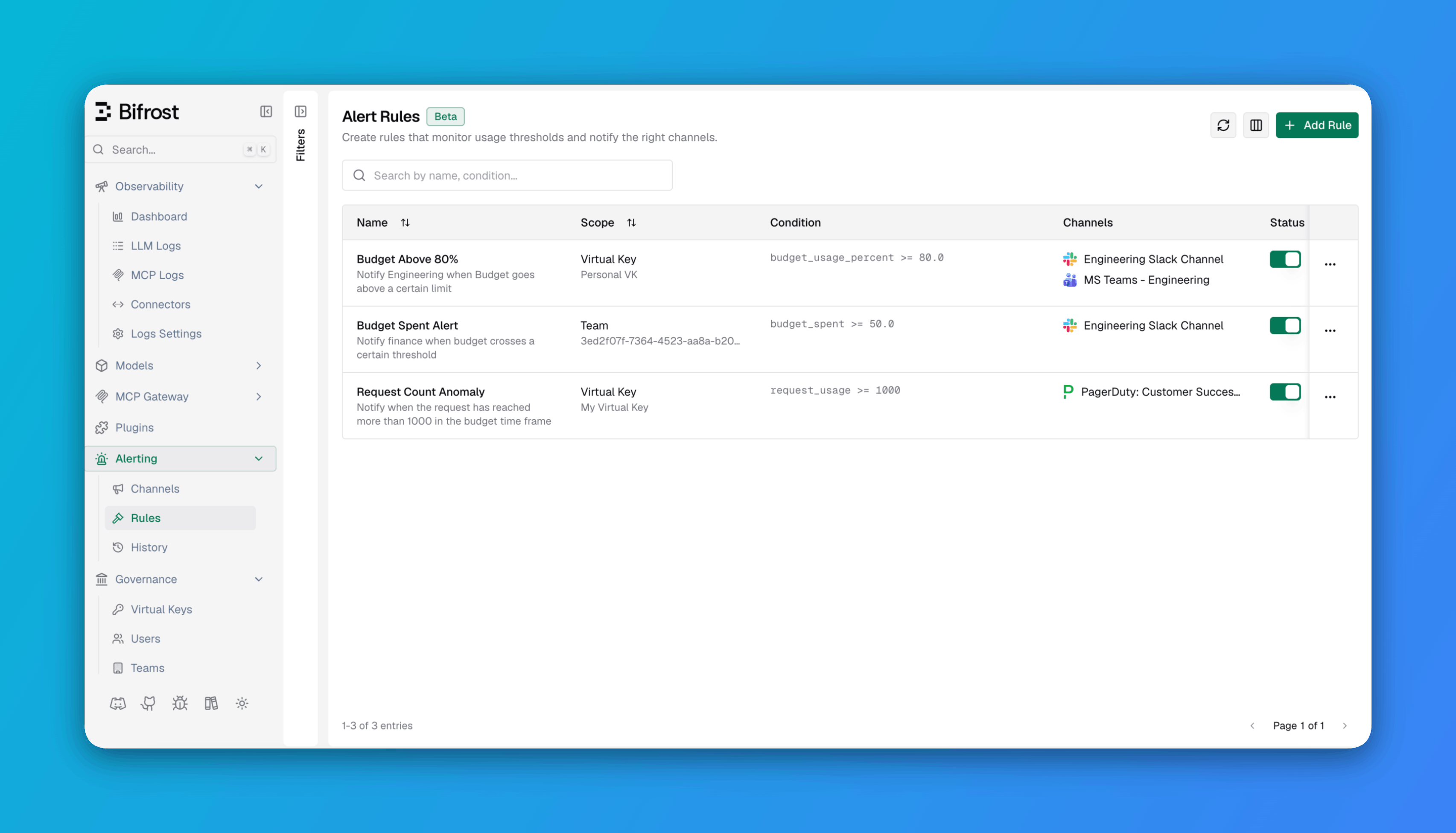
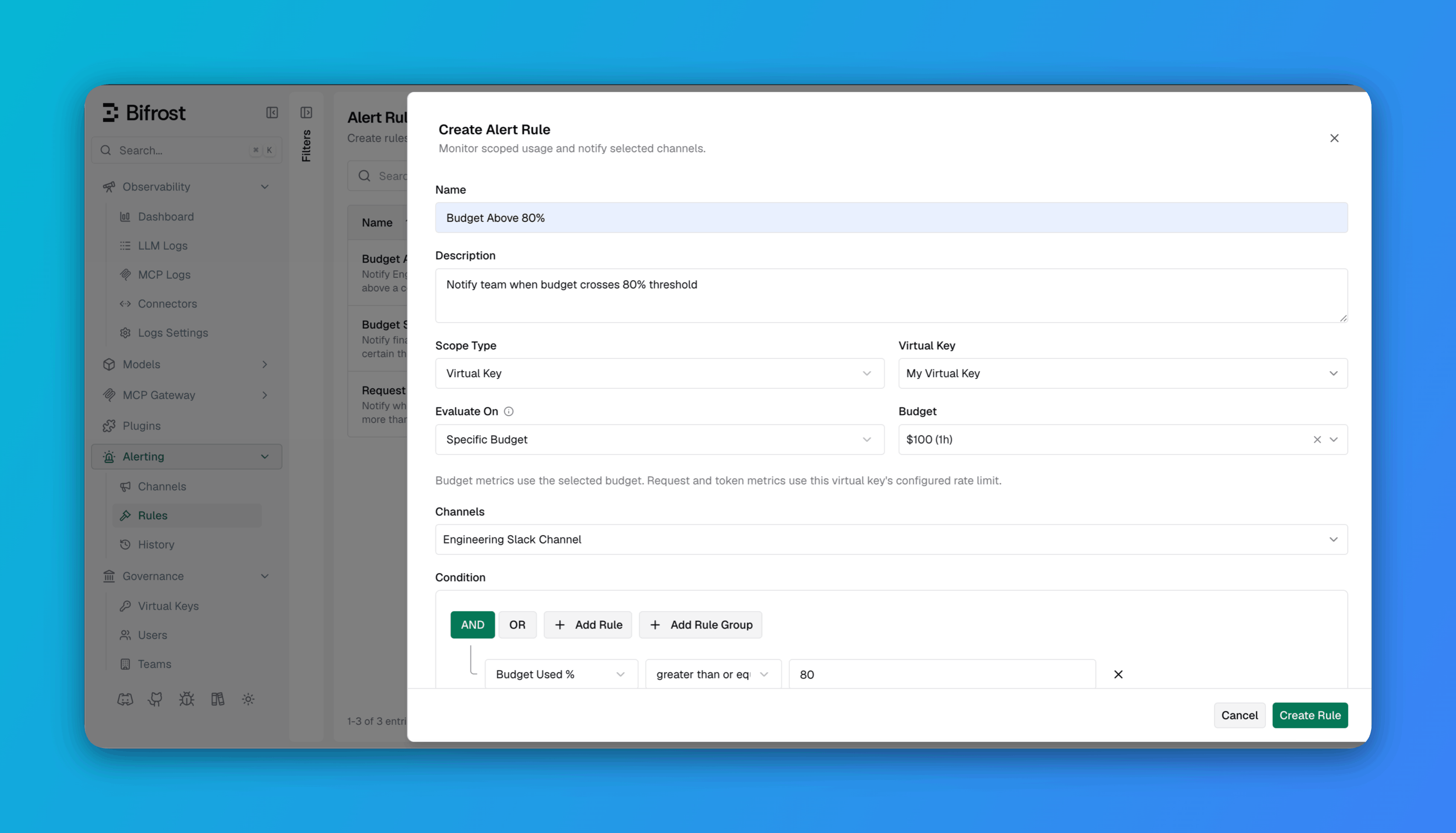
- Enter a Rule Name and optional Description.
- Choose a Scope Type and select the Scope entity (Virtual Key, Team, or Customer).
- Set Evaluate On to
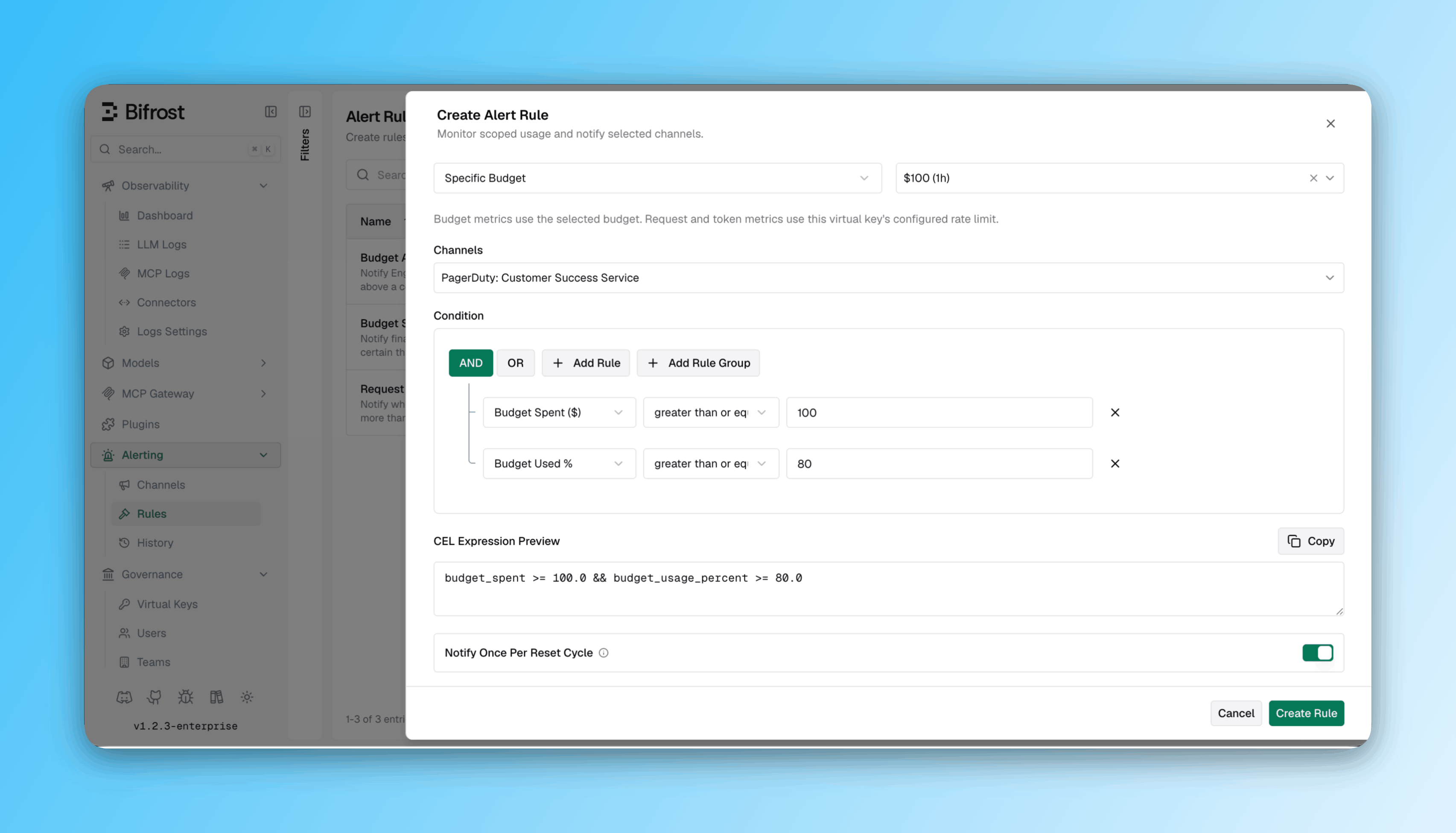
Any Budget, or choose a specific budget to target it directly. - Select one or more Channels to notify.
- Build the Condition with the rule builder - add individual conditions or nested rule groups, and combine them with
AND/OR. The field dropdown offers six metrics: Budget Used %, Budget Spent ($), Request Limit Used %, Token Limit Used %, Request Usage, and Token Usage. For absolute limits (budget_limit,request_limit,token_limit) or other CEL expressions the builder doesn’t expose, use the API or config.json tab instead.
- Optionally set a Cooldown.
- Click Create Rule.
Next steps
Alert Channels
Configure the destinations a rule notifies.
Alert History
Review which rules fired and why.