Enable real-time user and group provisioning from Microsoft Entra ID to Bifrost Enterprise using SCIM 2.0.
SCIM (System for Cross-domain Identity Management) keeps Bifrost in sync with Entra in real time - new users are provisioned, deactivated users are suspended, and group memberships are updated without waiting for the next login or background sync.
Complete SSO using OIDC before setting up SCIM. SCIM runs as a separate provisioning job alongside your existing OIDC integration.
In your Bifrost dashboard, go to Governance → User Provisioning and open your configured Microsoft Entra provider.
The Microsoft Entra provider dashboard showing your connection details and attribute mappings.
2
Enable SCIM provisioning
Click the settings icon to open Provider Configuration.Toggle on Enable SCIM Provisioning and click Save & Enable.
Enable SCIM Provisioning in Provider Configuration - the SCIM endpoint URL and token are generated after saving.
3
Copy the SCIM credentials
After saving, Bifrost shows a Setup Complete dialog with:
SCIM Endpoint URL - the base URL Entra will send provisioning requests to
Provisioning Token - the bearer token Entra uses to authenticate
Copy both values now - you will need them in Step 2.
Setup Complete dialog showing the SCIM Endpoint URL and Provisioning Token.
The provisioning token is only shown once. Store it somewhere safe before closing this dialog. You can always rotate it later, but the previous token will immediately become invalid.
Alternative: seed the token declaratively (Helm / config.json)
If you manage Bifrost with Helm or a static config.json (GitOps), you can seed the Provisioning Token yourself instead of generating it in the dashboard.
This produces a URL-safe token in the same format Bifrost mints internally.
2
Add it to your SCIM config
Helm values.yaml:
bifrost:
  scim:
    enabled: true
    provider: "entra"
    config:
      tenantId: "..."
      clientId: "..."
      clientSecret: "env.ENTRA_CLIENT_SECRET"
      provisioningToken: "env.SCIM_PROVISIONING_TOKEN"   # or the literal token
      claimScimAttributes:                                # per-claim SCIM interpretation
        groups:
          attributeType: "group"        # "user" (SCIM User attribute) or "group" (match SCIM Group)
          attributeValue: "displayName"
      claimsSyncMode: "both"                                # provisioning source: "both" (SCIM + login claims) or "scim" (SCIM only - ignore login claims)
The same keys (provisioningToken, claimScimAttributes, claimsSyncMode) apply directly under scim_config.config in a raw config.json.
Keep the token in a Kubernetes Secret and reference it with the env. prefix - never commit the literal value. Rotating the token in the dashboard invalidates any value seeded here.
Then use this token as the Secret Token and your deployment’s SCIM endpoint as the Tenant URL in Step 2 below.
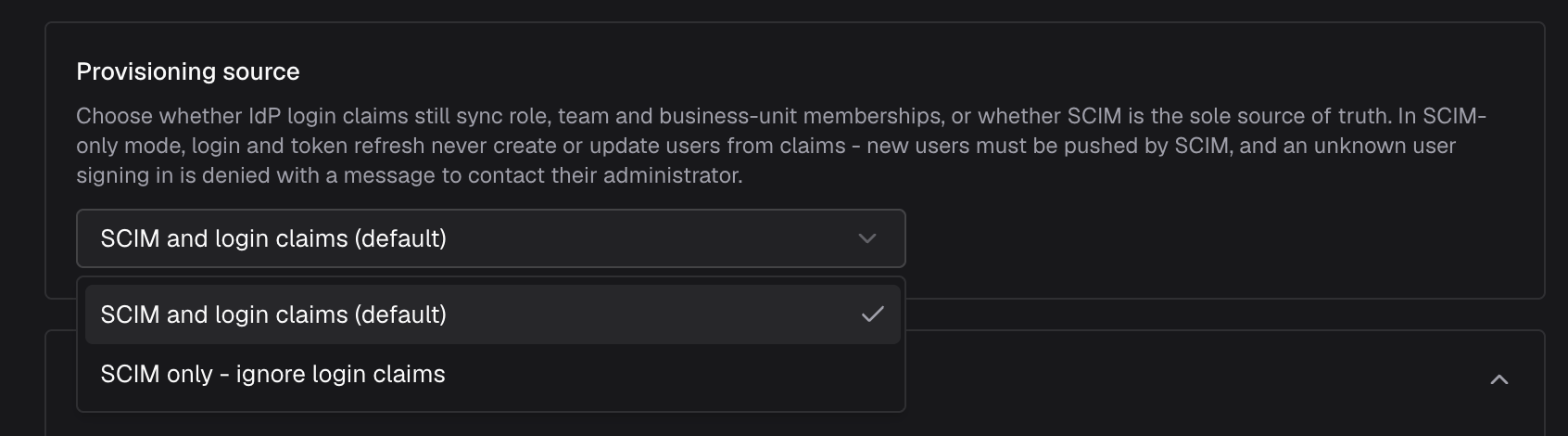
The provider configuration includes a Provisioning source setting that controls whether IdP login claims still provision users, or whether SCIM is the sole source of truth:
The Provisioning source setting in the provider configuration - choose between SCIM and login claims (default) or SCIM only.
Option
Config value
Behavior
SCIM and login claims (default)
both
Both SCIM and IdP login / token-refresh claims create and update users, roles, teams, and business units.
SCIM only - ignore login claims
scim
SCIM is the sole source of truth. OIDC claims will be ignored and will never create or update users from claims - new users must be pushed by SCIM. Users not already provisioned by SCIM are denied access at login.
Choose SCIM only when provisioning must be fully controlled by your IdP’s SCIM app and login-time claim changes should never alter membership. Leave it on the default SCIM and login claims if users are also provisioned just-in-time on first login.This maps to the claimsSyncMode config key (both or scim) and is inert when SCIM is disabled - claims always sync then.
Admin Credentials - enter the SCIM Endpoint URL as Tenant URL and the Provisioning Token as Secret Token, then test the connection.
3
Configure attribute mappings (optional)
Expand Mappings to review or adjust how Entra user and group attributes are mapped to SCIM fields that Bifrost receives.The default mappings cover standard fields (name, email, active status, groups). Skip this step unless you need to sync custom attributes.
To include a custom attribute in the SCIM payload Entra sends to Bifrost:
Under Mappings, click Provision Microsoft Entra ID Users
Click Add New Mapping
Set the Source attribute to the Entra user property (e.g. employeeId, department)
Set the Target attribute to the corresponding SCIM attribute name (e.g. urn:ietf:params:scim:schemas:extension:enterprise:2.0:User:employeeNumber)
Click Ok and Save
Add New Mapping - map an Entra user attribute to the SCIM attribute Bifrost will receive.
Back in Bifrost, go to Attribute Mapping in the provider setup and add a SCIM Attribute entry using the same attribute name. The name must match exactly - including case.
4
Enable provisioning
Back on the main Provisioning settings page, set Provisioning Status to On and click Save.
Set Provisioning Status to On to start the SCIM sync cycle.
Go to Enterprise applications → Bifrost Enterprise → Users and groups.Click Add user/group and select the users or groups you want to provision into Bifrost.
Users and groups - only users and groups assigned here are included in the SCIM provisioning scope.
Only users and groups explicitly assigned to the application are provisioned when the provisioning scope is set to Sync only assigned users and groups (the default). Set scope to Sync all users and groups only if you want to provision your entire directory.
Assigned users are pushed to Bifrost during the next provisioning cycle (typically within 40 minutes). When a user is unassigned or disabled in Entra, Bifrost deactivates them in real time.
2
Trigger an on-demand sync (optional)
To provision a specific user immediately without waiting for the next cycle, go to the Provisioning tab and click Provision on demand.Search for the user, select them, and click Provision.
Provision on demand - push a specific user to Bifrost immediately for testing or urgent onboarding.
Once provisioning is active, confirm everything is syncing correctly.
Go to Governance → Users to see provisioned users and their assigned roles
Go to Governance → Teams to see teams populated from synced groups
Go to Governance → Business Units to see business units resolved from group or attribute mappings
Changes in Entra - new assignments, group membership updates, deactivations - will reflect in Bifrost within the provisioning cycle (typically 40 minutes for incremental cycles, up to 4 hours for the initial cycle).
Initial cycle - on first enable, Entra performs a full sync of all in-scope users and groups. This can take up to 4 hours for large directories.Incremental cycles - after the initial sync, Entra pushes only changes (new users, deactivations, attribute updates, group membership changes) every ~40 minutes.Background reconciliation - Bifrost also runs a full reconciliation from the Microsoft Graph API every 24 hours to catch anything the SCIM push may have missed.
Test Connection fails - verify the Tenant URL has no trailing slash and the Secret Token matches exactly what Bifrost generated. Rotate the token in Bifrost and update Entra if needed.Users are provisioned but have no role - SCIM provisions the user record; role assignment comes from attribute mappings in the OIDC provider. Confirm your Attribute-to-Role mappings are configured and the relevant claims are present in the JWT at login time.Custom attribute is not arriving in Bifrost - confirm the SCIM attribute name in Entra’s mapping and Bifrost’s SCIM Attribute setting match exactly (case-sensitive). Verify the mapping was saved under Provision Microsoft Entra ID Users.Group membership is not syncing - groups must be assigned to the Enterprise Application and provisioning scope must include groups. Check that Provision Microsoft Entra ID Groups is enabled under Mappings.Users are stuck in “Pending” - this is normal during the initial cycle for large directories. Check the Provisioning logs under Monitoring in the Provisioning tab for per-user status and any errors.
Was this page helpful?
Assistant
Responses are generated using AI and may contain mistakes.