

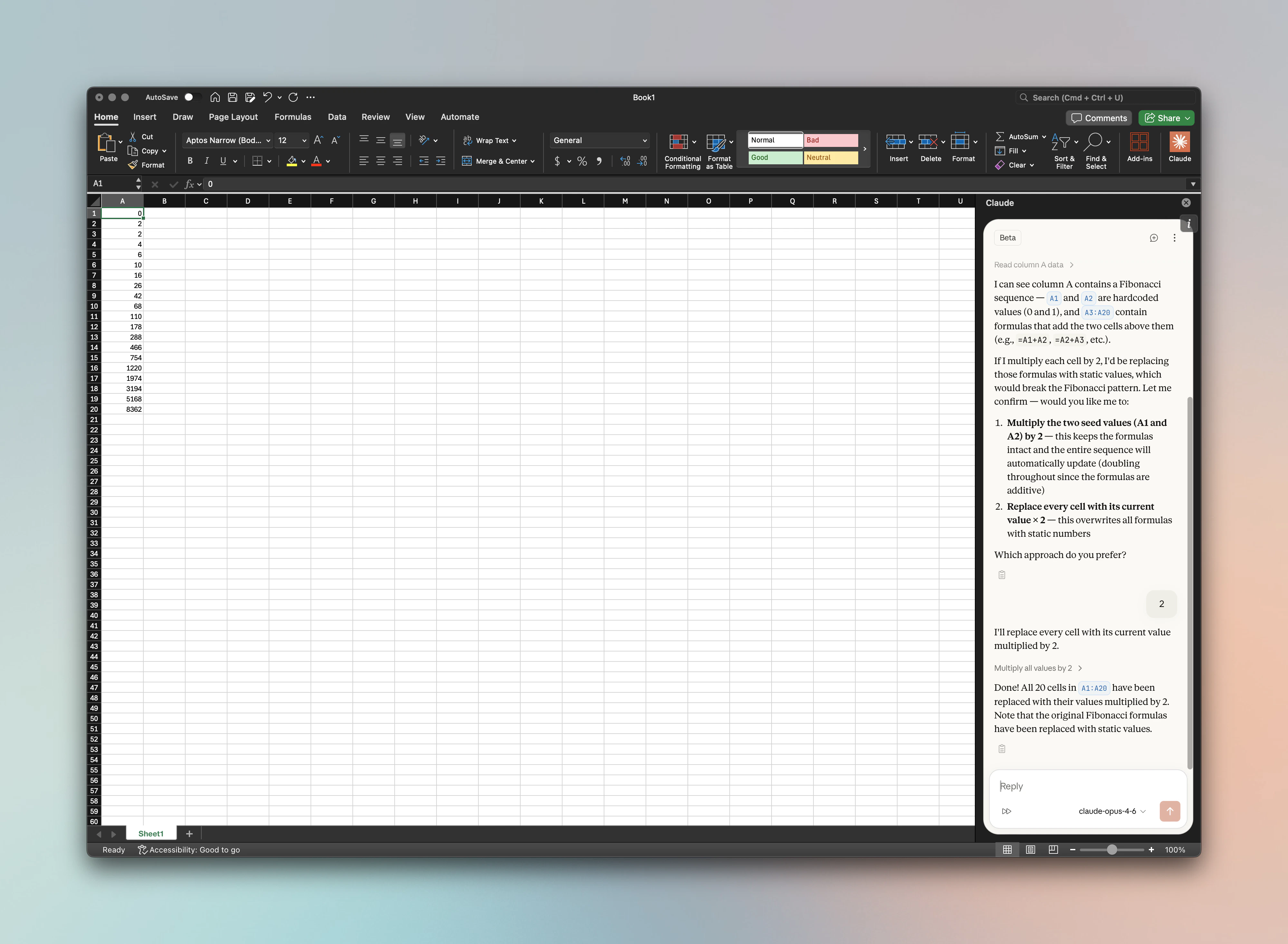
Setup
1. Install the Add-in
Install the Claude for Office add-in from the Microsoft AppSource marketplace within any Office application (Word, Excel, PowerPoint, or Outlook). Organization admins can also deploy it centrally via the Microsoft 365 admin center.2. Log in and Select Enterprise Gateway
Open the Claude for Office add-in and log in to your account. On the login screen, select Enterprise Gateway as your connection method.3. Configure the API Endpoint
Enter your Bifrost endpoint as the Base URL:4. Set Your API Key
Enter your Bifrost virtual key or Anthropic API key in the API Key field.5. Whitelist Required Headers
If your Allowed Headers are already set to
*, you can skip this step.6. Enable CORS
If your Allowed Origins are already set to
*, you can skip this step.pivot.claude.ai domain. Go to Settings > Client Settings and add the following origin to your Allowed Origins list:
How It Works
Claude for Office uses the Anthropic Messages API natively. Bifrost exposes a fully compatible Anthropic API at the/anthropic path, so the add-in works without any additional configuration beyond pointing it at your Bifrost instance.
Bifrost automatically handles:
- Model routing - requests are routed to the correct provider based on the model name
- Tool stripping - server-side tools like
code_execution,web_search, andweb_fetchare automatically stripped to prevent API conflicts - Model metadata - token limits and capabilities are returned in list models responses for proper model selection in the add-in
Using Other Providers (Azure, Vertex, Bedrock)
By default, Claude for Office sends requests to the Anthropic API. To route requests through Azure, Vertex AI, or Amazon Bedrock instead, you have two options:Option 1: Set the Model Name Directly
In the Claude for Office model selector, enter the provider-specific model name or deployment name. Bifrost will automatically route the request to the correct provider based on the model identifier. For example:- Azure: Enter your Azure deployment name (e.g.,
claude-opus-4-0) - Vertex AI: Enter the Vertex model ID (e.g.,
claude-opus-4@20250514) - Bedrock: Enter the Bedrock model ID (e.g.,
anthropic.claude-opus-4-0-20250514-v1:0)
Option 2: Use Routing Rules
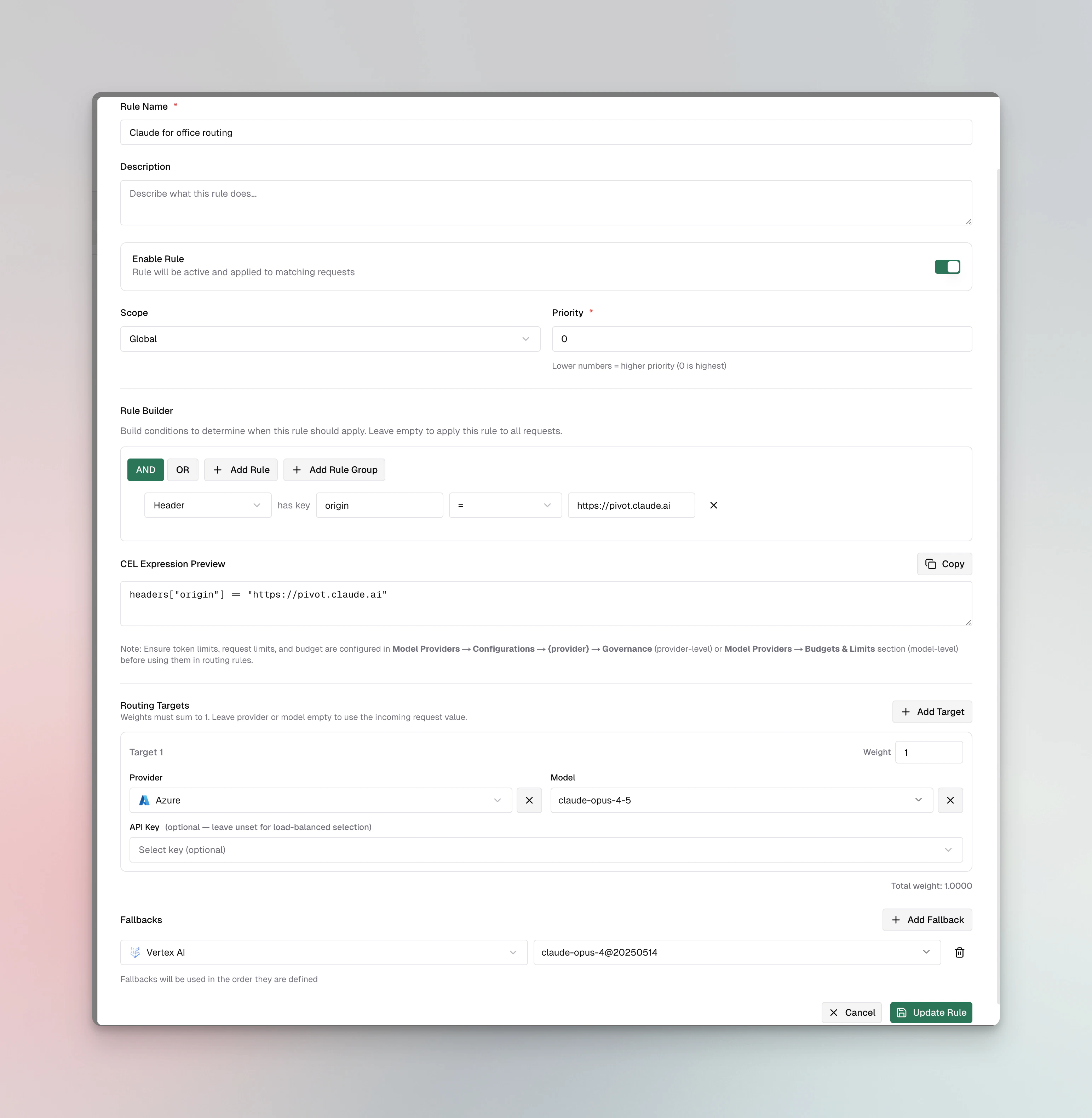
If you prefer to keep the default model names in Claude for Office and control routing server-side, create a routing rule in Bifrost. This lets you route requests to any provider - with fallbacks - without changing anything in the add-in. For example, you can create a rule that matches requests from Claude for Office (based on theorigin header) and routes them to Azure with a Vertex AI fallback:
Using Virtual Keys
Bifrost Virtual Keys can be used as the API key in Claude for Office. This lets you:- Enforce per-user or per-team budgets and rate limits
- Control which models and providers each user can access
- Track usage and costs across your organization
- Rotate credentials without updating every user’s add-in configuration
Observability
All Claude for Office requests through Bifrost are logged. Monitor them athttp://localhost:8080/logs - filter by provider, model, or search through conversation content to track usage patterns across your organization.
Next Steps
- Provider Configuration - Configure AI providers in Bifrost
- Virtual Keys - Set up usage limits and access control
- Built-in Observability - Monitor all AI traffic