

Overview
Bifrost provides built-in telemetry and monitoring capabilities through Prometheus metrics collection. The telemetry system tracks both HTTP-level performance metrics and upstream provider interactions, giving you complete visibility into your AI gateway’s performance and usage patterns. Key Features:- Prometheus Integration - Native metrics collection at
/metricsendpoint - Comprehensive Tracking - Success/error rates, token usage, costs, and cache performance
- Custom Labels - Configurable dimensions for detailed analysis
- Dynamic Headers - Runtime label injection via
x-bf-dim-*headers - Cost Monitoring - Real-time tracking of AI provider costs in USD
- Cache Analytics - Direct and semantic cache hit tracking
- Async Collection - Zero-latency impact on request processing
- Multi-Level Tracking - HTTP transport + upstream provider metrics
Default Metrics
HTTP Transport Metrics
These metrics track all incoming HTTP requests to Bifrost:
Labels:
path: HTTP endpoint pathmethod: HTTP verb (e.g.,GET,POST,PUT,DELETE)status: HTTP status code- custom labels: Custom labels configured in the Bifrost configuration
Upstream Provider Metrics
These metrics track requests forwarded to AI providers:
Base Labels:
provider: AI provider name (e.g.,openai,anthropic,azure)model: Model name (e.g.,gpt-4o-mini,claude-3-sonnet)alias: Alias resolved to this model (empty if none)method: Request type (chat,text,embedding,speech,transcription)app: Calling client classified from the User-Agent (Claude Code,Cursor,Codex CLI, …,API, orOther); empty when no User-Agent was sentvirtual_key_id: Virtual key IDvirtual_key_name: Virtual key namerouting_engine_used: Comma-separated routing engines used (routing-rule,governance,loadbalancing,model-catalog,core).coreis emitted when the Bifrost orchestrator itself makes a routing decision — i.e. a fallback transition or a retry transition.routing_rule_id: Routing rule ID that matched the requestrouting_rule_name: Routing rule name that matched the requestcomplexity_tier: Complexity tier used for routing (SIMPLE/MEDIUM/COMPLEX); empty when no routing rule referencedcomplexity_tiercomplexity_mechanism: How the effective complexity tier was determined (semantic,decision,llm,session, orskippedwhen no tier was produced). The semantic similarity score is not a label because it has unbounded cardinality; it is recorded in request logs and traces. Decision-model confidence is recorded in the routing decision logselected_key_id: ID of the key that successfully served the request (empty string""on final errors)selected_key_name: Name of the key that successfully served the request (empty string""on final errors)fallback_index: Fallback index (0 for first attempt, 1 for second attempt, etc.)team_id/team_name: Team identifiers (empty when governance is not used)customer_id/customer_name: Customer identifiers (empty when governance is not used)- custom labels: Custom labels configured in the Bifrost configuration
user_id / user_name are not Base Labels. They are opt-in via the telemetry plugin’s user_labels_enabled config field, because user identity has unbounded cardinality and multiplies series count. See Prometheus → User Labels.
bifrost_overhead_component_microseconds is off by default. Enable it with the telemetry plugin’s overhead_breakdown_enabled config field (a sibling of metrics_enabled). It carries the Base Labels above plus an overhead_component label whose value is one of ten fixed categories (serialization, conversion, plugins, middleware, routing, processing, networking, streaming, miscellaneous, other), the same categories the Bifrost UI’s log-detail overhead breakdown groups into; summing the components for a given label set reconstructs bifrost_overhead_latency_microseconds. Because the breakdown is derived from completed trace spans, it only populates when tracing is active for the request. See Prometheus → Overhead Breakdown.Streaming Metrics
These metrics capture latency characteristics specific to streaming responses:MCP Metrics
These metrics track MCP (Model Context Protocol) tool calls executed through Bifrost:
MCP Labels:
mcp_client: MCP server label (client name) the tool belongs tomcp_tool_name: Tool name invokedmcp_method: MCP method —tools/callerror_type:auth_requiredor_OTHERon failure; empty on success- MCP governance labels:
virtual_key_id/virtual_key_name,team_id/team_name,customer_id/customer_name,business_unit_id/business_unit_name
Only tool executions are recorded — lifecycle operations (
ping / list_tools) and codemode tools are skipped. Unlike the LLM metrics, MCP metrics do not carry provider / model or a network_transport label.Monitoring Examples
Success Rate Monitoring
Track the success rate of requests to different providers:Token Usage Analysis
Monitor token consumption across different models:Cost Tracking
Monitor spending across providers and models:Cache Performance
Track cache effectiveness:Error Rate Analysis
Monitor error patterns:Configuration
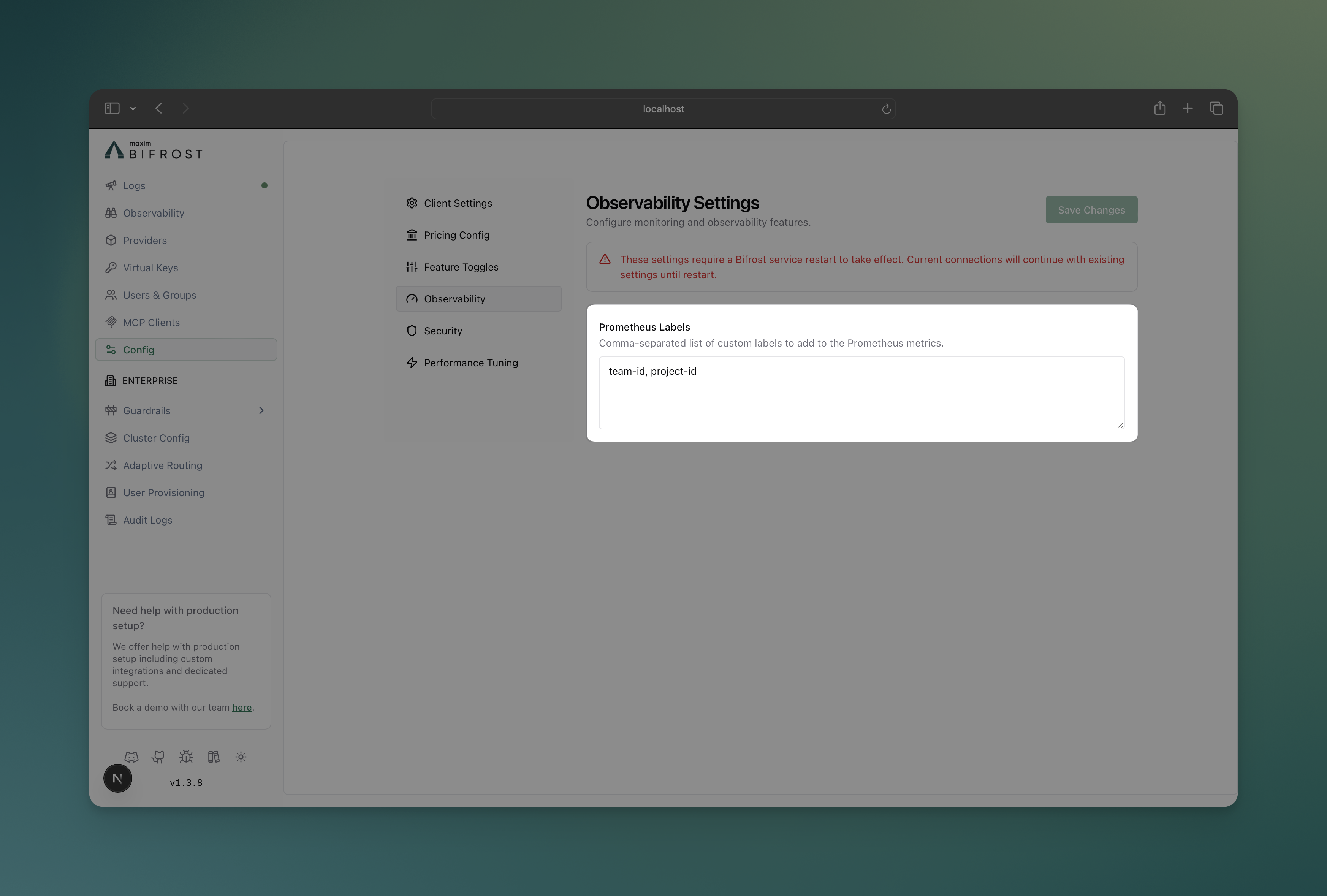
Configure custom Prometheus labels to add dimensions for filtering and analysis:- Web UI
- API
- config.json
-
Navigate to Configuration
- Open Bifrost UI at
http://localhost:8080 - Go to Config tab
- Open Bifrost UI at
-
Prometheus Labels
Dynamic Label Injection
Add custom label values at runtime usingx-bf-dim-* headers:
- Prefix:
x-bf-dim- - Label name: Any string after the prefix, except reserved metric labels like
pathandmethod - Value: String value for the label
x-bf-dim-* values appear in internal logs, OpenTelemetry span attributes, Datadog spans, and Maxim tags.
Legacy
x-bf-prom-* headers still work for Prometheus-only behavior, but they are deprecated. When both prefixes provide the same label, x-bf-dim-* wins.Infrastructure Setup
Development & Testing
For local development and testing, use the provided Docker Compose setup: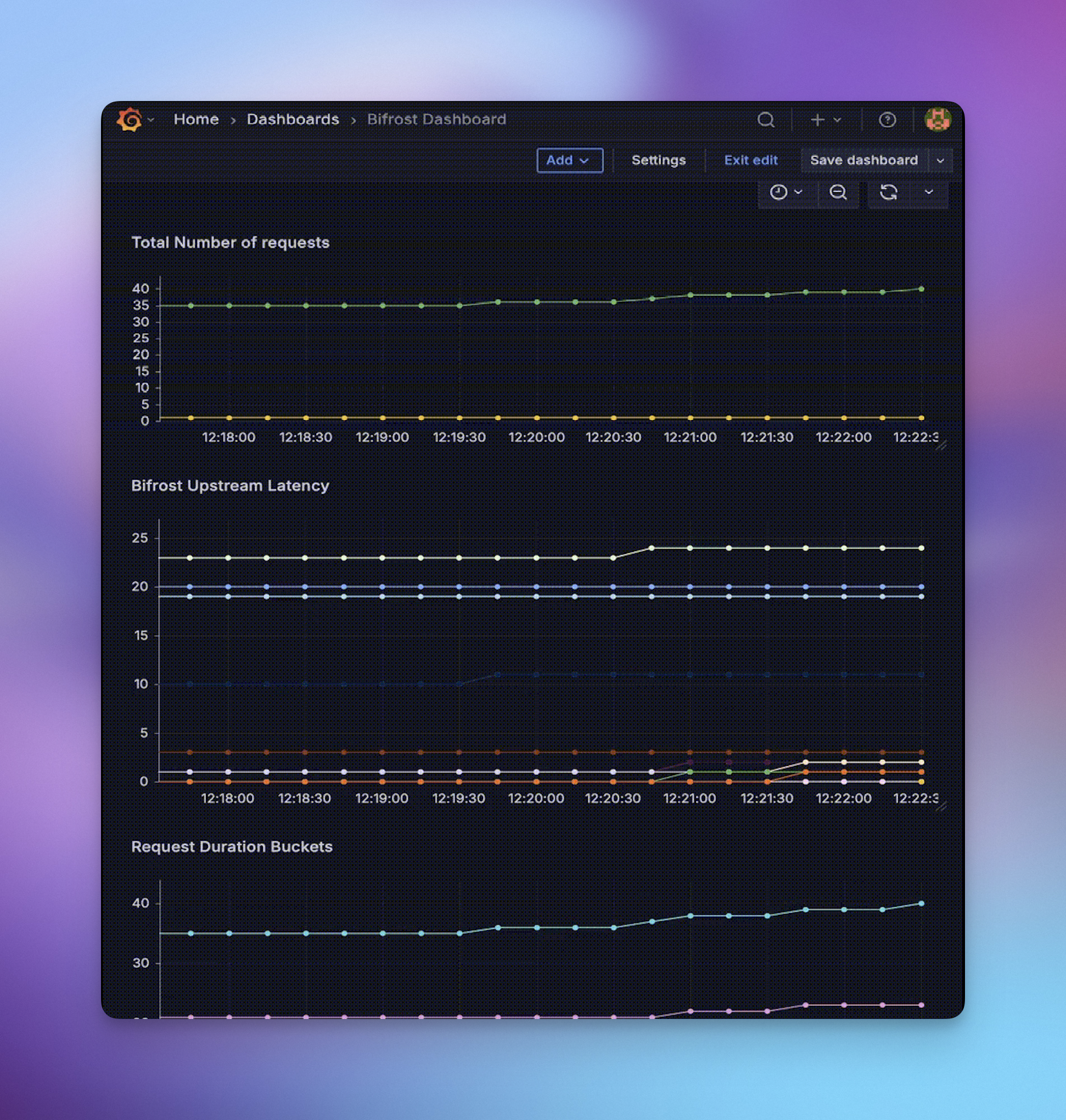
Production Deployment
For production environments:- Deploy Prometheus with proper persistence, retention, and security
- Configure scraping to target your Bifrost instances at
/metrics - Set up Grafana with authentication and dashboards
- Configure alerts based on your SLA requirements
If you have Bifrost authentication enabled (
auth_config), you must include
basic_auth in the scrape config with your admin_username and
admin_password. See the Prometheus
docs for details.Production Alerting Examples
Configure alerts for critical scenarios using the new metrics: High Error Rate Alert:Next Steps
- Prometheus Documentation - Official Prometheus guides
- Grafana Setup - Dashboard creation and management
- Tracing - Request/response logging for detailed analysis