

Overview
Bifrost can connect to any MCP-compatible server to discover and execute tools. Each connection is called an MCP Client in Bifrost terminology.Connection Types
Bifrost supports four connection types:Authentication is configured separately from the connection protocol. STDIO inherits its environment from the spawned subprocess and has no per-call auth. HTTP and SSE support five auth modes:
none, headers, oauth, per_user_oauth, per_user_headers. See Authentication →.STDIO Connections
STDIO connections launch external processes and communicate via standard input/output. Best for local tools and scripts.- Local filesystem operations
- Python/Node.js MCP servers
- CLI utilities and scripts
- Database tools with local credentials
HTTP Connections
HTTP connections communicate with MCP servers via HTTP requests. Ideal for remote APIs, microservices, and cloud-hosted MCP services.Session Stickiness (HTTP only)
For a server-level client (auth_type oauth, headers, or none — not the per-user auth types below, which are always per-call regardless of this setting), needs_session_stickiness controls whether Bifrost holds one persistent upstream connection or dials fresh for every tool call:
Only meaningful for
connection_type: "http" — sse and stdio connections are always sticky (an SSE session is inherently bound to its open stream, and STDIO needs a persistent subprocess), and explicitly setting needs_session_stickiness: false on either is rejected at creation.
- Web UI
- API
- config.json
Toggle Session Stickiness in the client’s create/edit sheet (HTTP connections only):
SSE Connections
Server-Sent Events (SSE) connections provide a persistent transport to MCP servers that stream events. Supports the same auth options as HTTP.- Real-time market data
- Live system monitoring
- Event-driven workflows
- Anything where the MCP server pushes notifications
OpenAPI Connections
An OpenAPI connection has no MCP server to dial: Bifrost parses the document and serves one tool per supported operation, proxying each call to the API. See OpenAPI Servers for the full flow, including the preview that lets you pick operations.Gateway Setup
- Web UI
- API
- config.json
Adding an MCP Client
- Navigate to MCP Gateway in the sidebar - you’ll see a table of all registered servers
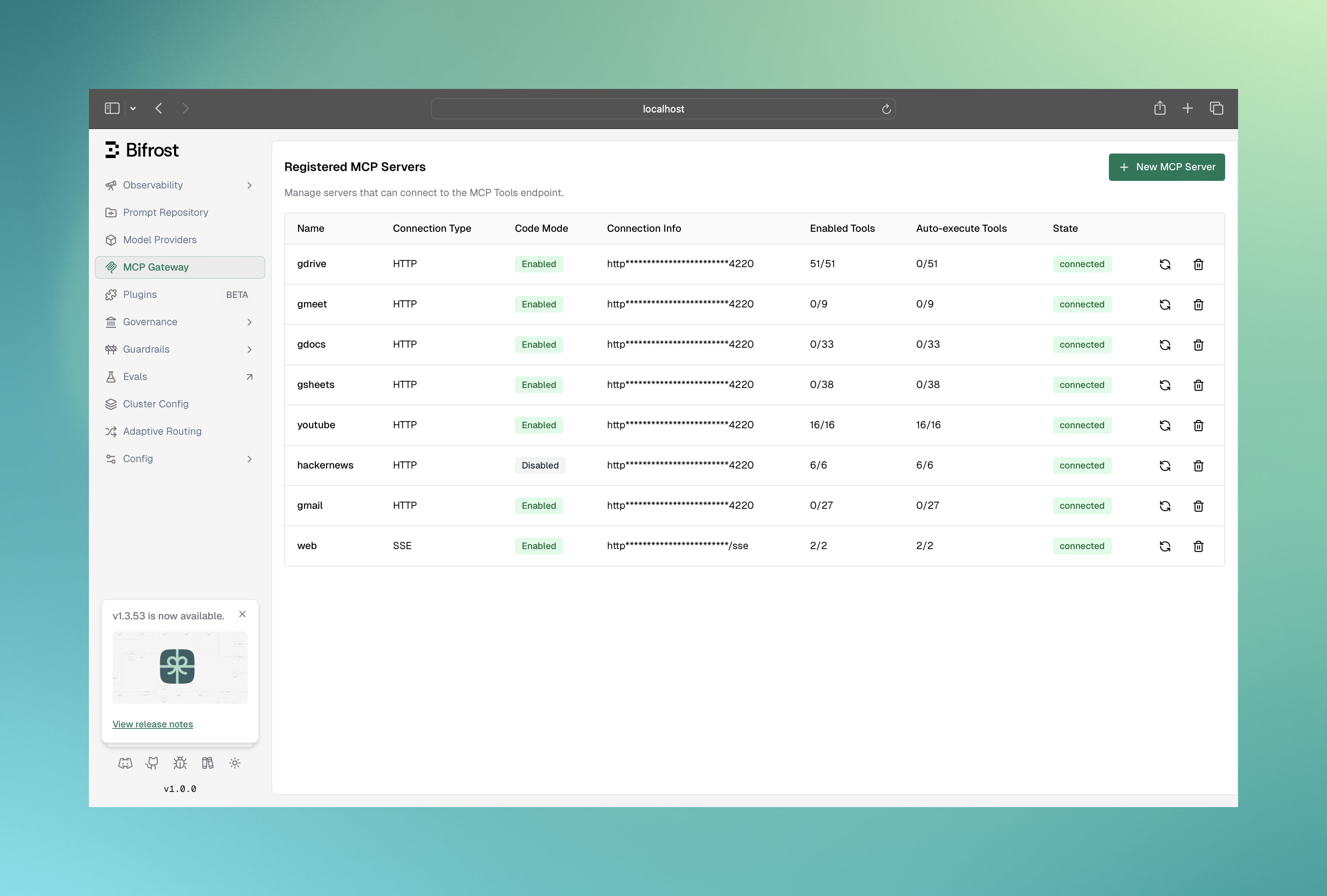
- Click Add MCP Server to open the creation form
- Fill in the connection details:
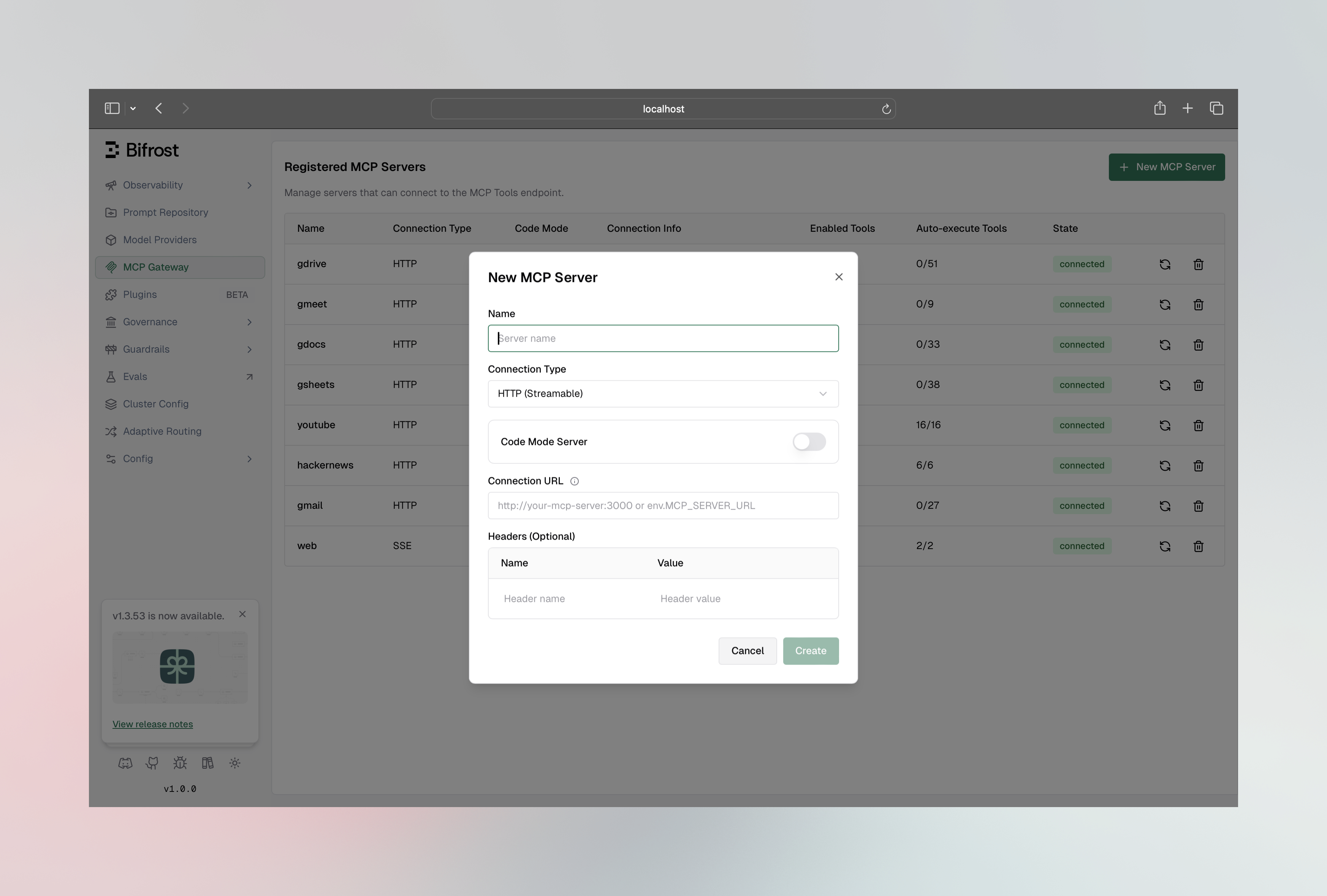
- Name: Unique identifier (no spaces or hyphens, ASCII only)
- Server source: Connect to an MCP server, then pick its Connection Type (STDIO, HTTP or SSE), or Generate from an OpenAPI spec (beta)
- For STDIO: Command, arguments, and environment variables
- For HTTP/SSE: Connection URL
- For OpenAPI: Paste or upload the document (it parses on its own) or fetch it from a URL, then pick the base URL, credentials and operations (see OpenAPI Servers)
- Click Create to connect
Viewing and Managing Connected Tools
Once connected, click on any client row to open the configuration sheet: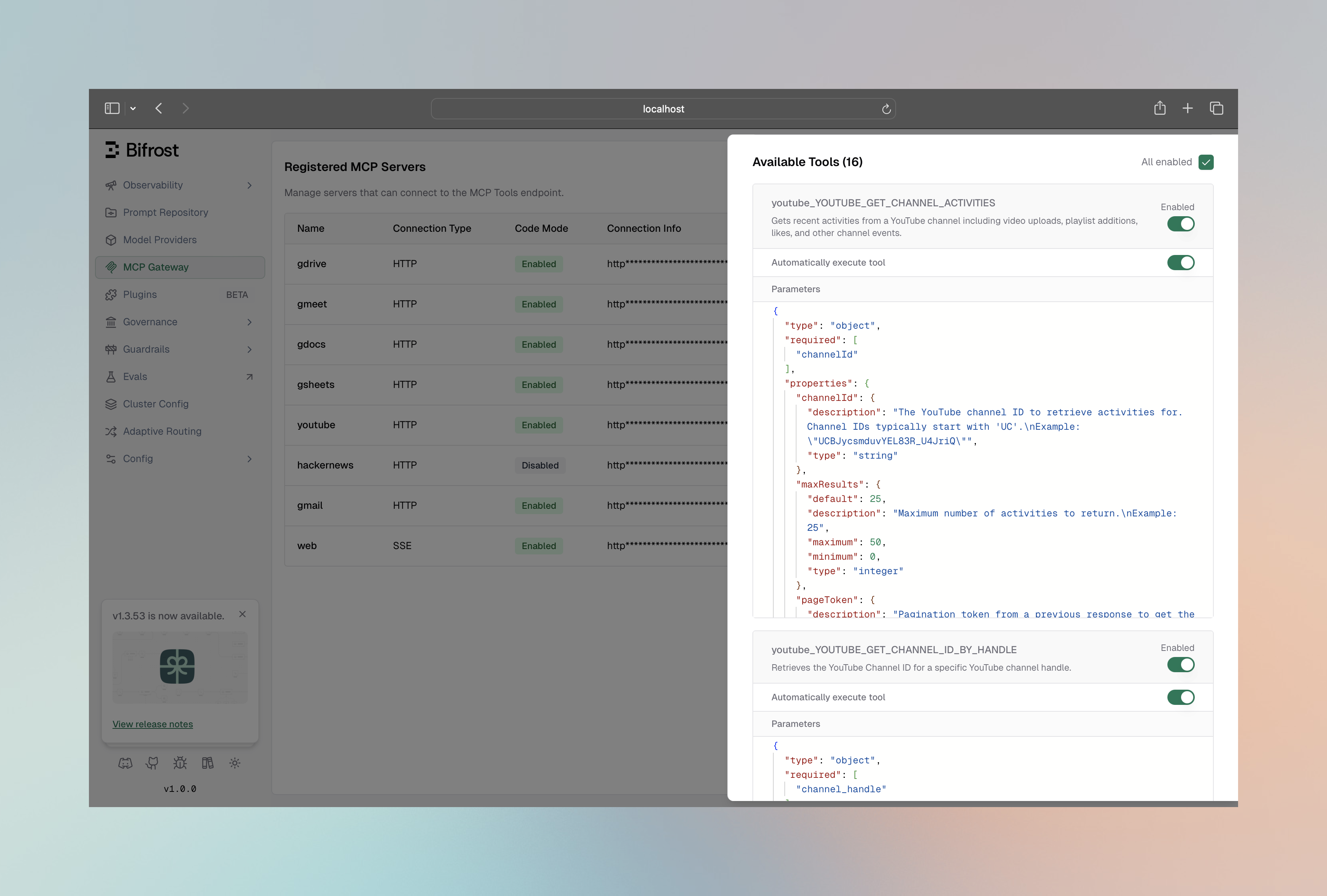
- View all discovered tools with their descriptions and parameters
- Enable/disable individual tools via toggle switches
- Configure auto-execution for specific tools
- Edit custom headers for HTTP/SSE connections
- View the full connection configuration as JSON
Alongside the tools, Bifrost captures whatever the server returns in the
instructions field of
the MCP initialize handshake. Whether that text reaches your clients is a separate setting —
see Server Instructions.Go SDK Setup
Configure MCP in your Bifrost initialization:Tools To Execute Semantics
TheToolsToExecute field controls which tools from the client are available:
Tools To Auto Execute (Agent Mode)
TheToolsToAutoExecute field controls which tools can be automatically executed in Agent Mode:
A tool must be in both
ToolsToExecute and ToolsToAutoExecute to be auto-executed. If a tool is in ToolsToAutoExecute but not in ToolsToExecute, it will be skipped.Global Tool Manager Settings
Tool-manager behaviour is configured once and applies to every MCP server. Three of these can be overridden per server on aclient_configs[] entry — tool_sync_interval, tool_execution_timeout, and max_instructions_length (which overrides the global max_instructions_per_client). In each case 0 or omitted means “use the global”.
- Web UI
- API
- config.json
- Go SDK
The MCP configuration panel under Settings → MCP exposes these knobs; the per-server overrides live on each client’s own sheet, under Sync & Timeouts: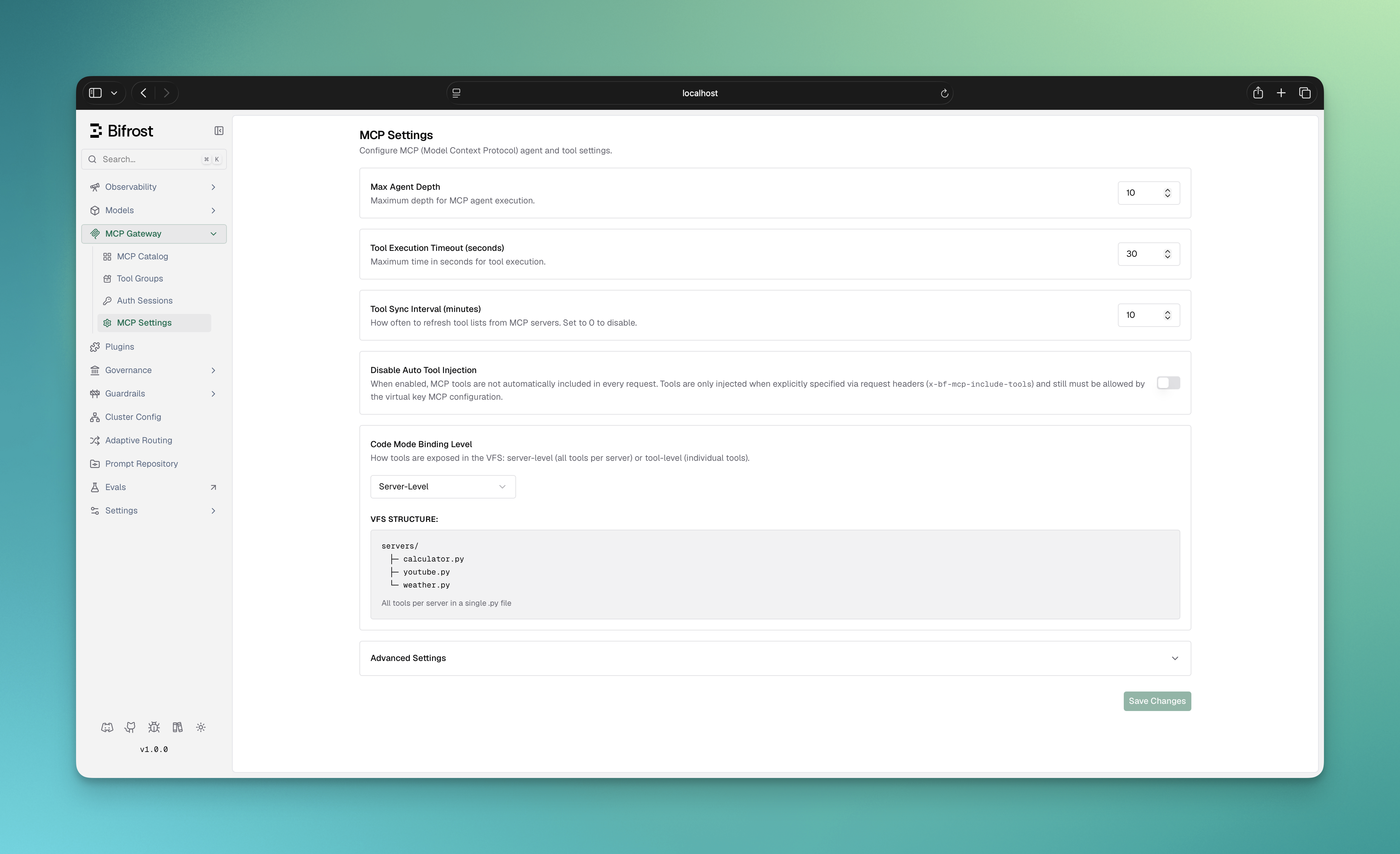
client.mcp_tool_execution_timeout, client.mcp_agent_depth, client.mcp_code_mode_binding_level, and client.mcp_disable_auto_tool_inject fields are deprecated aliases kept for backward compatibility — prefer mcp.tool_manager_config.* in new config.json and Go SDK setups. The Web UI panel and /api/config continue to use the aliases because they edit the live client_config row directly.
Environment Variables
Use environment variables for sensitive configuration values: Gateway (config.json):- Automatically resolved during client connection
- Redacted in API responses and UI for security
- Validated at startup to ensure all required variables are set
Egress Proxies
HTTP and SSE MCP connections honor the standardHTTP_PROXY, HTTPS_PROXY, and NO_PROXY variables from the Bifrost process environment, the same way every other outbound HTTP client in the process does. This is how a deployment with no direct internet route (a locked-down VPC, or a pod behind a corporate egress proxy) reaches a public MCP server. Set the variables on the container or task definition; a NO_PROXY entry keeps an internal MCP server on the direct path.
The network_config.proxy_config block in config.json does not apply to MCP connections. Its enable_for_* flags cover inference, SCIM, and API clients only.
The link-local and cloud-metadata block still applies when a proxy is in use: a connection string whose host is a link-local or metadata IP literal is refused before the proxy is contacted. A hostname on the proxied path is handed to the proxy unresolved, so Bifrost itself does not need to resolve public DNS in a proxy-only deployment.
Forwarding Request Headers to MCP Servers
Header Forwarding is available in v1.5.0-prerelease1 and above.
allowed_extra_headers field lets you define a per-client allowlist of headers that callers may inject at request time and have forwarded to that MCP server when tools are executed.
This is separate from the static headers field used for authentication:
Common use cases:
- Forwarding a user’s auth token to an MCP server that enforces per-user authorization
- Passing a tenant or org ID to a multi-tenant MCP server
- Propagating trace or correlation IDs for end-to-end observability
How It Works
- An incoming request carries one or more headers matching a client’s
allowed_extra_headerspattern - Bifrost captures those headers from the request (using the union of all clients’ allowlists)
- At tool execution time, each client re-checks the header against its own allowlist - so the same header can be forwarded to one MCP server but not another
Headers are matched case-insensitively. The only wildcard supported is a standalone
"*" (allow all headers) - partial patterns like x-tenant-* are not supported. If "*" is used, it must be the only entry in the list.- UI
- Management API
- Config File
- MCP Gateway (/mcp)
- Go SDK
Configure: Navigate to MCP Gateway, open the configuration sheet for an HTTP or SSE client, and set the Allowed Extra Headers field: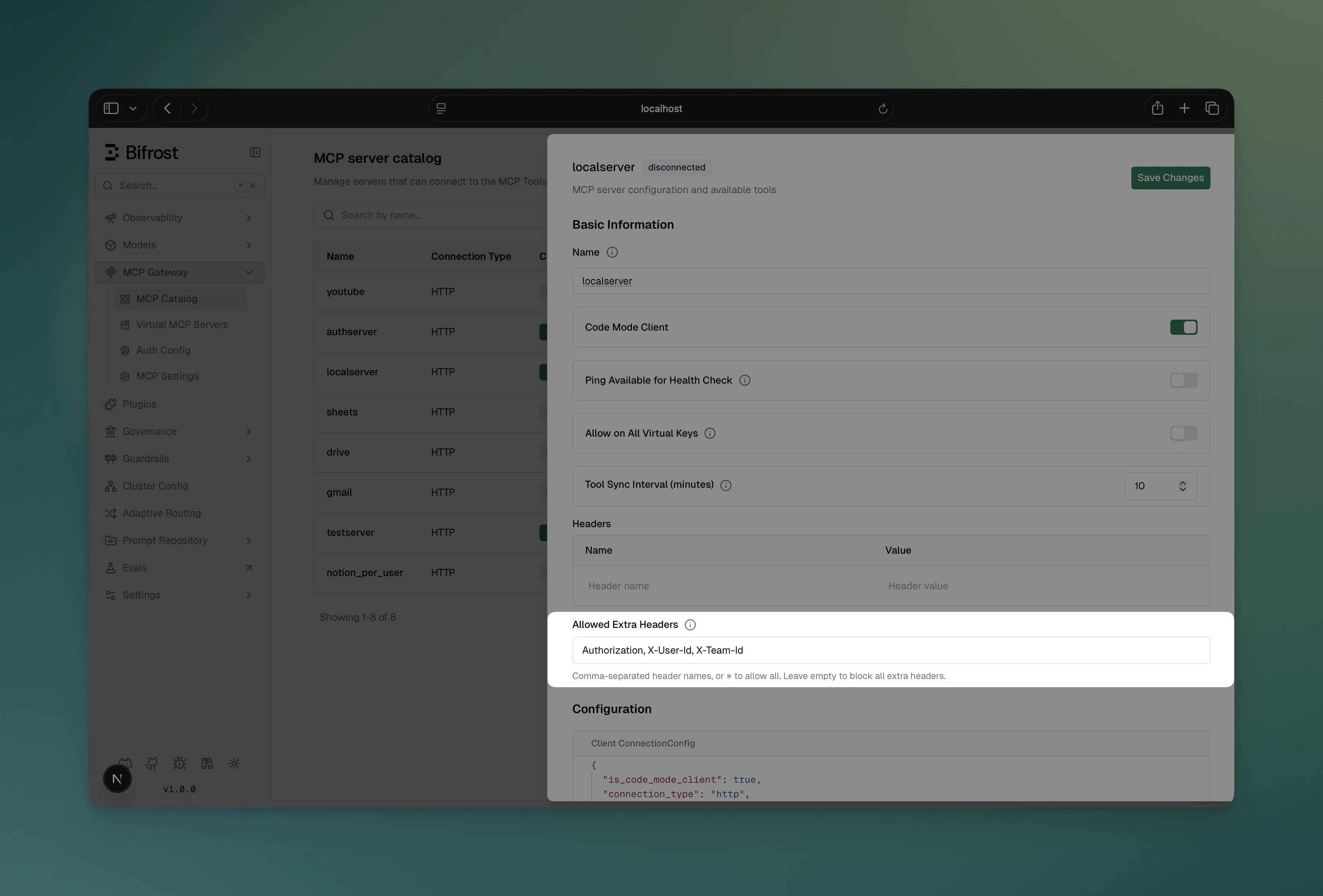
Client State Management
Connection States
See Connections, States & Lifecycles for the full picture — connection mode, self-healing behavior, and per-auth-type lifecycles.
Managing Clients at Runtime
- Gateway API
- Go SDK
Reconnect a client:Refresh a client’s tools:Edit client configuration:Remove a client:
Reconnect returns
400 for any per-call client — a shared client running per-call (needs_session_stickiness false/omitted) as well as any per-user auth type — since none of them hold a shared upstream connection to re-establish. Also 400 for clients in pending_verification — complete the admin verification instead.Different job from reconnect: this re-discovers the client’s tool list from its upstream server instead of recycling the connection, so it applies to every client type — including the per-call ones reconnect returns
400 for. Use it when an upstream server’s tools changed and you don’t want to wait for the next periodic sync. See Manual Tool Refresh.Health Monitoring
Bifrost automatically monitors MCP client health with periodic checks every 10 seconds by default.Health Check Methods
By default, Bifrost uses the lightweight ping method for health checks. However, you can configure the health check method based on your MCP server’s capabilities:Configuring Health Check Method
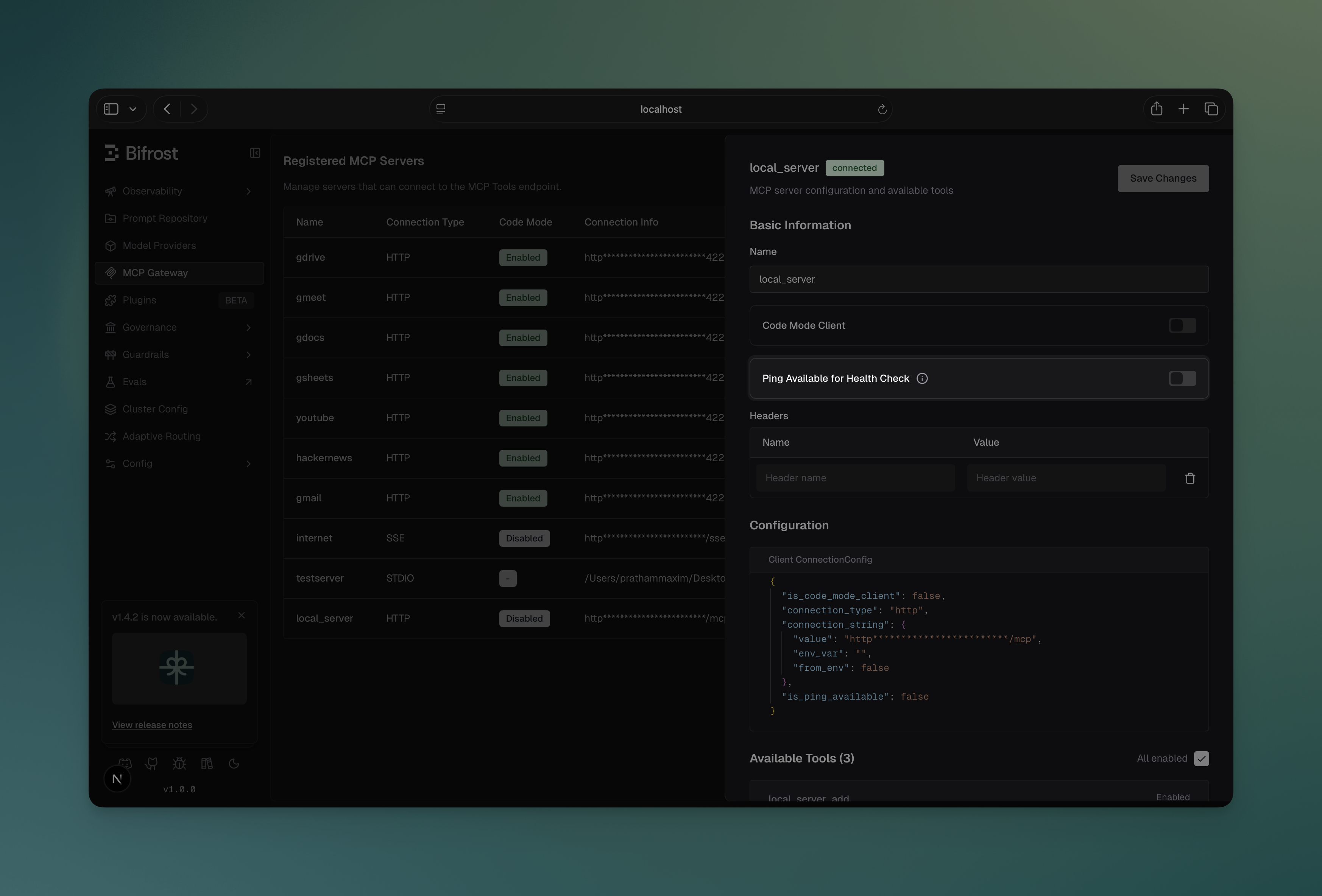
You can toggle theis_ping_available setting for each client:
Via Web UI
- Navigate to MCP Gateway and select a server
- In the configuration panel, toggle “Ping Available for Health Check”
- Enable: Uses lightweight ping for health checks
- Disable: Uses listTools method for health checks instead
Via API
Via config.json
Via Go SDK
Health Check Behavior
When a client’s periodic health check fails:- State changes to
unstable— purely informational, tool calls are still attempted normally against it - You can also reconnect manually via API or UI, though
unstableself-heals on its own once the next check succeeds
is_ping_available takes effect immediately without requiring a client reconnection.
Connection Resilience and Retry Logic
Bifrost automatically implements exponential backoff retry logic to handle transient network failures and temporary service unavailability. This ensures that brief connection issues don’t immediately cause tool unavailability.Automatic Retry Strategy
Bifrost retries failed operations using the following strategy, as implemented byExecuteWithRetry and DefaultRetryConfig in the MCP layer:
Backoff Progression (matches
ExecuteWithRetry with DefaultRetryConfig):
- Attempt 1: Initial attempt (no wait)
- Attempt 2: Wait 1s, then retry (and double backoff to 2s)
- Attempt 3: Wait 2s, then retry (and double backoff to 4s)
- Attempt 4: Wait 4s, then retry (and double backoff to 8s)
- Attempt 5: Wait 8s, then retry (and double backoff to 16s)
- Attempt 6: Wait 16s, then retry (backoff capped at 30s max)
Error Classification
Bifrost intelligently classifies errors as either transient (retryable) or permanent (fail immediately): Transient Errors (Retried):- Connection timeouts or refused connections
- Network unreachable errors
- DNS resolution failures
- HTTP 5xx errors (500, 502, 503, 504)
- HTTP 429 (Too Many Requests)
- I/O errors and broken pipes
- Temporary service unavailability
- Context deadline exceeded or cancelled - Retrying won’t help if time limit is reached
- Authentication failures (401, 403)
- Authorization denied
- Configuration errors (invalid auth, invalid config)
- File or command not found (e.g., “command not found: npx”)
- Bad request errors (400, 405, 422)
- Command execution permission denied
- Invalid credentials
What Operations Are Retried
Bifrost applies retry logic to these critical operations:- Connection Creation - Establishing initial connection to the MCP server (with error classification)
- Transport Start - Starting the transport layer (STDIO, HTTP, SSE)
- Client Initialization - Initializing the MCP client protocol
- Tool Discovery - Retrieving available tools from the server
- Automatic Reconnection - When health checks detect disconnection
Reconnection on Health Check Failure
When a client reaches 5 consecutive health check failures:- Client state changes to
unstable - Bifrost automatically attempts reconnection in the background
- Reconnection uses the same exponential backoff retry logic
- Once reconnected, health checks resume normal operation and state returns to
healthy
Manual Reconnection
You can also trigger manual reconnection at any time:- Gateway API
- Go SDK
400) to any per-call client — a shared client running per-call, or any per-user auth type — each call resolves its own connection/credential per request, with nothing shared to reconnect. Also not applicable to clients in pending_verification, which need the one-time admin verification instead.Manual Tool Refresh
Reconnecting recycles a connection. If what actually changed is the upstream server’s tool set — a tool added, removed, or re-described — the connection is fine and there is nothing to reconnect; the tool list is simply stale until the next periodic sync, up totool_sync_interval (10 minutes by default).
Refresh it on demand instead:
- Gateway API
- Web UI
- Go SDK
tools/list, disconnect cycle; a per-user client (per_user_oauth, per_user_headers, token_exchange) runs the same cycle using its retained admin discovery credential. For the per-call and per-user clients alike it is the only on-demand refresh path.The freshly discovered set is persisted and the hosted /mcp surface is re-synced automatically, exactly as for a periodic sync. Rediscovering an unchanged tool set writes nothing.A refresh also re-reads the server’s instructions (see Server Instructions). tools/list cannot carry that field, so for a sticky HTTP or SSE client this costs one extra handshake. It is the only way to pick up instructions an operator edited upstream without restarting the server: MCP has no change notification for them, and a healthy sticky client never re-handshakes on its own. STDIO clients are skipped — Bifrost owns the subprocess, so its instructions cannot change without a reconnect.Returns
400 when the client is in a state where discovery is meaningless: disabled (enable it first), needs_reauth (reauthorize it first), or pending_verification (complete the one-time admin verification instead — refreshing a client awaiting that flow would bypass it). Returns 404 if no client is registered under that ID.Benefits
- Handles transient failures: Brief network hiccups won’t cause tool unavailability
- Prevents server overload: Exponential backoff prevents hammering servers
- Automatic recovery: Disconnected clients reconnect automatically
- Production-ready: No manual intervention needed for temporary issues
- Transparent logging: Detailed retry attempts logged for debugging
Disabling and Re-enabling Clients
You can temporarily disable an MCP client without removing it. When disabled, Bifrost shuts down the client’s connection, health monitor, and tool syncer. The client entry is preserved and its tools are invisible to inference requests until it is re-enabled.- Web UI
- Gateway API
- config.json
Use the Enabled toggle in the MCP Server Catalog table to disable or re-enable a client with a single click. The toggle shows a loading spinner while the API call is in flight and automatically reflects the updated state.
disabled state persists across restarts — a disabled client is loaded into memory on boot but its connection is not established until it is explicitly re-enabled. Config changes (name, tools, headers) sent in the same PUT request as a disabled change are applied before the connection is shut down or re-established.
Naming Conventions
MCP client names have specific requirements: Valid names:filesystem, web_search, myAPI, tool123
Invalid names: my-tools, web search, 123tools, datos-api
Next Steps
Tool Execution
Learn how to execute tools from connected MCP servers
Agent Mode
Enable autonomous tool execution with auto-approval