

Prerequisites
- A Google Workspace domain with Super Admin access to the Admin console
- A Google Cloud project where you can create OAuth clients and service accounts
- Bifrost Enterprise deployed and accessible
- Your Bifrost callback URL:
https://<your-bifrost-domain>/login - Bifrost roles created for the roles you plan to map
Step 1: Configure the OAuth consent screen
Open the OAuth consent screen
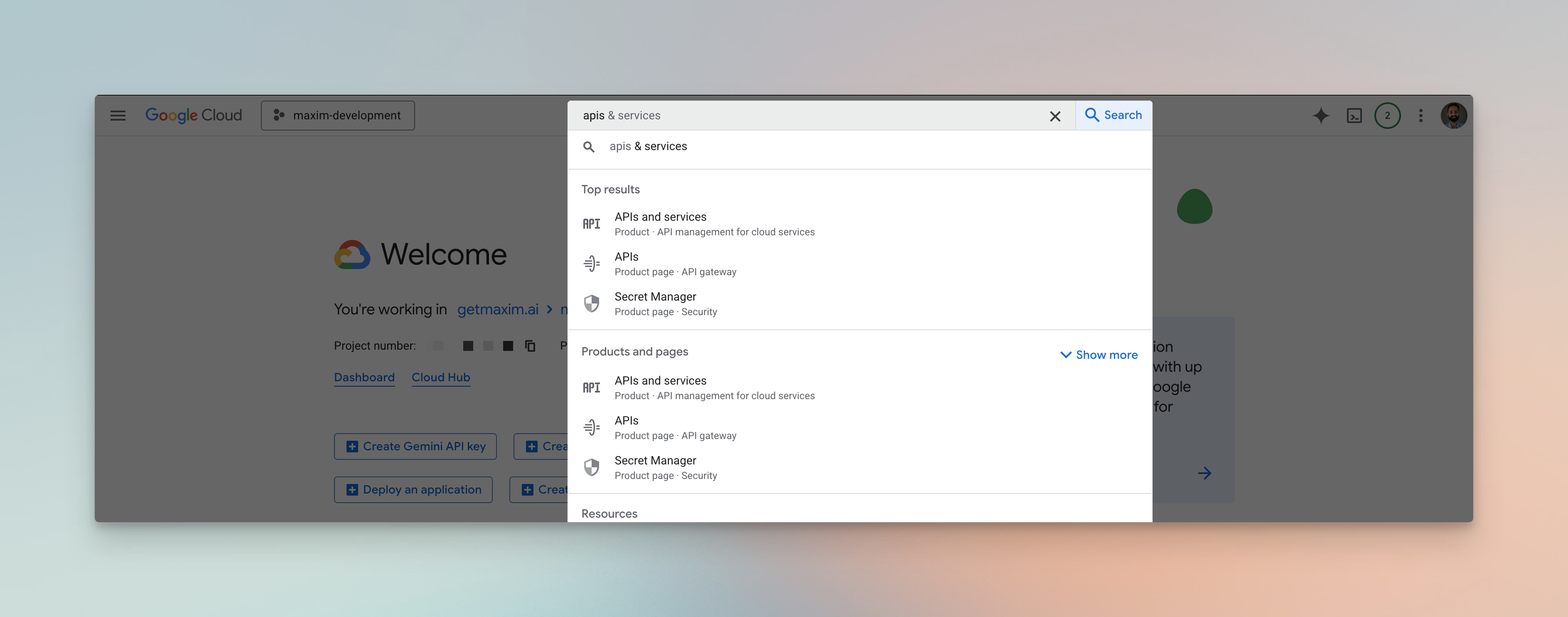
OAuth consent screen - choose Internal for Workspace-only access or External for all Google accounts.
Add the required scopes
openidprofileemail
Step 2: Create an OAuth client ID
Create a new credential
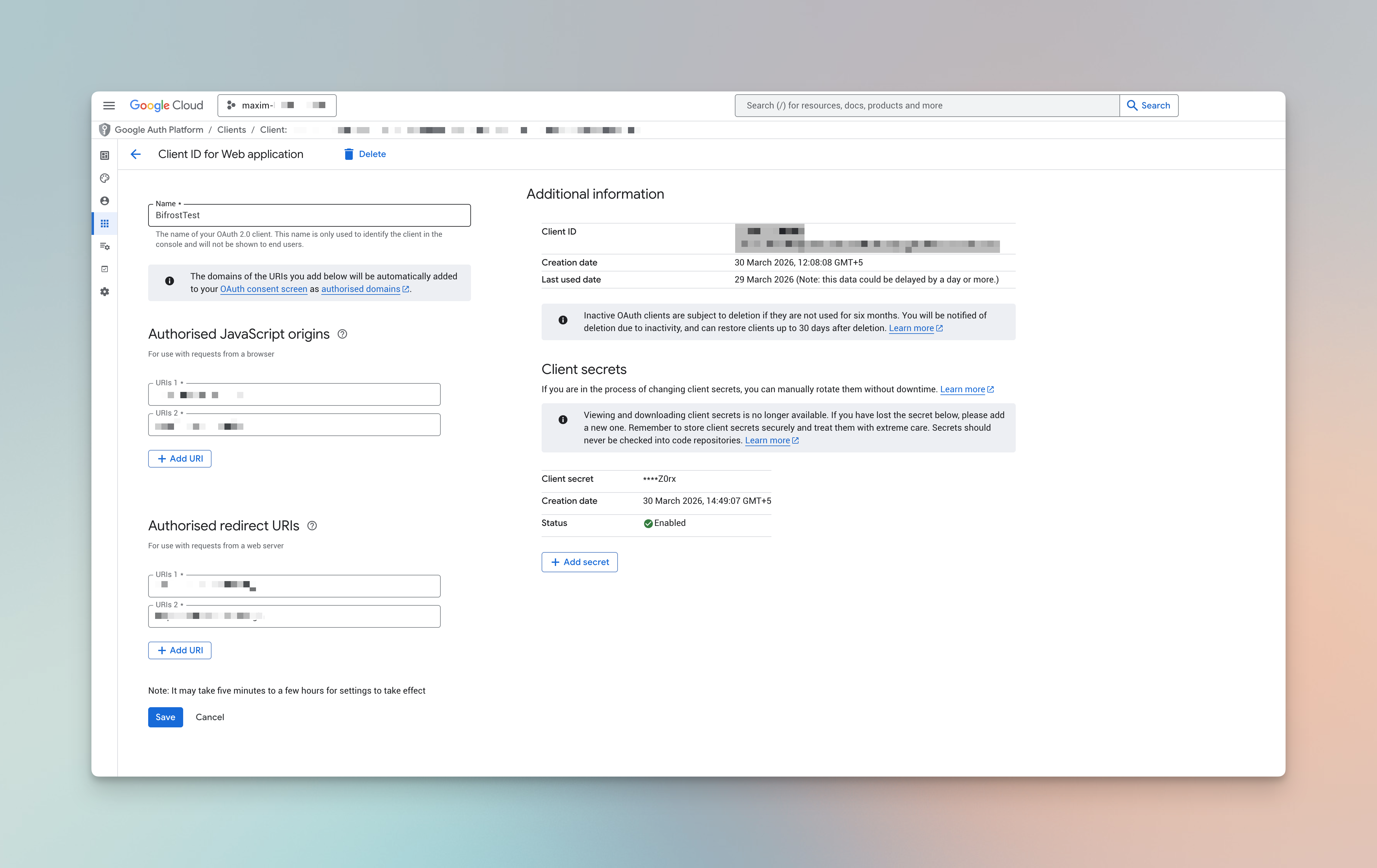
Create credentials - select OAuth client ID to generate a client for Bifrost.
Configure the OAuth client
Copy your credentials
Step 3: Create a service account for Directory API access (optional)
Create the service account
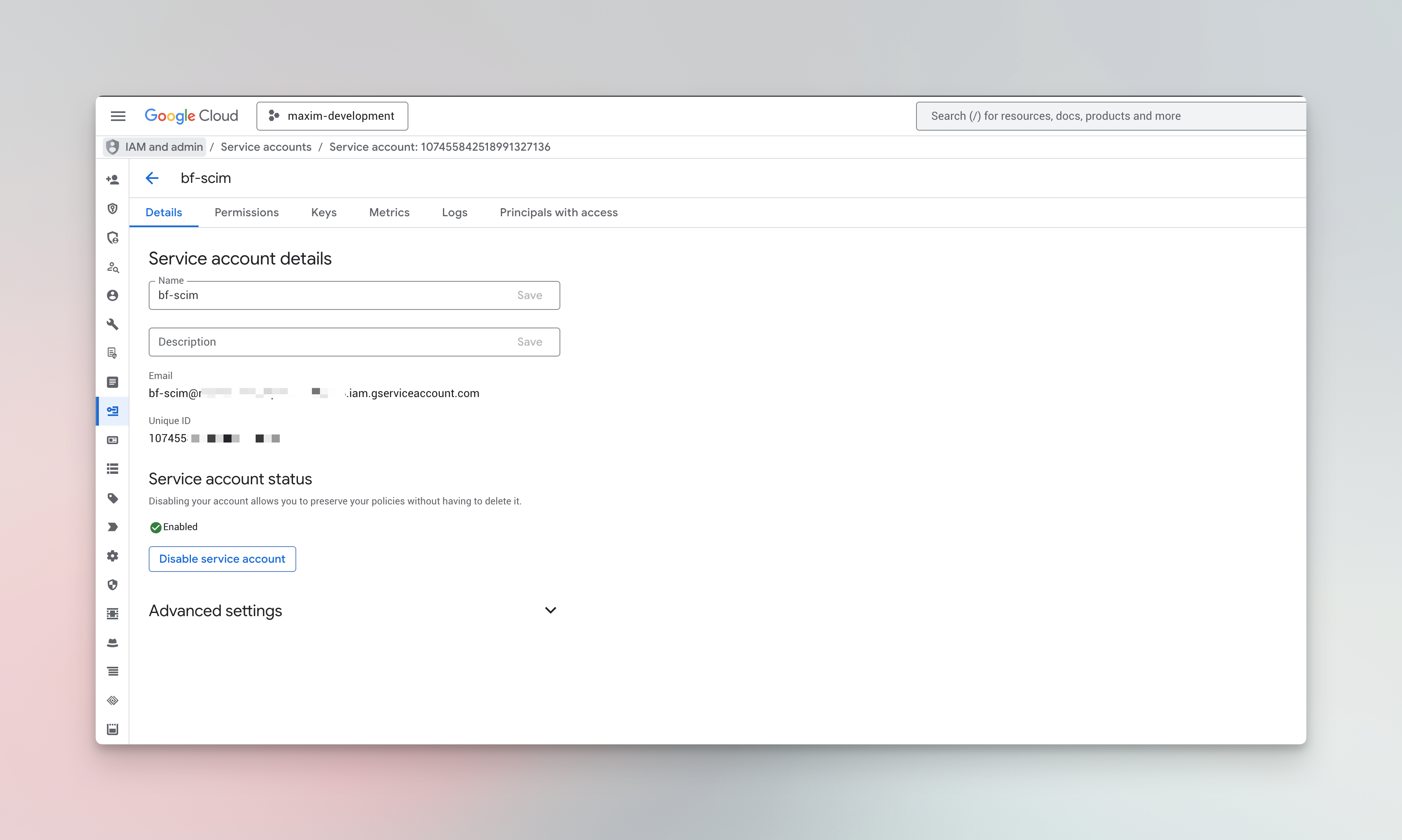
Create a service account - the account is used to call the Admin Directory API on behalf of Bifrost.
bifrost-provisioning). Skip the Grant this service account access to project step - no GCP IAM roles are required; access is granted via domain-wide delegation in Step 4.Generate a JSON key
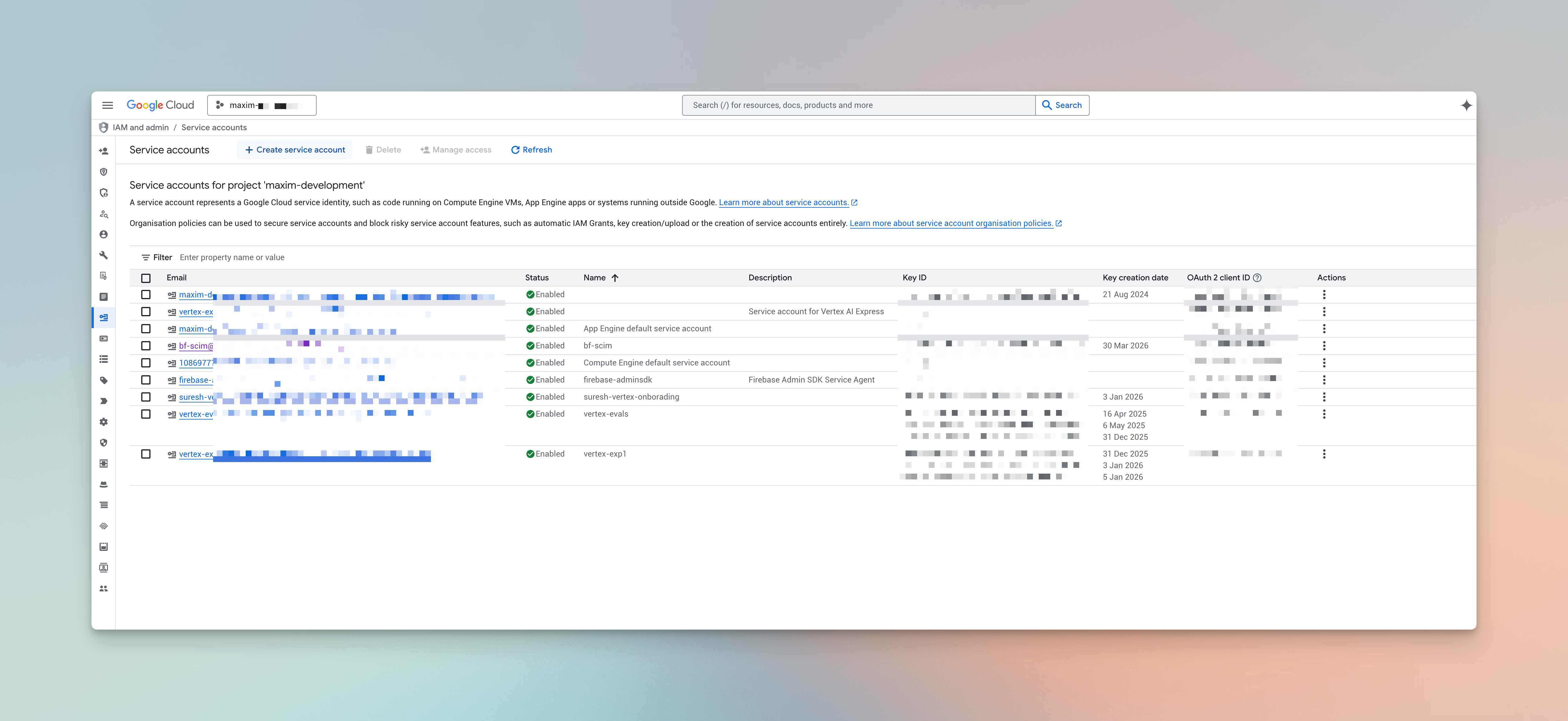
Create a new JSON key - download and store the file securely. This is the only time you can download it.
Copy the Unique ID
Step 4: Enable the Admin SDK and set up domain-wide delegation (optional)
Enable the Admin SDK API
Configure domain-wide delegation
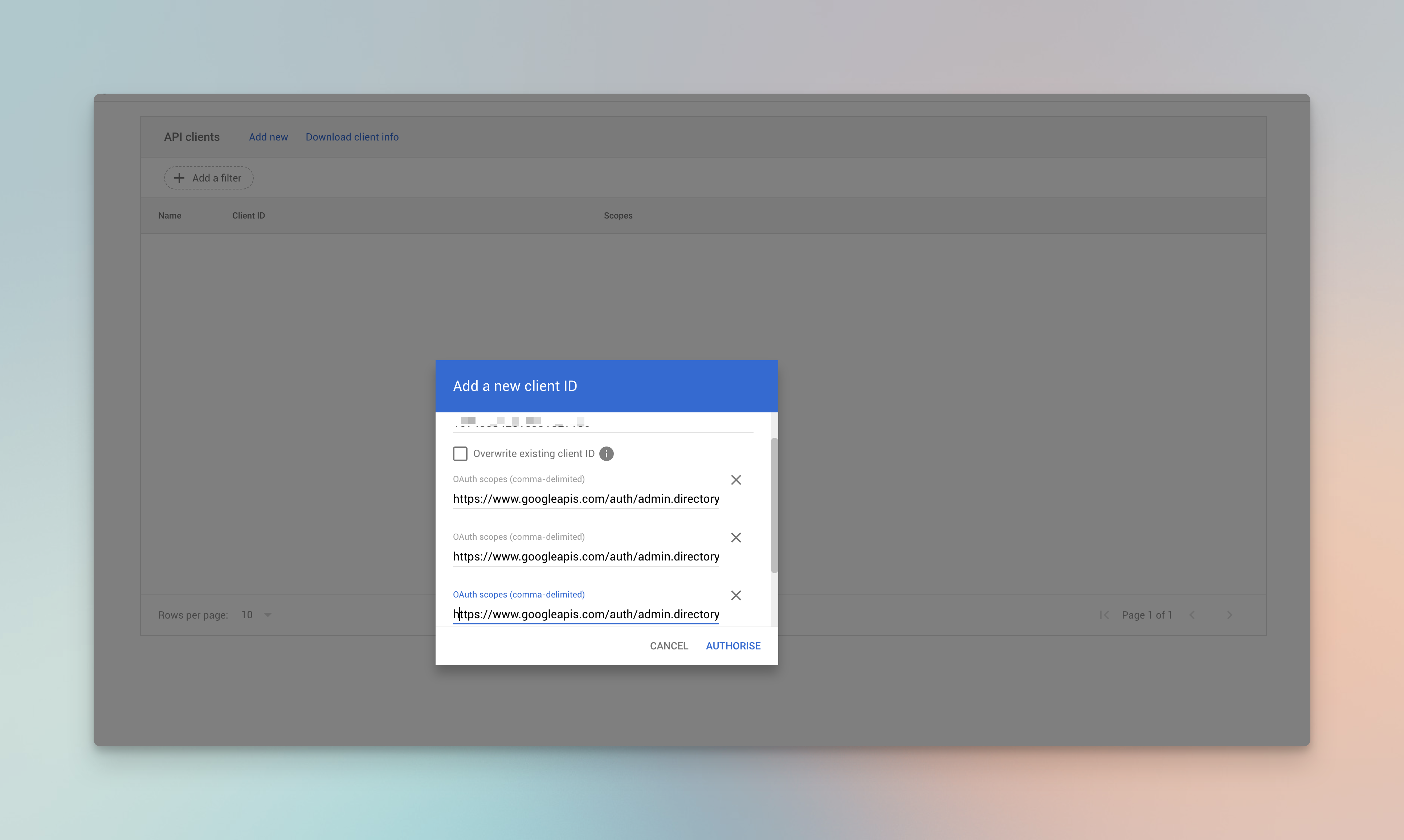
Domain-wide delegation - authorize the service account to call the Directory API on behalf of an admin user.
- Client ID: the service account Unique ID from Step 3
- OAuth scopes (copy all three, comma-separated):
sso-admin@company.com) - Bifrost uses this as the Admin Email in Step 5.Step 5: Configure Bifrost
Open User Provisioning and choose Google Workspace
Fill in the provider configuration

Provider Configuration - enter your Google OAuth credentials and optional service account details.
Discover claims
hd for hosted domain, email, groups) are present before building your mappings.Set up attribute mappings
- The role with the most permissions (default)
- The first matching role, by list order (drag rows to set priority)
- Use a specific value (e.g.
engineering) to map that exact claim value to a named Bifrost team - Use
*as the value to sync the claim value directly as the team name - Use
${*}to extract part of the string - e.g.Bifrost Playground: ${*} TeammatchesBifrost Playground: Alpha Teamand creates team Alpha
- Use a specific value (e.g.
platform) to map that exact claim value to a named Bifrost business unit - Use
${*}to extract a substring as the business unit name - e.g.Bifrost Playground: ${*} BUmatchesBifrost Playground: Alpha BUand creates business unit Alpha - When a rule matches, the resolved business unit is assigned to the user. All matching rules apply, so a user can belong to several business units at once
- A business unit you assign by hand is never removed by a sync, and one granted from a claim stays even if that claim later stops appearing - remove it by hand or change the mapping
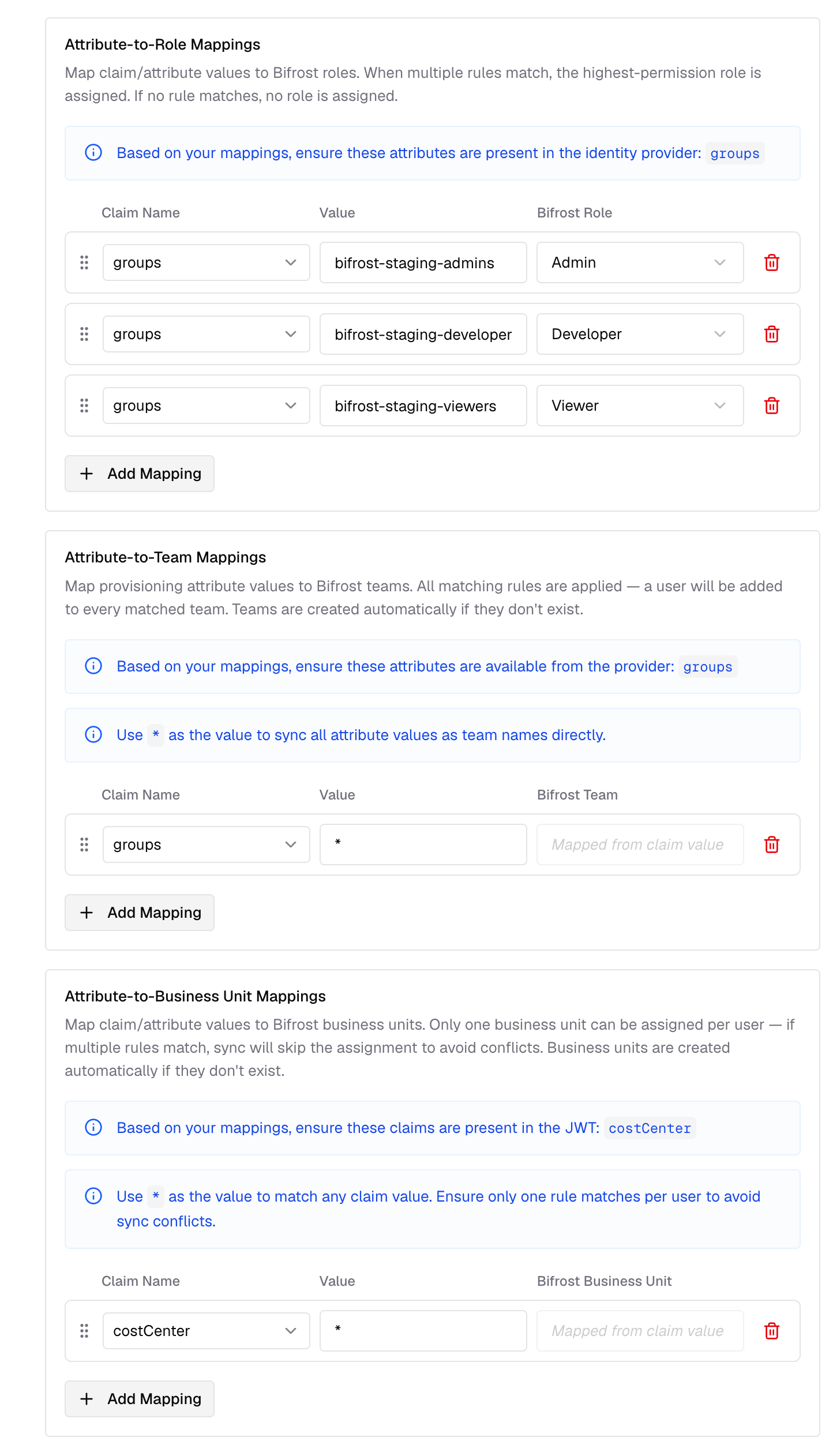
Attribute Mapping - configure role, team, and business unit rules based on the claims Google sends.
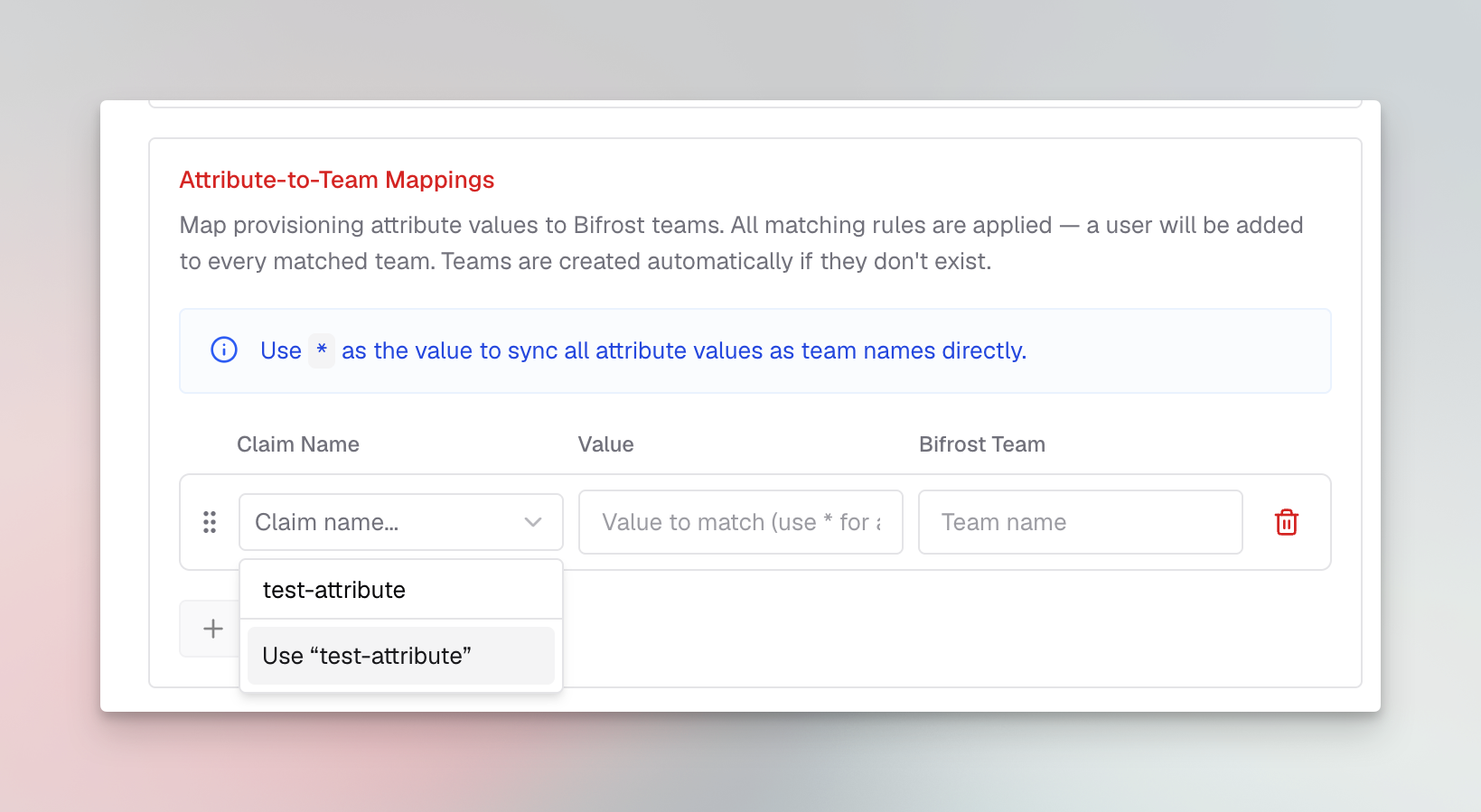
Custom attribute mapping - map any custom claim from Google to a Bifrost role, team, or business unit.
Review and enable
How background sync works
Bifrost uses the Directory API credentials from this setup to sync users in the background every 24 hours. During that sync, Bifrost reconciles imported users, role mappings, team mappings, and business-unit mappings from Google Workspace. Every 15 minutes, Bifrost also refreshes active OIDC sessions. If a session cannot be refreshed, Bifrost checks with Google whether the user is still active; if Google reports the user as inactive, Bifrost decommissions that user locally.Optional next steps
Real-time user sync - OIDC provisions users on first login and the Directory API runs a 24-hour background sync. For closer to real-time provisioning via SCIM, see SCIM with Google Workspace.Troubleshooting
admin_policy_enforced or access_denied during OAuth - the Workspace admin has blocked third-party OAuth apps. In the Admin Console, go to Security → Access and data control → API controls and allow the Bifrost OAuth client.
unauthorized_client: Client is unauthorized to retrieve access tokens - the service account Unique ID and scopes in Domain-Wide Delegation don’t match. Re-enter the numeric Unique ID from the service account Details tab (not the client email or OAuth client ID).
Not Authorized to access this resource/api from Directory API - the impersonated adminEmail is missing the User Management Admin role. Promote them in Admin Console → Admin roles. Also confirm the Admin SDK API is enabled in the Cloud project.
domain_mismatch - use the primary domain, not an alias.
Users see a consent prompt every login - on the OAuth consent screen, ensure the app is Published (or Internal for Workspace-only) so it doesn’t stay in testing mode.