

Overview
MCP Tool Filtering allows you to control which tools are available to AI models on a per-request basis using Virtual Keys (VKs). By configuring a VirtualKey, you can create a strict allow-list of MCP clients and tools, ensuring that only approved tools can be executed. Make sure you have at least one MCP client set up. Read more about it here.To bundle tools from one or more MCP servers into a single addressable endpoint served at
/mcp/<slug>, see Virtual MCPs. The per-key allow-list described here also applies to the tools a Virtual MCP exposes.How It Works
The filtering logic is determined by the Virtual Key’s configuration:-
No MCP Configuration on Virtual Key (Default)
- If a Virtual Key has no specific MCP configurations, no MCP tools are available (deny-by-default), except from clients marked Allow by Default in their MCP client settings.
- You must explicitly add MCP client configurations to allow other tools.
-
With MCP Configuration on Virtual Key
- When you configure MCP clients on a Virtual Key, its settings take full precedence.
- Bifrost automatically generates an
x-bf-mcp-include-toolsheader based on your VK configuration (unlessdisable_auto_tool_injectis enabled or the caller already sent the header). This acts as a strict allow-list for the request. - If the caller already includes an
x-bf-mcp-include-toolsheader, auto-injection is skipped and the header is narrowed to the VK allow-list instead: entries the key does not allow are dropped, so the header can only narrow, never widen. The allow-list is enforced again at MCP tool execution time.
- Select specific tools: Only the chosen tools from that client will be available.
- Use
*wildcard: All available tools from that client will be permitted. - Leave tool list empty: All tools from that client will be blocked.
- Do not configure a client: All tools from that client will be blocked, unless the client is marked Allow by Default, in which case all of its tools are permitted to every key that does not configure it.
Inactive or expired Virtual Keys are rejected at MCP tool execution time with a
403, regardless of their tool configuration.Disabled MCP clients
A Virtual Key’s allow-list does not enable an MCP client. If the client is disabled, Bifrost does not connect to it and offers none of its tools, even if the key lists them or uses*. The key’s settings stay as they are, and the tools come back when the client is enabled.
Each entry in mcp_configs shows the client’s disabled value on its mcp_client object, so you can see why a tool is missing:
disabled on PUT /api/mcp/client/{id}.
Setting MCP Tool Restrictions
- Web UI
- API
- config.json
You can configure which tools a Virtual Key has access to via the UI.
- Go to Virtual Keys page.
- Create/Edit virtual key
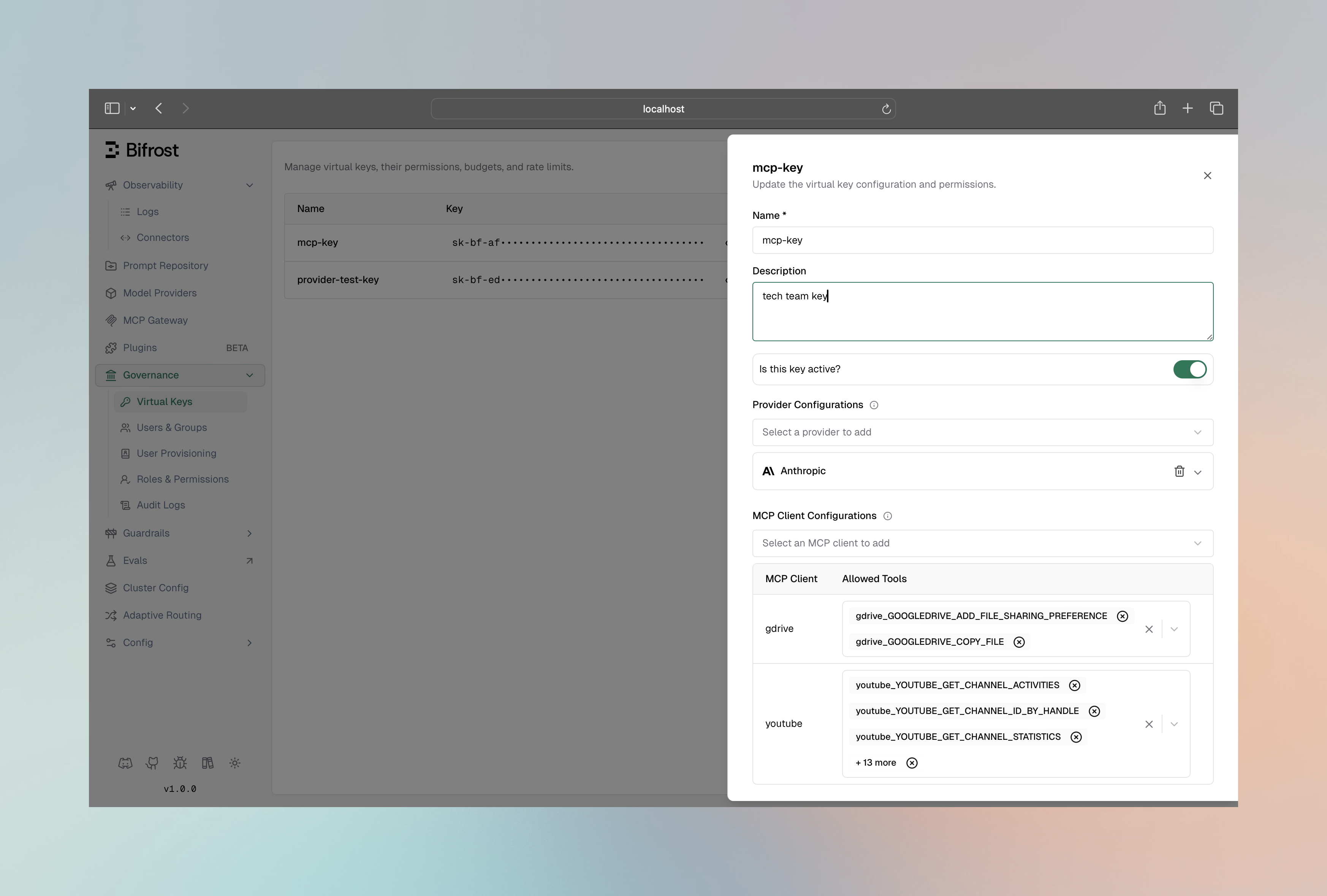
- In MCP Client Configurations section, add the MCP client you want to restrict the VK to
- Select the specific tools to allow, or choose Allow All Tools to permit all current and future tools from that client (stored as
*). Leaving the list empty blocks all tools for that client. - Click on the Save button
Example Scenario
Available MCP Clients & Tools:billing-client: with tools[create-invoice, check-status]support-client: with tools[create-ticket, get-faq]
- VK with Full Access
- VK with Partial Access
- VK with No Tools
Configuration:
billing-client-> Allowed Tools:[*](wildcard)support-client-> Allowed Tools:[*](wildcard)
create-invoice, check-status, create-ticket, and get-faq.When a Virtual Key has MCP configurations, Bifrost enforces the allow-list at both inference time and MCP tool execution time. Auto-injection of the
x-bf-mcp-include-tools header is skipped if the caller already provides it or if disable_auto_tool_inject is enabled - but the VK’s restrictions are always applied regardless. You can still use the x-bf-mcp-include-clients header to filter MCP clients per request.