

Overview
Runway ML provides video generation via an asynchronous task-based API. Bifrost maps the unified video schema to Runway’s task API and polls until completion.Supported Operations
1. Video Generation
Generate (POST /v1/videos)
Request Parameters
Extra Params
Generation Modes (auto-detected from inputs)
- Text-to-video:
promptonly - Image-to-video:
prompt+input_reference - Video-to-video:
prompt+video_uri- gen4_aleph only
BifrostVideoGenerationResponse with id, status, videos[]
Bifrost statuses (normalized): queued → in_progress → completed / failed
These values are the normalized view returned by Bifrost’s API. Runway’s native statuses are: PENDING, THROTTLED, RUNNING, SUCCEEDED, FAILED, CANCELLED.
Retrieve / Download / Delete
Setup & Configuration
Configure Runway as a provider.- Web UI
- config.json
- API
- Go SDK
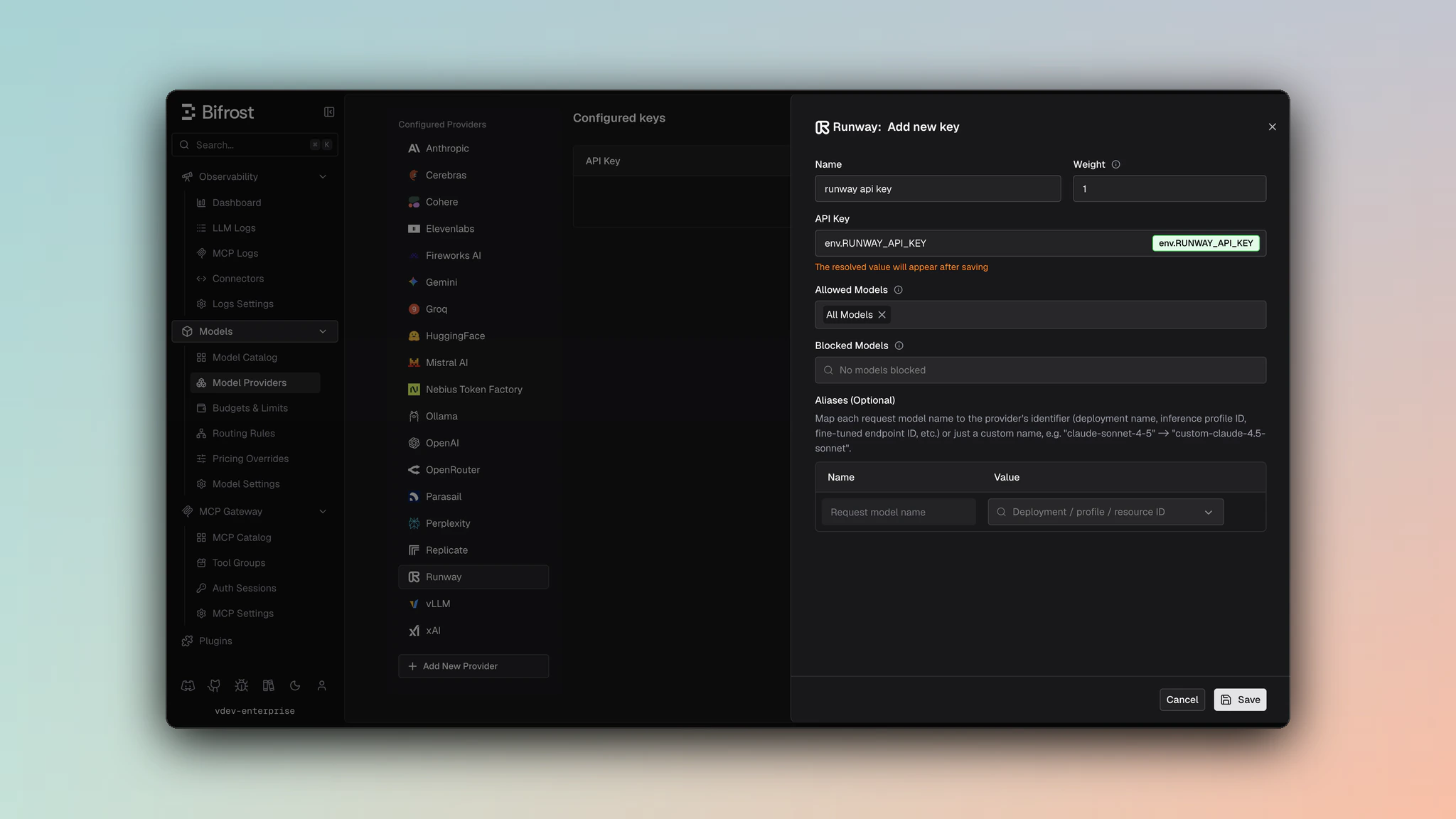
- Navigate to Models > Model Providers. Look for Runway ML under Configured Providers. If it is missing, click on Add New Provider and select Runway ML.
- Click Add Key or edit an existing key.
- Set a name for your key.
- Paste your API key directly or use an environment variable (for example,
env.RUNWAY_API_KEY). - Set Allowed Models to All Models (default) or the specific model allowlist you want this key to serve.
- Save the provider configuration.